Purpose
The purpose of this Report Description is to explain how to generate a report of employees who are eligible for benefits but have not enrolled.
Report Description
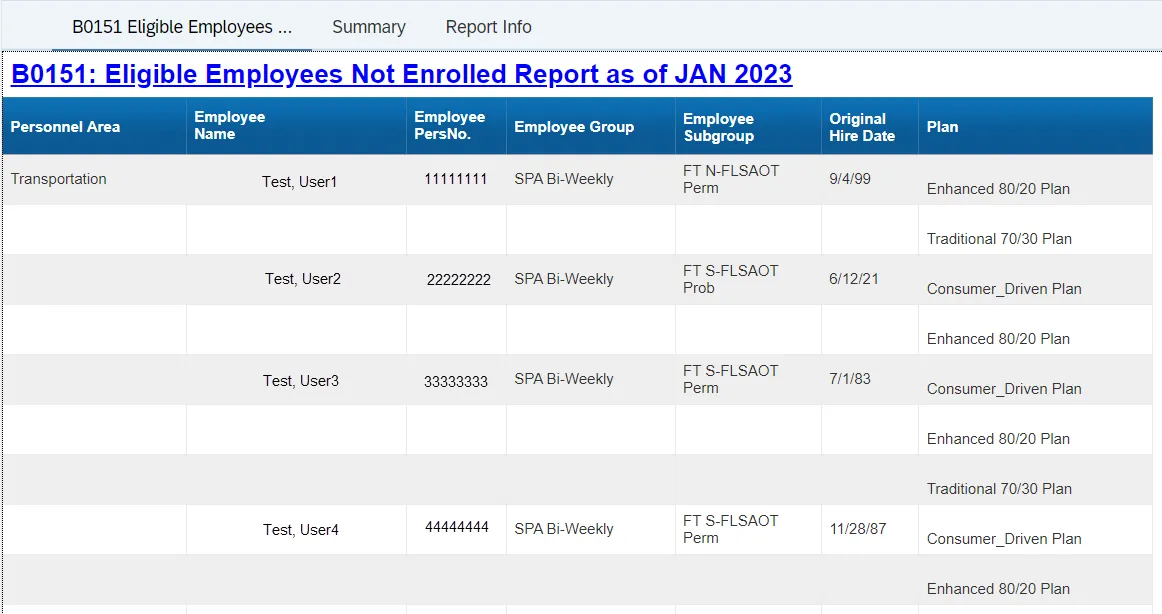
This report shows the employees who are eligible for specified benefit plans but not enrolled as of selected Calendar Month/Year by Personnel Area, Employee Group, Employee Subgroup, Original Hire Date and Plan. This Report is associated with two reporting Views.
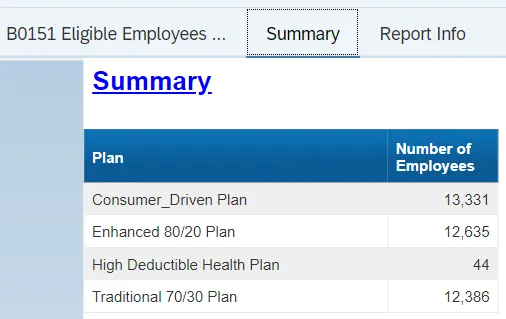
The Summary Reporting tab provides a summary of the Number of Employees by Plan.
Report Location
BN: Benefits
Report Uses
- Analyze employees who are offered a benefit plan.
- Agency could use the Report during open enrollment or anytime to determine Employees who are not enrolled in Current Plans.
How to Generate This Report
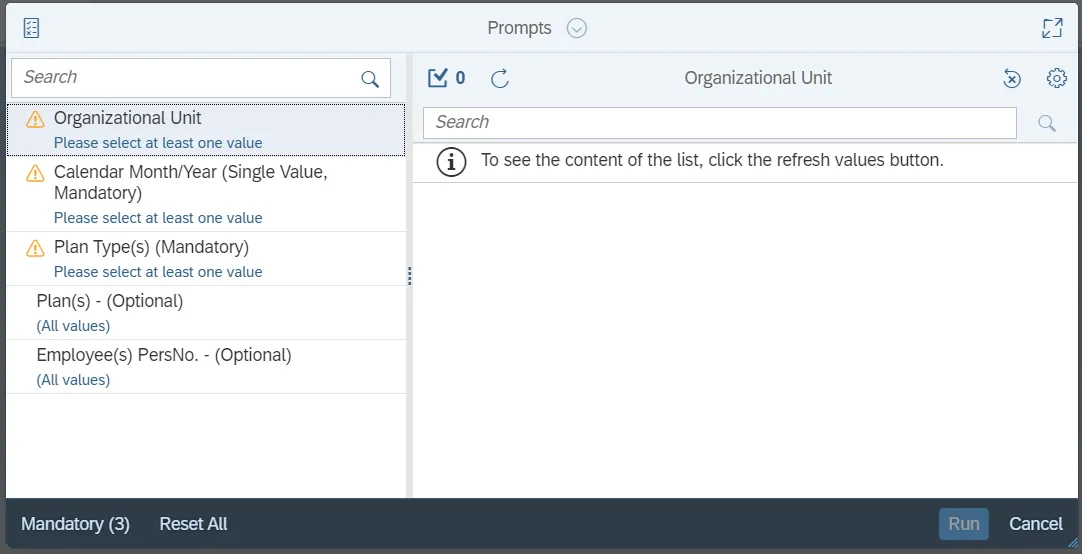
This report is generated after selecting values for the mandatory prompts. All mandatory prompts must have values selected before the Run Icon can be used to generate the report. Mandatory prompts can be identified as mandatory by the exclamation mark inside of the yellow-orange triangle, the square with the checkmark, or the display of (Mandatory). Detailed instructions for interaction with each prompt can be found on the Web Intelligence Prompt List on the OSC website.
The Mandatory prompts for this report are:
- Organizational Unit
- Calendar Month/Year (Single Value, Mandatory)
- Plan Type(s) (Mandatory)
Note: Although other historical months may appear when you click ‘Refresh Values,’ data for this report has been restricted to the previous three years and current year. Selecting a month outside this restriction will render no data.
This report can also be further limited by utilizing the Optional prompts to further limiting the amount of data that retrieved into the body of the report. Optional prompts are indicated as optional in parentheses beside the prompt.
The Optional prompts are:
- Plan(s) - (Optional)
- Employee(s) PersNo. - (Optional)
Note: Since the system has a large number of employees, using broad wildcard searches can be very slow and may result in an error if the search exceeds the system limit. If the employee number is not known and a name search must be done, narrow down the search by using the wildcard with specific text strings when looking for an employee by name such as:
Jane*Doe*
*Doe
If the employee number is known, it is best to use the manual entry field in Employee(s) PersNo. - (Optional) to enter the selection.
Initial Layout
This report has two report tabs as well as the Report Info tab.

- B0151 Eligible Employees Not Enrolled Report: This report tab displays the employees who are eligible for specified benefit plans but not enrolled:
- Summary: This report tab provides the summary of the Number of Employees who are eligible for but are not enrolled by Plan.
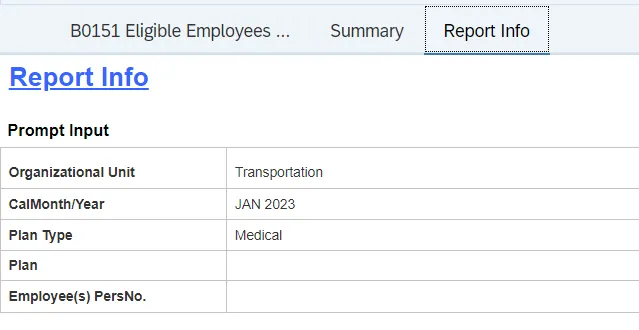
- Report Info: This report tab displays information about the prompts entered.
Available Objects
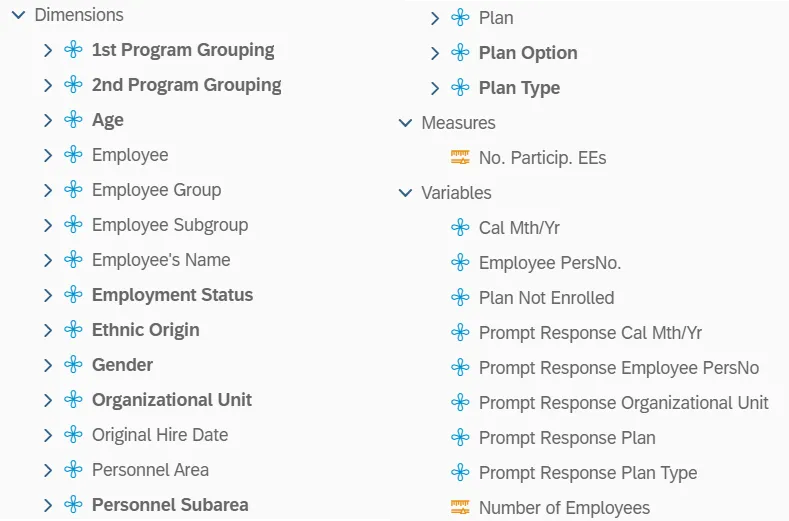
This is a list of the available objects that can be added to the report, from the Document Dictionary once in the Design mode:
Dimensions
- 1st Program Grouping
- 2nd Program Grouping
- Age
- Employee
- Employee Group
- Employee Subgroup
- Employee’s Name
- Employment Status
- Ethnic Origin
- Gender
- Organizational Unit
- Original Hire Date
- Personnel Area
- Personnel Subarea
- Plan
- Plan Option
- Plan Type
Measures
- No. Particip. EEs
Variables
- Cal Mth/Yr
- Employee PersNo.
- Plan Not Enrolled
- Prompt Response Cal Mth/Yr
- Prompt Response Employee PersNo
- Prompt Response Organizational Unit
- Prompt Response Plan
- Prompt Response Plan Type
- Number of Employees
Special Report Considerations/Features
- Although any single month can be selected at runtime, data is restricted to the previous three years through current year. Selecting any month outside this restriction will render no data.
- Only active employees are included in this report.
- No Benefits (NOB) in 1st Program Grouping is excluded from this report.
- Plan Category E (Miscellaneous Plan) is excluded from this report.
- Only Active Plans are included in this report. (Please check the list of Active Plans at the bottom of the document)
- A Default Filter is applied to the Report in both Reporting Tabs to display only employees who are eligible for specified benefit plans but not enrolled.
- Please do not change the default Report Filter as the change will affect the Report Results.
To check the default filter on the first report tab:
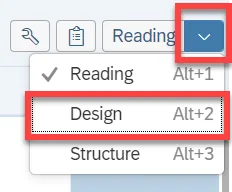
1. Choose the Design Mode.
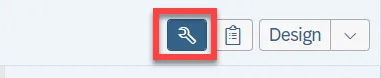
2. Click on the tool to show the data/format panel.
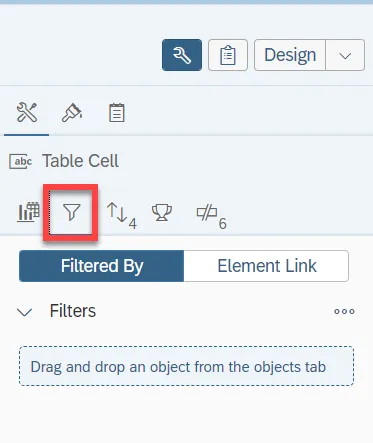
3. Select the Funnel icon.
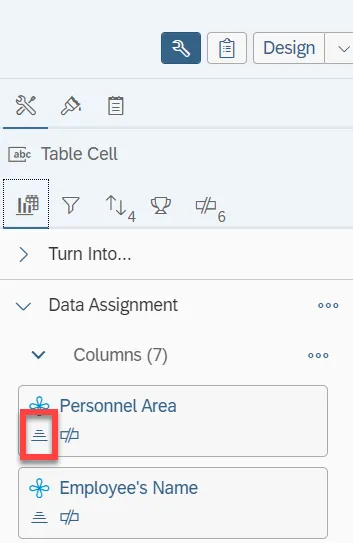
To change the sort:
- Click the "Display feeding panel" icon.
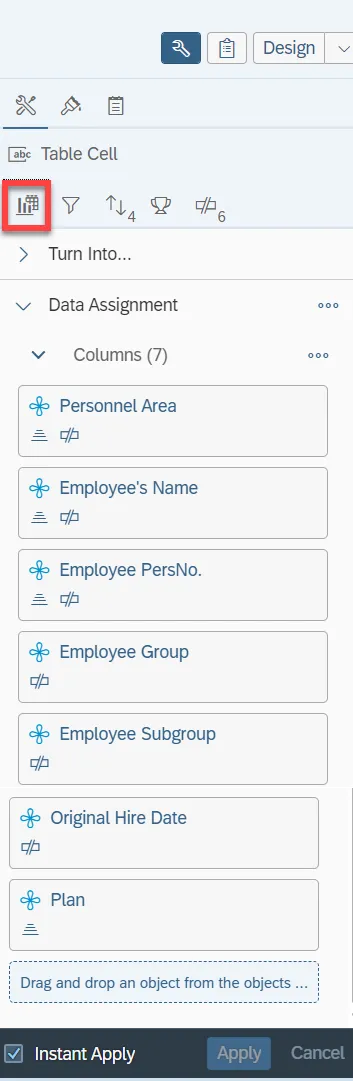
2. Select ascending or descending sort order as needed.
To check the default filter on the Summary report tab:
-
Choose the Design Mode.
Image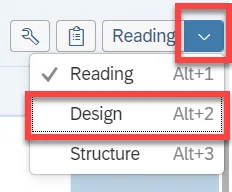
- Click on the tool to show the data/format panel.
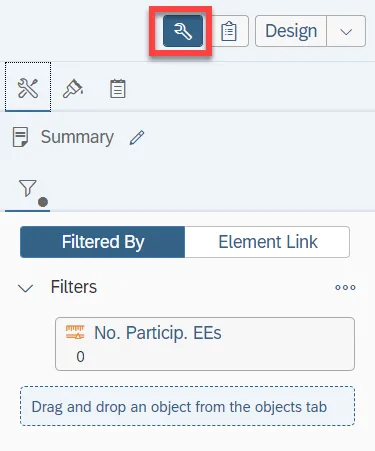
To change the sorting for the desired column:
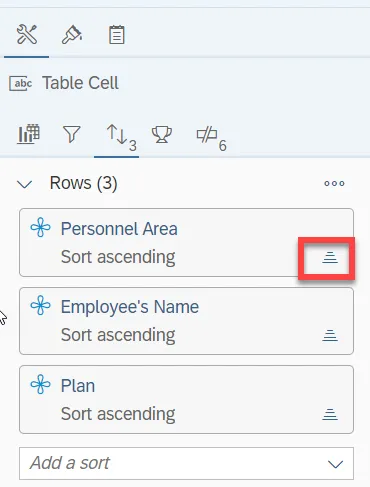
By default, data is sorted in Ascending Order by Personnel Area, Employee Name, Employee PersNo., and Plan. (This can be changed as needed).
1. Right click on “any column” that has break applied.
2. Click “Data”
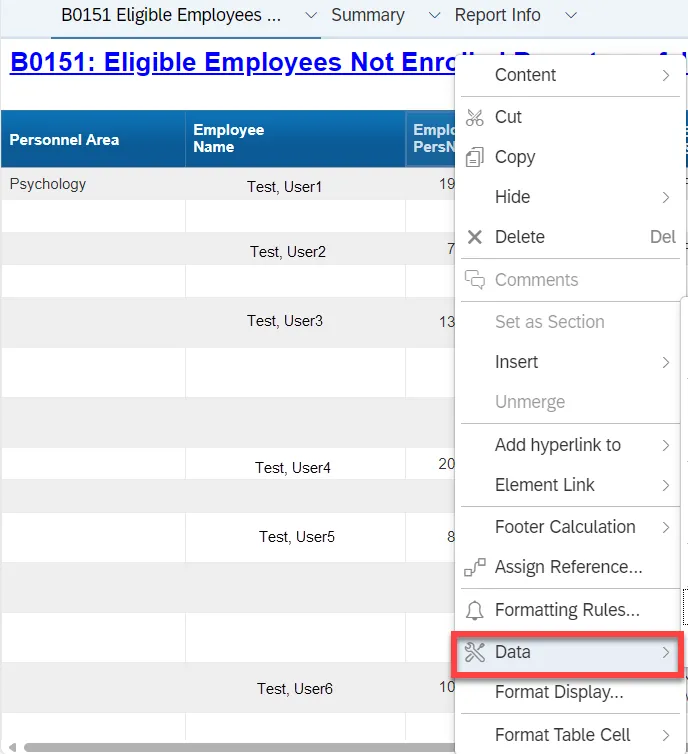
3. Click "Edit Sort.
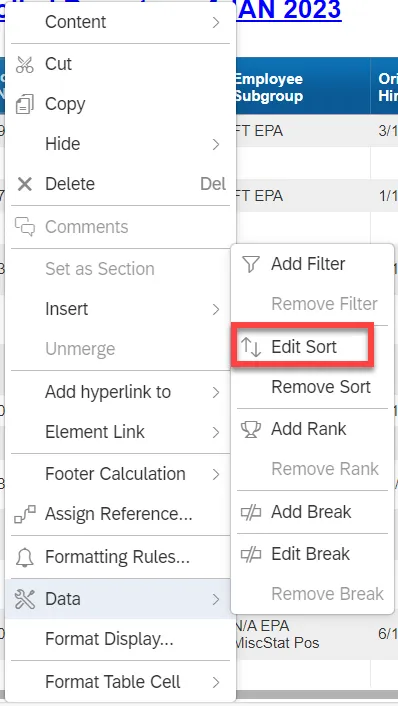
4. Select ascending or descending sort order as needed.
To change the breaks in the Report while exporting the data to Excel:
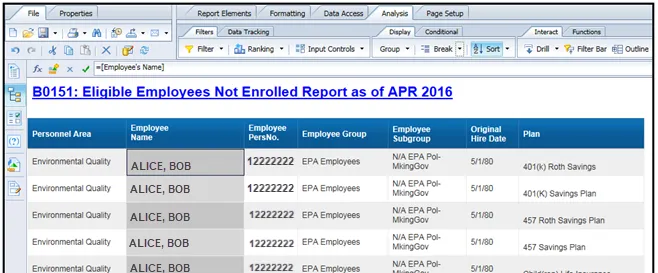
By default, breaks are applied in the report on Personnel Area, Employee Name, Employee PersNo., Employee Group, Employee Subgroup, and Original Hire Date to avoid repeated values in the Column.
If the repeated values for columns are needed in Excel, remove breaks in the report before exporting the data to Excel.
- Right Click on the “desired column”.
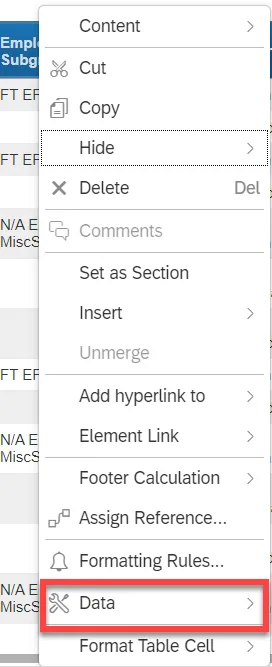
2. Click the Break "Data".
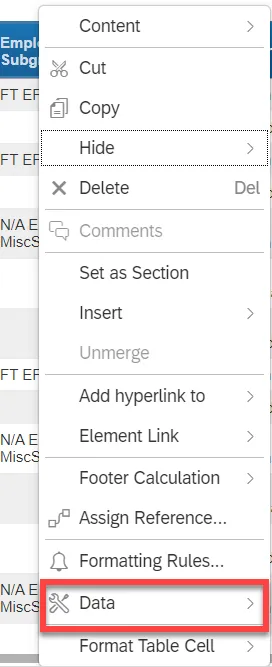
3. Click "Edit Break".
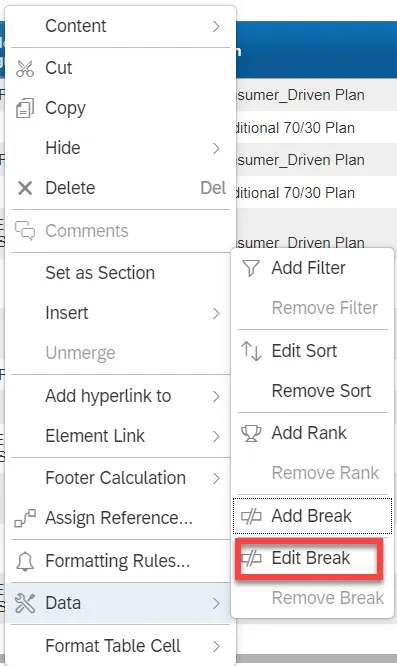
4. The repeated values are now reported in all columns and can be exported to Excel in the same format.
List of Active Plans Included in the Report
| Benefit Area | Plan | Description |
|---|---|---|
| NC | 401K | 401(K) Savings Plan |
| NC | 401R | 401(K) Roth Savings |
| NC | 457 | 457 Savings Plan |
| NC | 457R | 457 Roth Savings Plan |
| NC | ADD | NC Flex AD&D Insurance |
| NC | ADDC | NC Flex Core AD&D Insurance |
| NC | BASE | Traditional 70/30 Plan |
| NC | CANC | NC Flex Cancer Insurance |
| NC | CIEL | Critical Illness Member |
| NC | CIKL | Critical Illness – Child Plan |
| NC | CISL | Critical Illness – Spouse Plan |
| NC | CJRS | CJRS – Judicial Retirement |
| NC | CODR | Consumer Driven Plan |
| NC | DENT | NC Flex Dental Plan |
| NC | ENHC | Enhanced 80/20 Plan |
| NC | FIDL | NCSSM – Fidelity 403(b) |
| NC | FIDR | NCSSM – Fidelity 403(b) Roth |
| NC | HDHP | High Deductible Health Plan |
| NC | LEOR | LEORS – Law Officer Retirement |
| NC | LEOS | Supplemental LEORS 401(k) |
| NC | LIFE | NC Flex Life Insurance |
| NC | LIFK | Child(ren) Life Insurance |
| NC | LIFS | Spouse Life Insurance |
| NC | TIAA | NCSSM – TIAA -CREF 403(b) |
| NC | TIAR | NCSSM – TIAA-CREF 403(b) Roth |
| NC | TRIC | Tricare Health Plan |
| NC | TSER | TSERS-Retirement Plan |
| NC | VIS | NC Flex Vision Plan |