Purpose
The purpose of this Report Description is to list supervisor positions, and the positions and employees who report to them, for the organizational unit and calendar month/year selected.
Report Description
This report lists supervisor positions, and the positions and employees who report to them, for the organizational unit and calendar month/year selected. The employee information, including organizational unit, name, position, job, and salary is also included if the position is filled.
Report Location
OM: Position Data
Report Uses
- This report can be used to verify supervisor and employee relationships for positions assigned to the supervising position.
- This report can be used to determine if the span of control for an organizational unit is consistent with the standard set for that unit.
How to Generate This Report
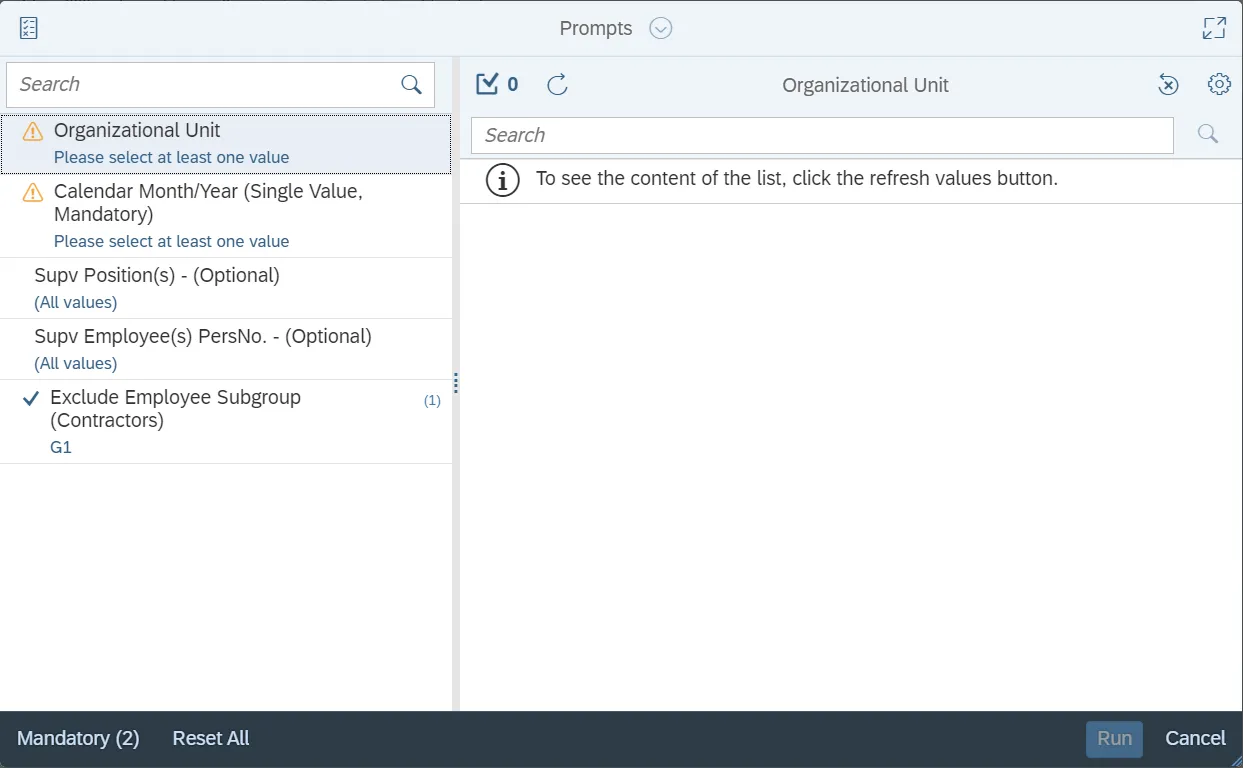
This report is generated after selecting values for the mandatory prompts. All mandatory prompts must have values selected before the Run Icon can be used to generate the report. Mandatory prompts can be identified as mandatory by the exclamation mark inside of the yellow-orange triangle, the square with the checkmark, or the display of (Mandatory). Detailed instructions for interaction with each prompt can be found on the Web Intelligence Prompt List on the OSC website.
The Mandatory prompts for this report are:
- Organizational Unit
- Calendar Month/Year (Single Value, Mandatory)
This report can also be further limited by utilizing the Optional prompts to further limiting the amount of data that retrieved into the body of the report. Optional prompts are indicated as option in parentheses beside the prompt.
The Optional prompts are:
- Supv Position(s) - (Optional)
- Supv Employee(s) PersNo. - (Optional)
Exclusion prompts exclude specified data by default while allowing customers the flexibility of changing them when necessary. Exclusion prompts are identified by the term Exclude followed by the prompt.
The Exclusion prompts are:
- Exclude Employee Subgroup (Contractors)
Initial Layout
The report is generated with a list of positions within the org unit selected. The supervisor’s information displays on the left side of the report, with the positions that report to it listed to the right. This is a sample row from the report, which shows the columns available on the base report:

Report continued:

Available Objects
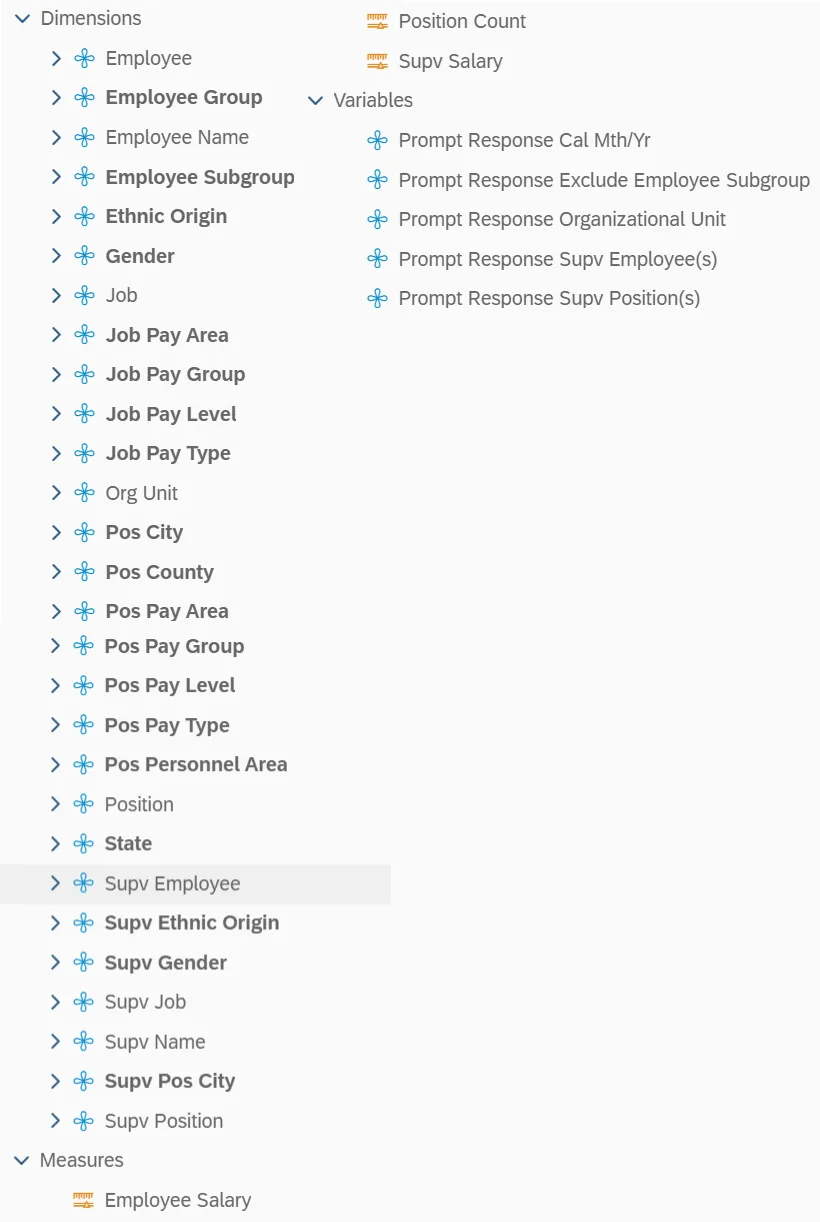
This is a list of the available objects that can be added to the report, from the Document Dictionary once in the Design mode:
Dimensions
- Employee
- Employee Group
- Employee Name
- Employee Subgroup
- Ethnic Origin
- Gender
- Job
- Job Pay Area
- Job Pay Group
- Job Pay Level
- Job Pay Type
- Org Unit
- Pos City
- Pos County
- Pos Pay Area
- Pos Pay Group
- Pos Pay Level
- Pos Pay Type
- Pos Personnel Area
- Position
- State
- Supv Employee
- Supv Ethnic Origin
- Supv Gender
- Supv Job
- Supv Name
- Supv Pos City
- Supv Position
Measures
- Employee Salary
- Position Count
- Supv Salary
Variables
- Prompt Response Cal Mth/Yr
- Prompt Response Exclude Employee Subgroup
- Prompt Response Organizational Unit
- Prompt Response Supv Employee(s)
- Prompt Response Supv Position(s)
Special Report Considerations/Features
- Vacant positions are identified by an unassigned employee or supervising employee (#) for the position.
- Positions assigned to the Contractor employee subgroup are excluded from this report by default. This can be cleared in the prompt screen and show the contractors in the report.
- Field/Home Based indicator is available from Position attributes (expanded list) in Available Objects.
- Report shows Span of Control of a supervisor or a higher position when the ‘Span of Control of a Position (Key)’ is dragged from Available Objects to the report from ‘Supv Position’
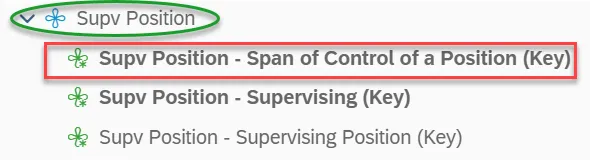
- ‘Span of Control of a Position (Key)’ dragged from ‘Position’ master data attributes shows the subordinate position’s Span of Control.
- Span of Control count includes Contractors at the time of display of Span of Control from the Supervisor position or Subordinate Position even if Contractors are excluded in the report prompt screen.
- Positions 60013824 (TS), 60088920 (TS Ghost Supv) and 65002381 (National Guard) have been or still are used by Temporary Solutions when another supervisor is not identified. These positions are not included in the Span of Control calculation as they do not represent supervisors how they are intended by the B002 relationship on IT1001. Should these positions start being used as supervisors in the traditional sense, they will not be included in the Span of Control calculation unless a program change is made.
- ‘Supervising (Key)’ flag specifies whether a position is a supervising position (Y) or not (N).
- The B0096 report was designed so row values are not duplicated on breaks when the report is first displayed. There are breaks on several objects on this report, so the repeating supervisor and organizational unit information will not be duplicated on each row. The following instructions will show how to repeat the values on each row of the report. Once the report is set up to repeat the values, you can then export the report to Excel, and the values will be repeated on the spreadsheet as well. There are 10 steps to complete this process.
Step 1: Run the B0096 report for the desired organization unit(s) and date, and any other values needed for the optional prompts.
Step 2: Once in the report, select Design from the display drop down menu.
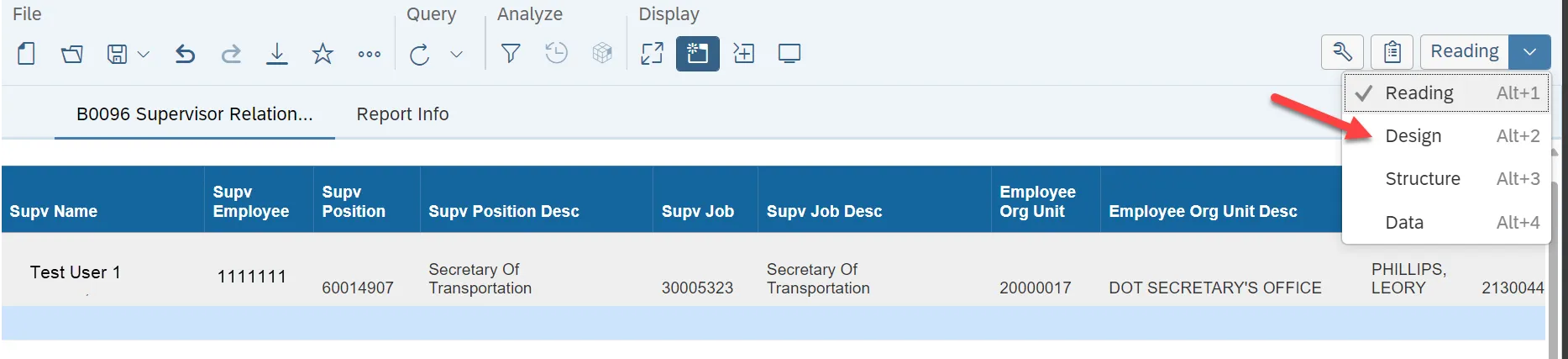
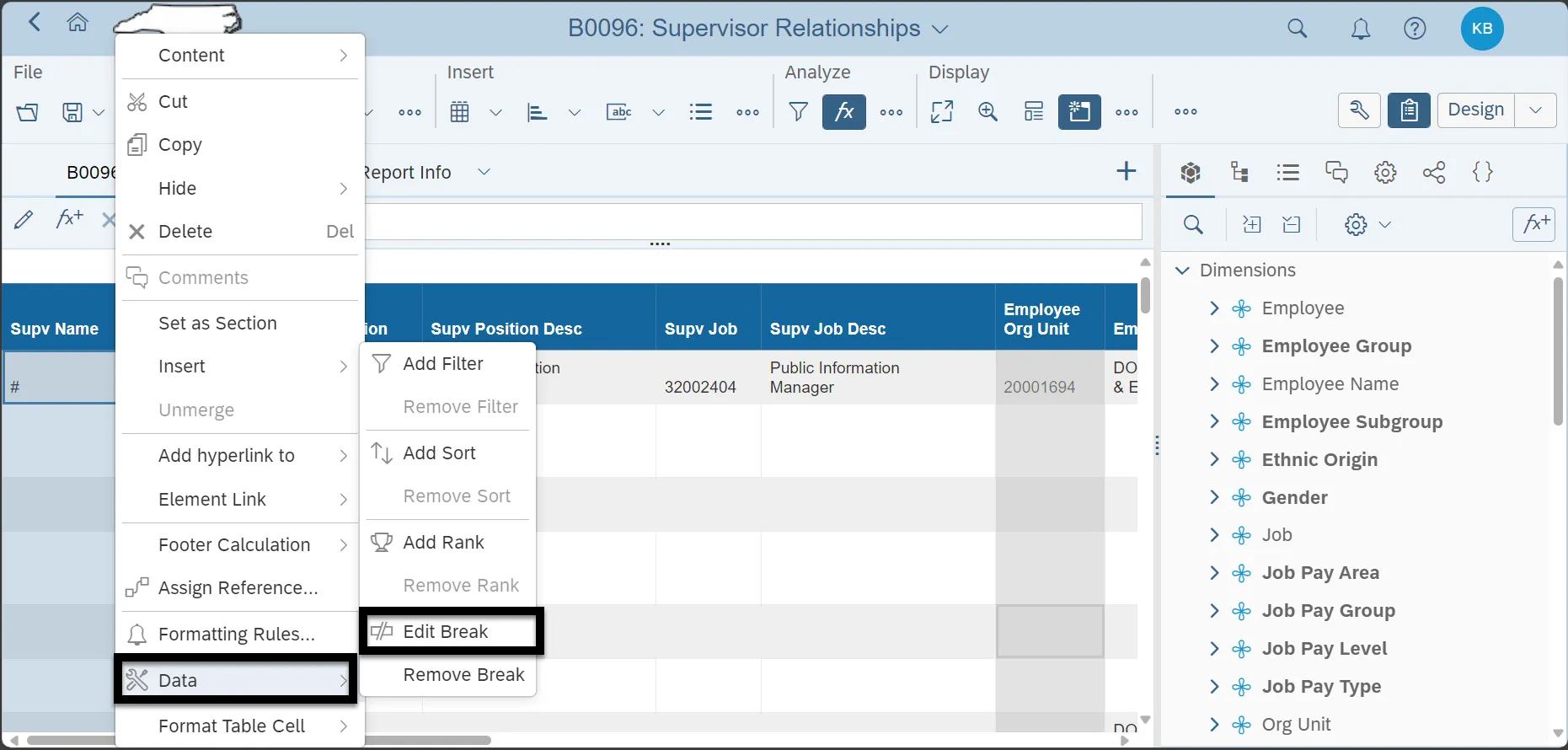
Step 3: Right click on the desired row.
Step 4: Select Data.
Step 5: Select Edit Break.
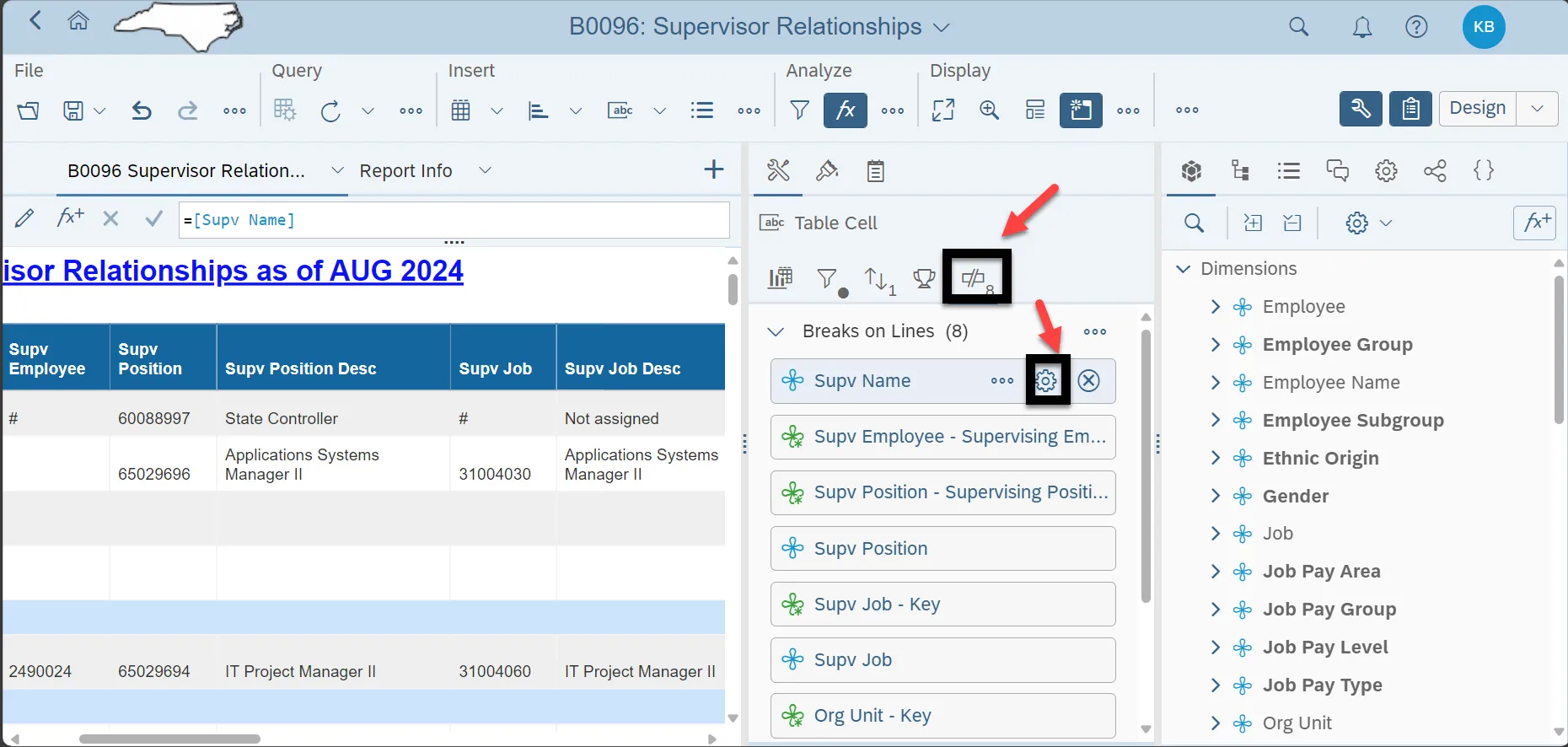
Step 6: Click on “Display the break panel” icon.
Step 7: Click on the Settings icon next to Supv Name in the Breaks on Lines panel.
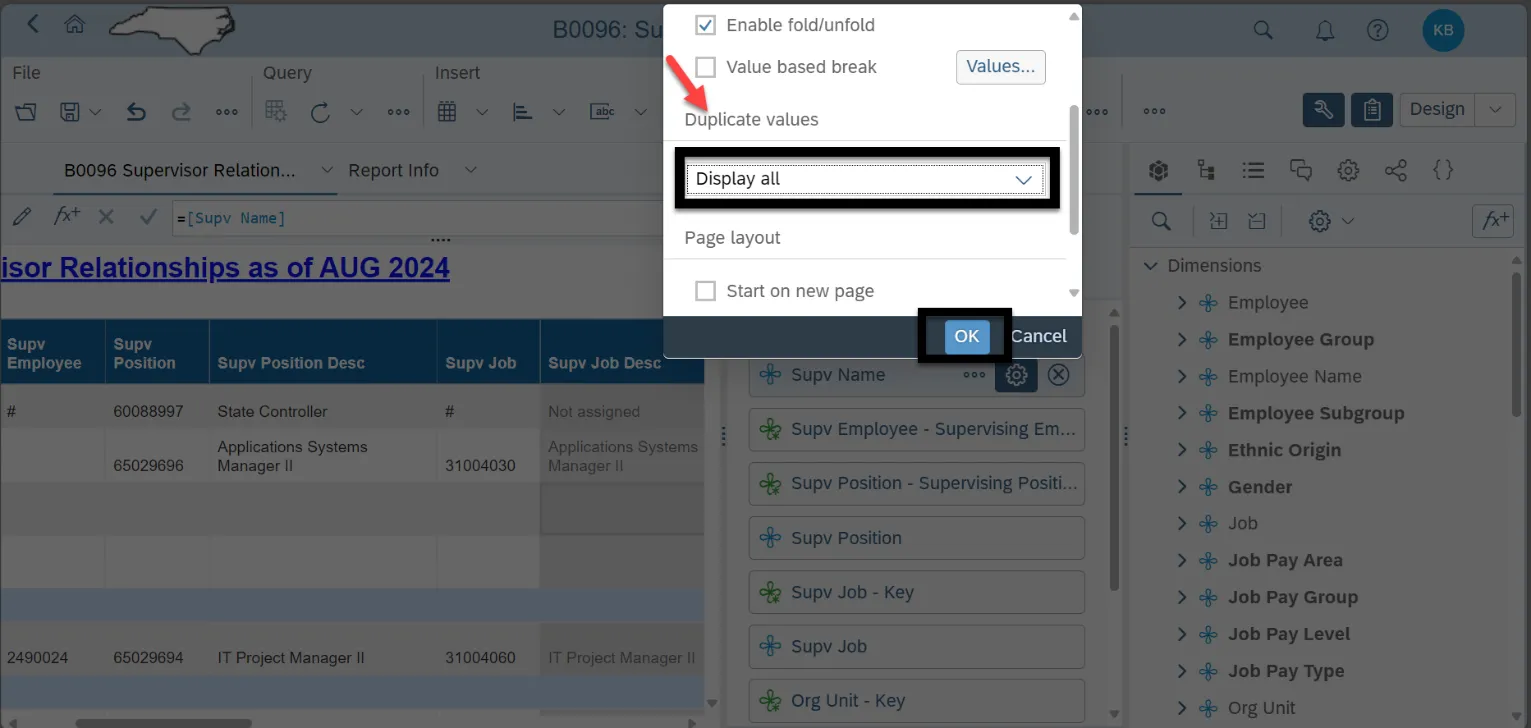
Step 8: Scroll down to Duplicate values and change drop down option from “Repeat first on new page” to “Display All” and click OK.
Step 9: Repeat steps (7) and (8) for each of the objects listed under Breaks on Lines panel, so all values will repeat.
Step 10: All values will be displayed in the report. When the report is exported to Excel, the duplicate values are displayed.
If the report will need to be exported to Excel on a regular basis, you may save the report to your “My favorites” folder with these changes in place. Once it is saved with these changes, the reformatted report will be available to you when you need it, and you won’t have to go through these reformatting steps again.