Purpose
The purpose of this report description is to explain how to generate the Employee Action Summary Report.
Report Description
This report shows employee action count summary by Personnel Area, Organizational Unit, Action Type for a specified Effective Date range or Processed Date range and includes BEACON actions and converted PMIS actions.
Report Location
PA: Employee Actions
Report Uses
- Provide action count to management
- Monitor action activity by Org Unit for trending and analysis
How to Generate This Report
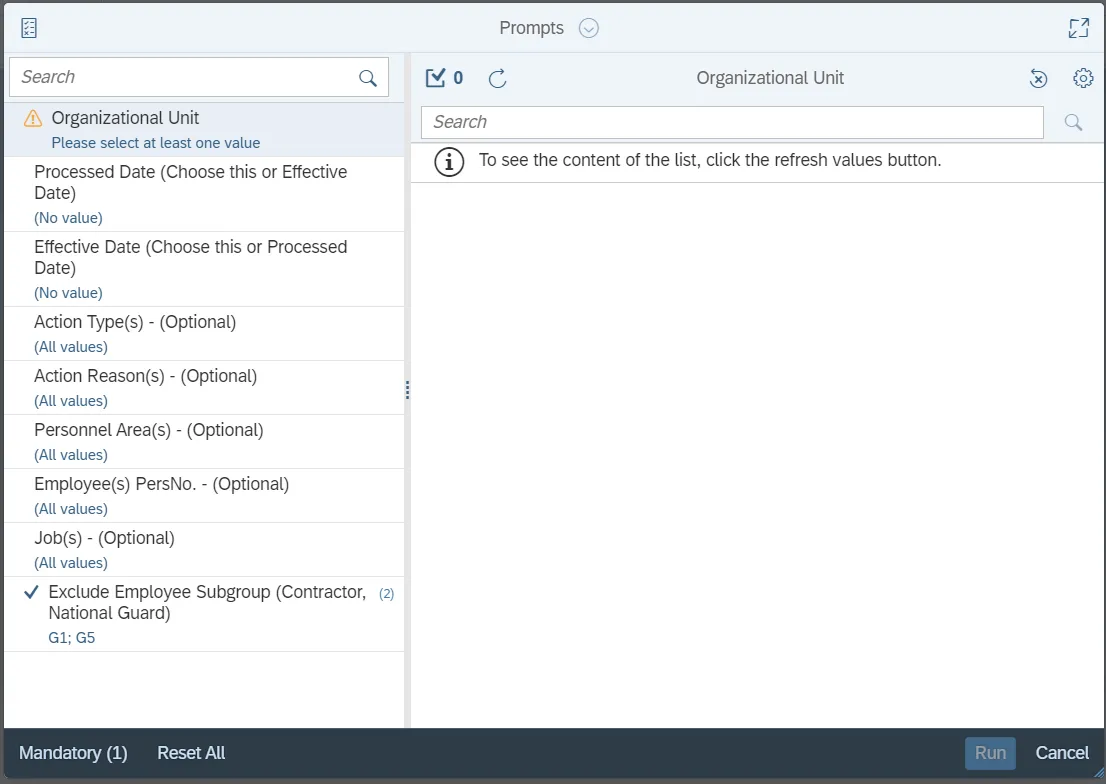
This report is generated after selecting values for the mandatory prompts. All mandatory prompts must have values selected before the Run Icon can be used to generate the report. Mandatory prompts can be identified as mandatory by the exclamation mark inside of the yellow-orange triangle, the square with the checkmark, or the display of (Mandatory). Detailed instructions for interaction with each prompt can be found on the Web Intelligence Prompt List on the OSC website.
The Mandatory prompts for this report are:
- Organizational Unit
- Processed Date (Choose this or Effective Date)
- Effective Date (Choose this or Processed Date)
This report can also be further limited by utilizing the Optional prompts to further limiting the amount of data that retrieved into the body of the report. Optional prompts are indicated as optional in parentheses beside the prompt.
The Optional prompts are:
- Action Type(s)
- Action Reason(s)
- Personnel Area(s)
- Employee(s) PersNo.
- Job(s)
Exclusion prompts exclude specified data by default while allowing customers the flexibility of changing them when necessary. Exclusion prompts are identified by the term Exclude followed by the prompt.
The Exclusion prompts are:
- Employee Subgroup (Contractor, National Guard)
Initial Layout
The report lists all actions based on the prompt selections. Below is a sample of the initial layout rendered.
Available Objects
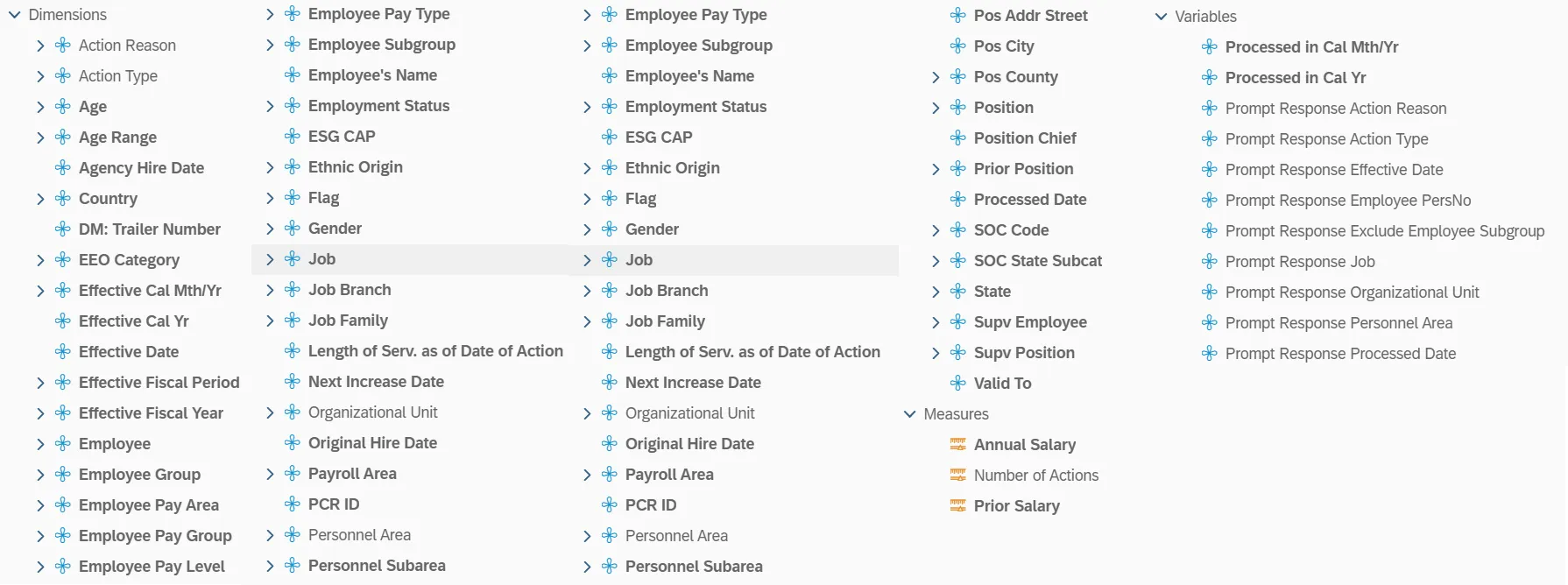
This is a list of the available objects that can be added to the report, from the Document Dictionary once in the Design mode:
Dimensions
- Action Reason
- Action Type
- Age
- Age Range
- Agency Hire Date
- Country
- DM: Trailer Number
- EEO Category
- Effective Cal Mth/Yr
- Effective Cal Yr
- Effective Date
- Effective Fiscal Period
- Effective Fiscal Year
- Employee
- Employee Group
- Employee Pay Area
- Employee Pay Group
- Employee Pay Level
- Employee Pay Type
- Employee Subgroup
- Employee’s Name
- Employment Status
- ESG CAP
- Ethnic Origin
- Gender
- Job
- Job Branch
- Job Family
- Length of Serv. As of Date of Action
- Next Increase Data
- Organizational Unit
- Original Hire Date
- PCR ID
- Personnel Area
- Personnel Subarea
- Pos Addr Street
- Pos City
- Pos County
- Position
- Position Chief
- Prior Position
- SOC Code
- SOC State Category
- SOC State Subcat
- State
- Supv Employee
- Supv Position
- Valid To
Measures
- Annual Salary
- Number of Actions
- Prior Salary
Variables
- Processed Cal Nth/Yr
- Processed in Cal Yr
- Prompt Response Action Reason
- Prompt Response Action Type
- Prompt Response Effective Date
- Prompt Response Employee PersNo
- Prompt Response Exclude Employee Subgroup
- Prompt Response Job
- Prompt Response Organizational Unit
- Prompt Response Personnel Area
- Prompt Response Processed Date
Special Report Considerations/Features
- Action records in PMIS have been converted to the SAP BEACON action code equivalent for employee actions. Where no equivalent was available for an employee action, a Z# or X# employee action type was generated using the original PMIS action description.
- If one or more completed PCRs exist for an action, the “Processed Date” available object is populated with the date from the most recent processed PCR action. If no completed PCR exists for the action, the Processed Date is populated with the “Changed on” date from the action infotype.
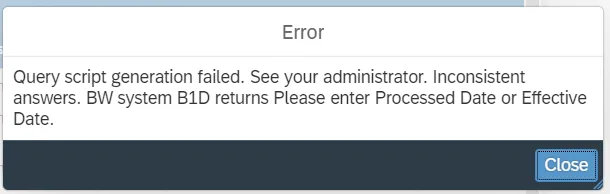
- If you search on one of the optional fields without entering the Organizational Unit AND one of the required dates (Processed Date or Effective Date), the following error will occur.
- Make sure that the Organizational Unit AND one of the date prompts (Processed Date or Effective Date) is entered before proceeding to any of the other prompts.
- When there are multiple salary changing actions with the same Effective Date, the Infotype 0008 change history table is reviewed to determine which salary change went with which action. However, if for some reason the number of actions does not equal the number of IT0008 change records for that same date, then we are unable to determine which action caused which salary changes so the most recent IT0008 salary is shown for all actions on that day. When this scenario happens, the action records will be flagged, and the “Flag” data element (from Available Objects) will show an ‘X’ value to signify this.