Purpose
The purpose of this report description is to explain the purpose of and how to generate the Position History report.
Report Description
This report provides a consolidated historical view of converted PMIS action and Integrated HR-Payroll System action history for all the position, employee, and fund related actions of a single specified position.
Report Location
OM: Position Data
Report Uses
Agencies will use this report for monitoring purposes to report the position actions historically processed for a single position.
How to Generate This Report
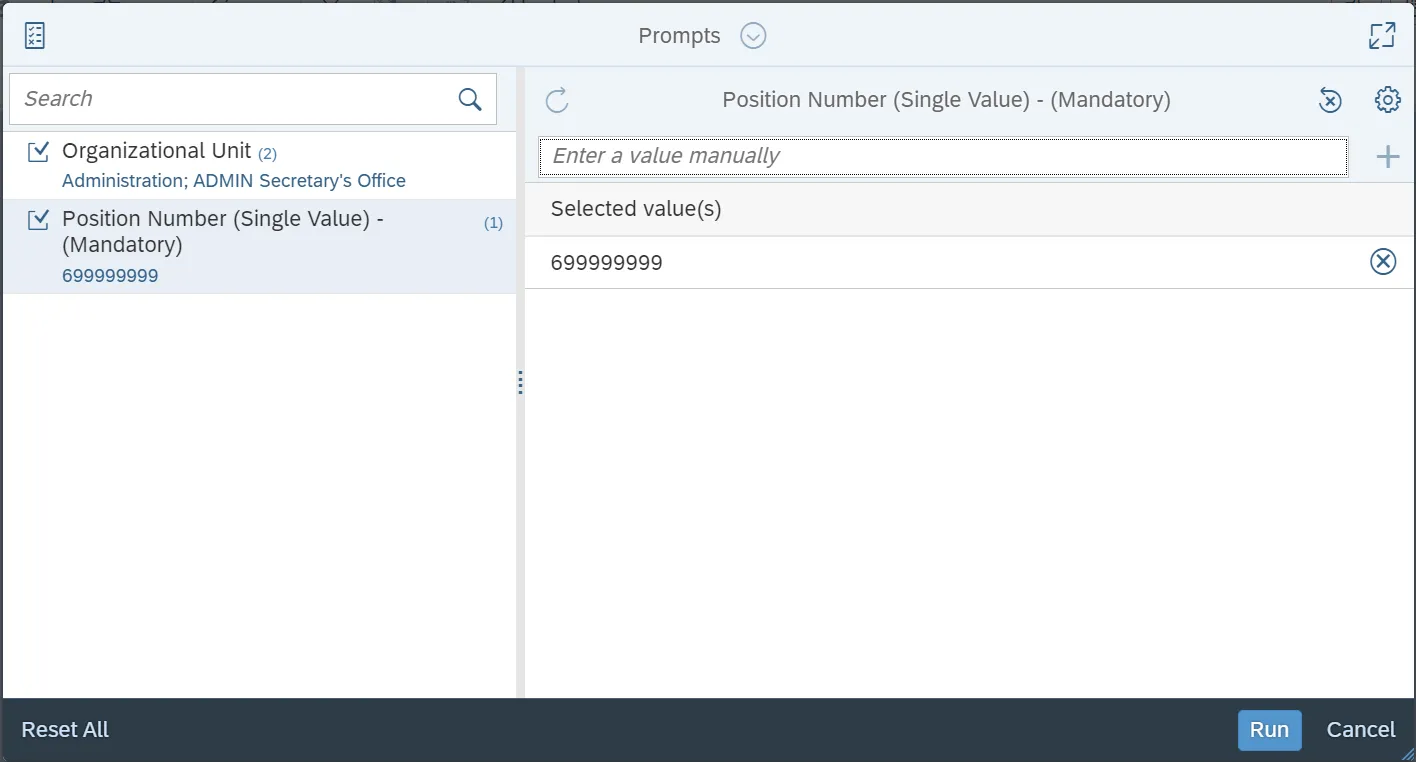
This report is generated after selecting values for the mandatory prompts. All mandatory prompts must have values selected before the Run Icon can be used to generate the report. Mandatory prompts can be identified as mandatory by the exclamation mark inside of the yellow-orange triangle, the square with the checkmark, or the display of (Mandatory). Detailed instructions for interaction with each prompt can be found on the Web Intelligence Prompt List on the OSC website.
The Mandatory prompts for this report are:
- Organizational Unit
- Position Number (Single Value) - (Mandatory)
Initial Layout
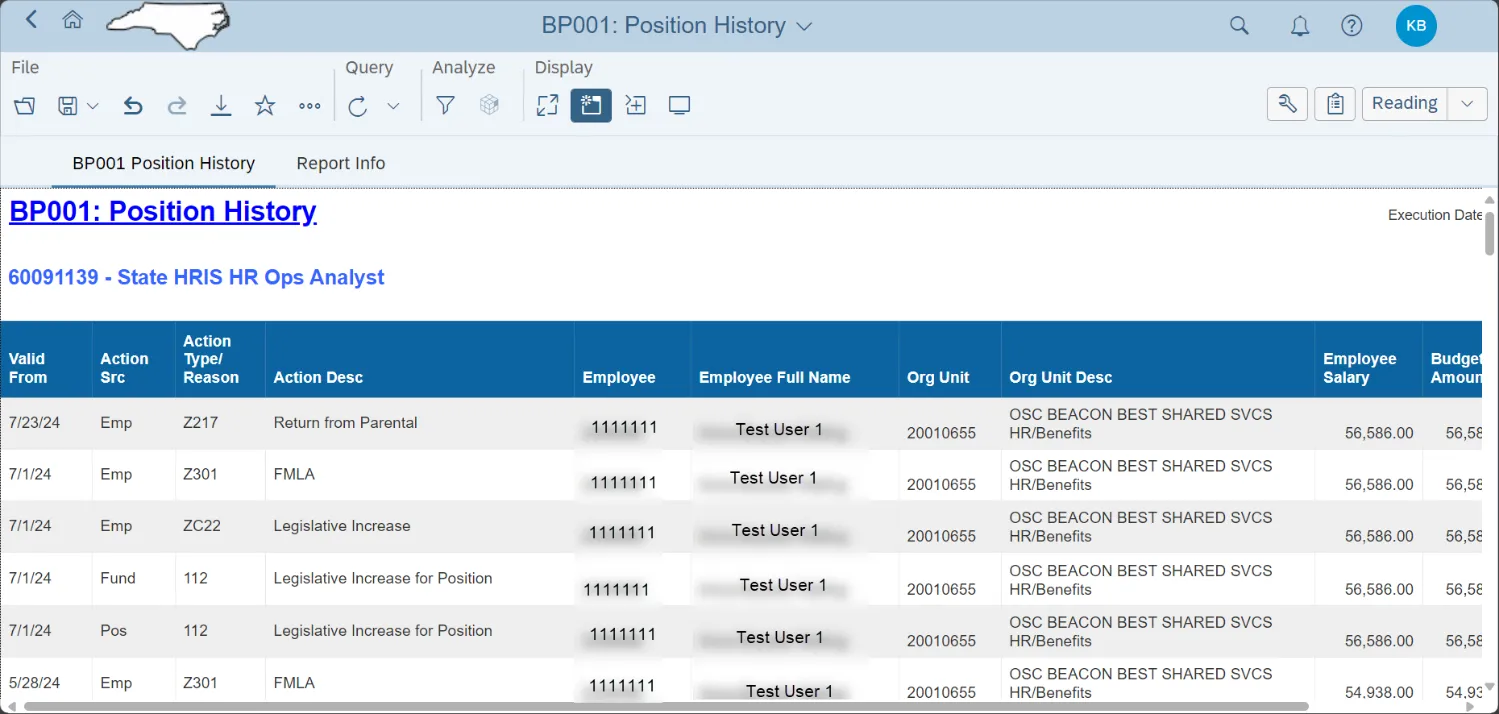
Below is a sample of the initial layout rendered.
Available Objects
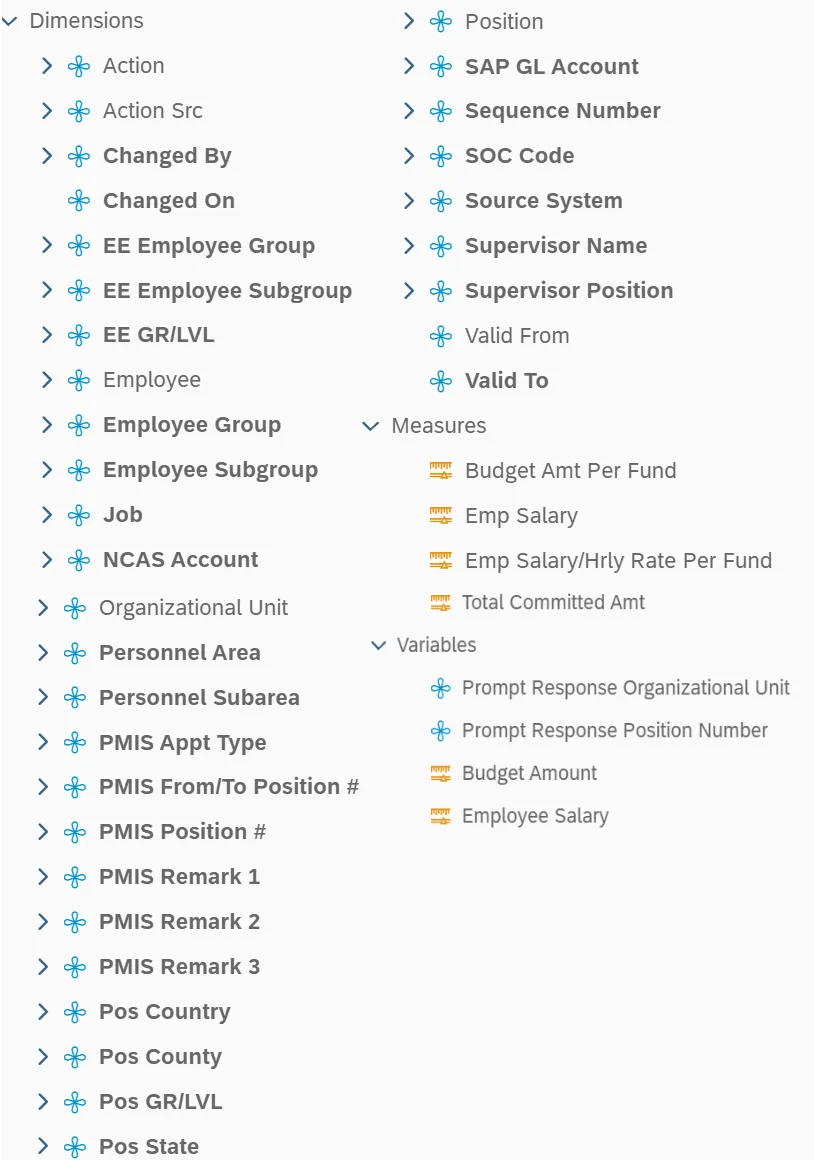
This is a list of the available objects that can be added to the report, from the Document Dictionary once in the Design mode:
Dimensions
- Action
- Action Src
- Changed By
- Changed On
- EE Employee Group
- EE Employee Subgroup
- EE GR/LVL
- Employee
- Employee Group
- Employee Subgroup
- Job
- NCAS Account
- Organizational Unit
- Personnel Area
- Personnel Subarea
- PMIS Appt Type
- PMIS From/To Position #
- PMIS Position #
- PMIS Remark 1
- PMIS Remark 2
- PMIS Remark 3
- Pos Country
- Pos County
- Pos GR/LVL
- Pos State
- Position
- SAP GL Account
- Sequence Number
- SOC Code
- Source System
- Supervisor Name
- Supervisor Position
- Valid From
- Valid To
Measures
- Budget Amt Per Fund
- Emp Salary
- Emp Salary/Hrly Rate Per Fund
- Total Committed Amt
Variables
- Prompt Response Organizational Unit
- Prompt Response Position Number
- Budget Amount
- Employee Salary
Special Report Considerations/Features
- SAP Employee Conversion Actions (ZZ01) are excluded. SAP Position Assignment Actions (ZY01) are excluded.
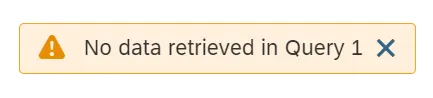
- Entering a position number that does not exist will result in the following error.
- Data for this report is reloaded daily.
- Employee Salary in report layout represents hourly rate for temporary employees and annual salary for all others.
- Budget Amount in report layout represents the position's full budget amount. If there are multiple employees in the position, the Budget Amount would still reflect the position's full budget and is not split based on the number of employees in the position.
- Field/Home Based indicator is available from Position attributes (expanded list) in Available Objects.
- The report has a break defined to help spot cases where there are multiple employees in a position. The break is designed to suppress duplicate row values. When exporting data to Excel, follow the instructions below to repeat the values in each row of the report. Once the report is set up to repeat the values, you can then export the report to Excel and the values will be repeated on the spreadsheet as well. There are 10 steps to complete this process.
Step 1: Run the BP001 report for the desired position.
Step 2: Once in the report, select Design from the display drop down menu.
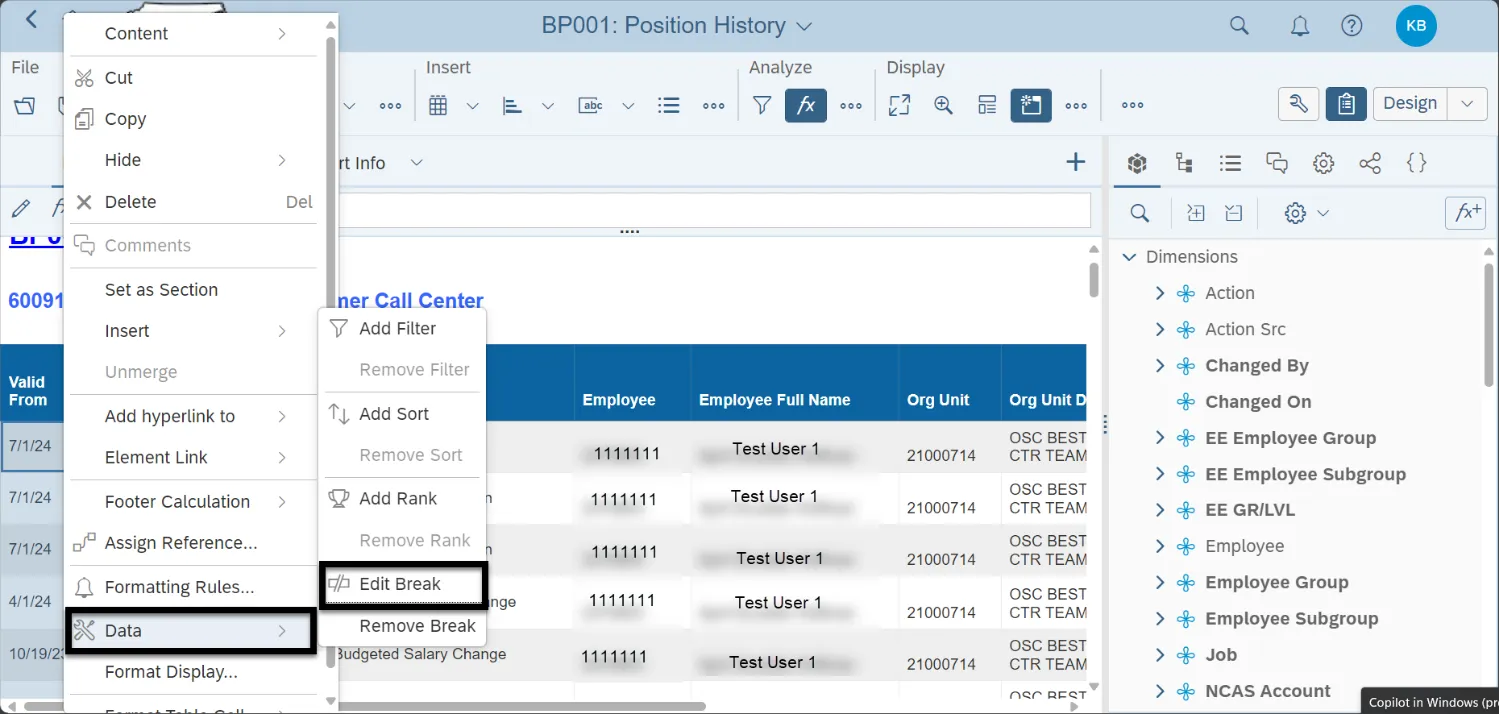
Step 3: Right click on the desired row.
Step 4: Select Data.
Step 5: Select Edit Break.
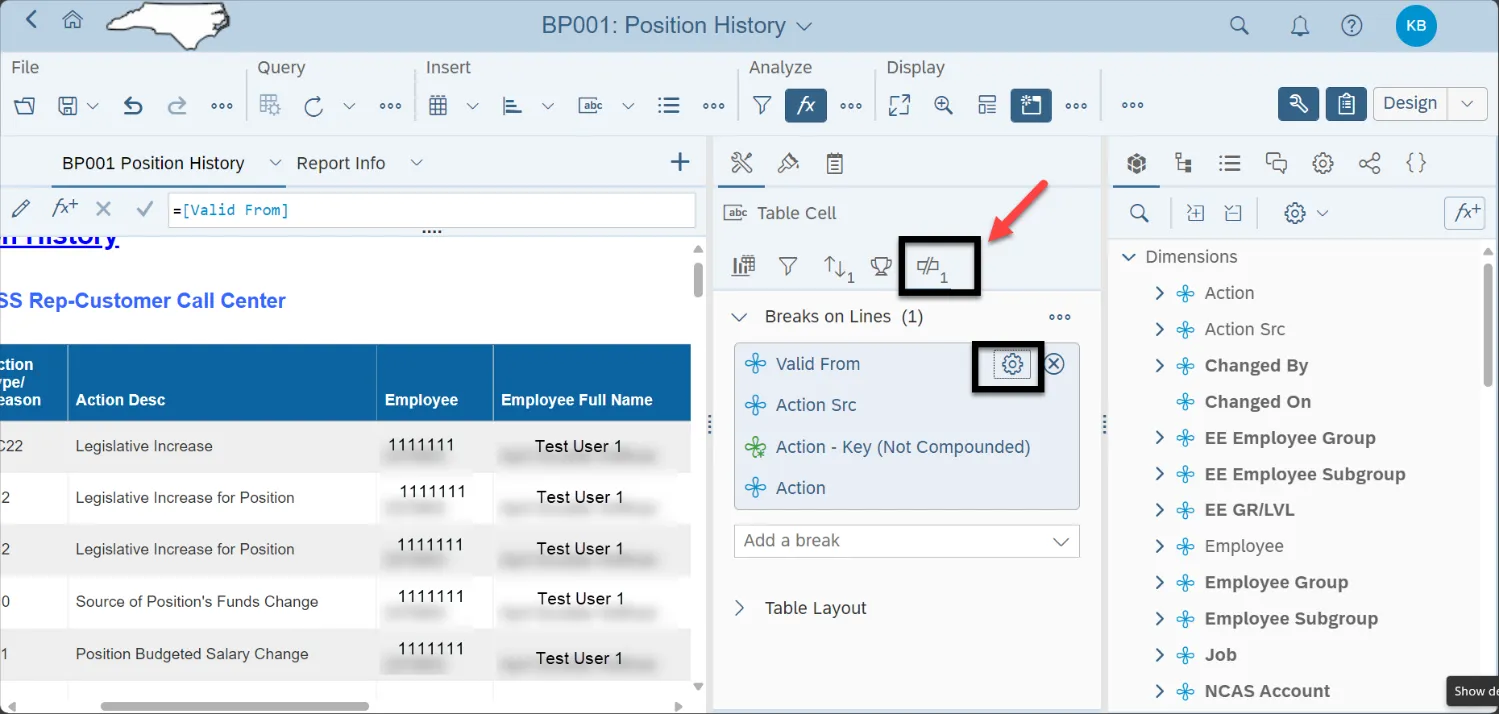
Step 6: Click on “Display the break panel” icon.
Step 7: Click on the Settings icon next to “Valid From” in the Breaks on Lines panel.
Step 8: Scroll down to Duplicate values and change drop down option from “Repeat first on new page” to “Display All” and click OK.
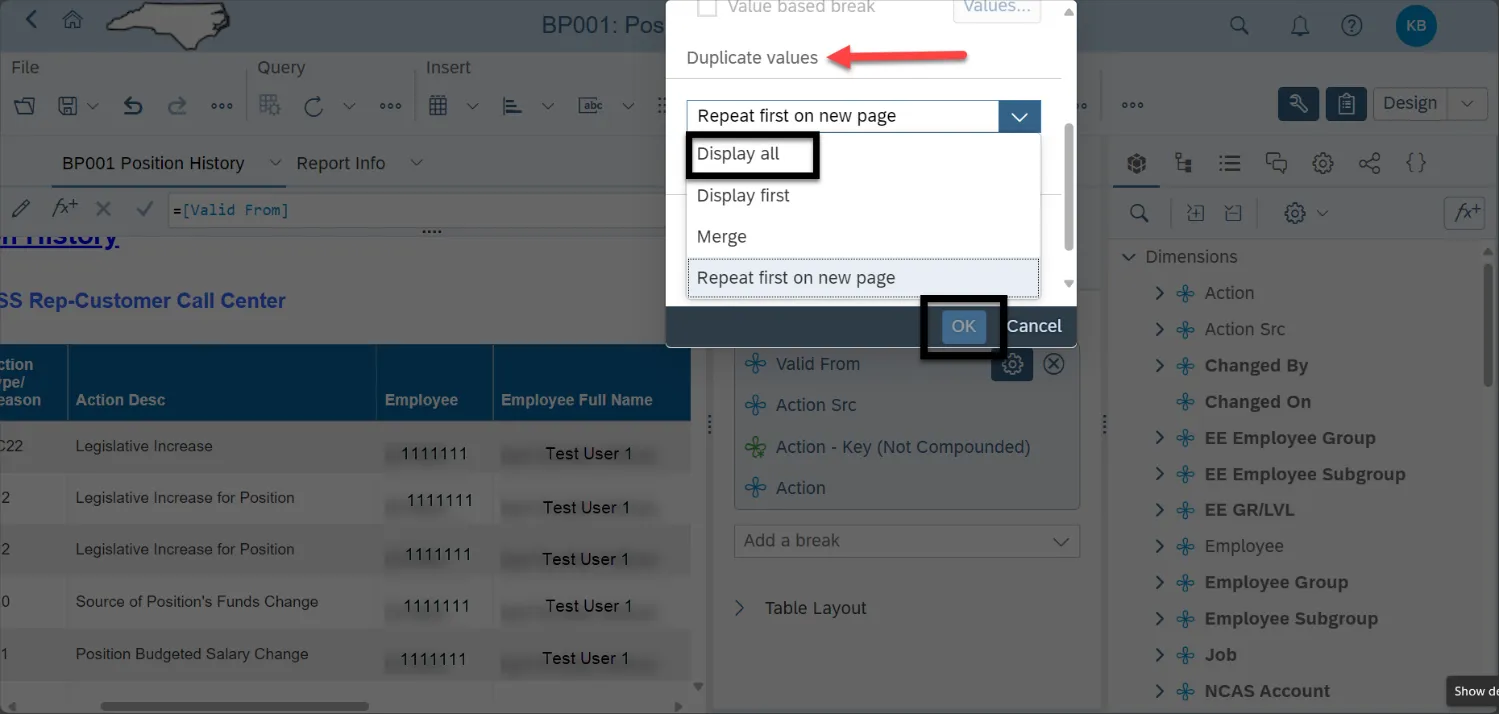
Step 9: Repeat steps (7) and (8) for each of the objects listed under Breaks on Lines panel, so all values will repeat.
Step 10: All values will be displayed in the report. When the report is exported to Excel, the duplicate values are displayed.