Purpose
The purpose of this job aid is to explain how to end military training leave in the Integrated HR/Payroll System.
Military Training Leave may be granted to employees of the State for certain periods of service in the uniformed services. Leave with pay, up to a maximum of 120 hours each Federal fiscal year (Oct.-Sept.) [pro-rated for part-time employees] shall be granted to members of the uniformed services. When an EE is no longer eligible for Military Training leave, a Leave Admin or HR Data Maintainer can create an IT2012-ZMLE to stop the automatic accruals that take place in October of each year.
There are 8 steps in this process.
Use PA61 or PA30 depending on security access.
Step 1: Select IT2012 – Subtype ZMLE
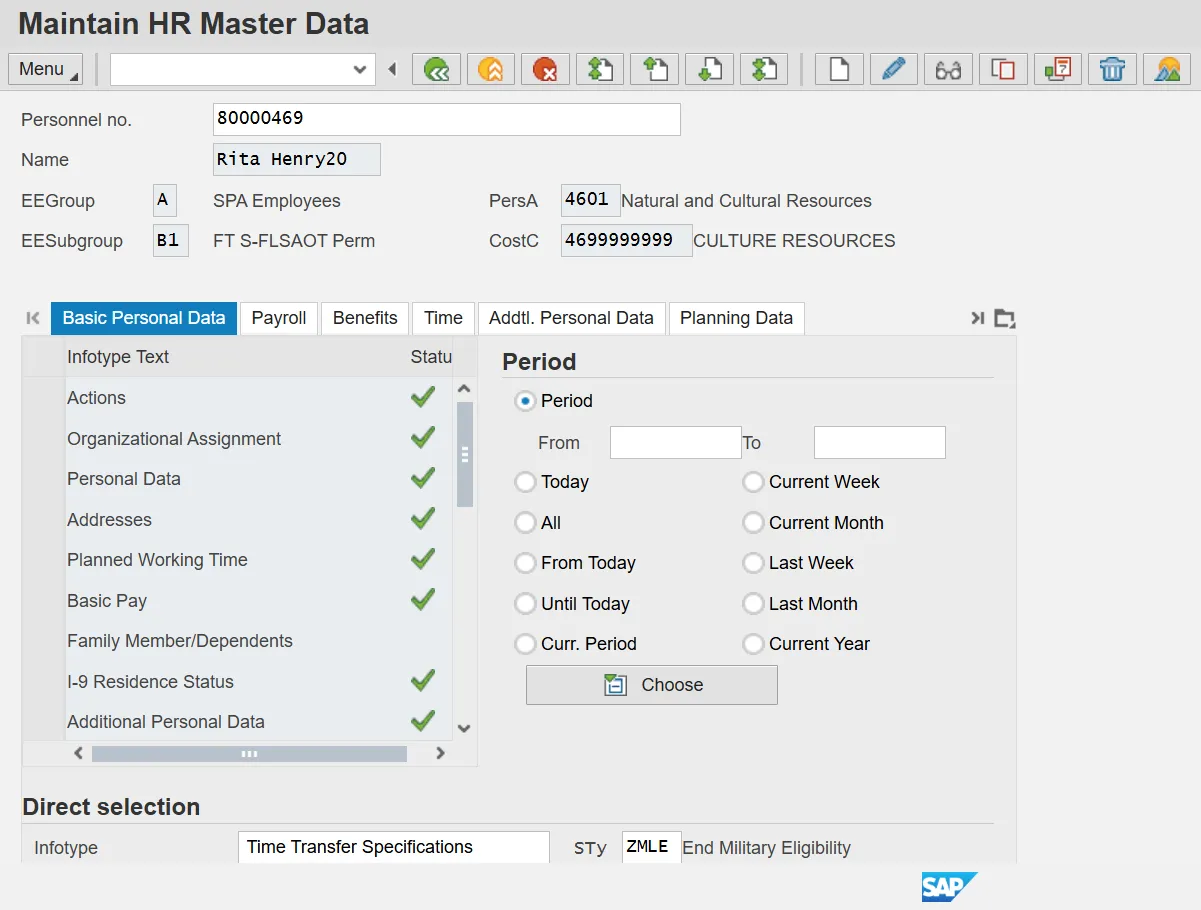
Step 2. Click the Create button.
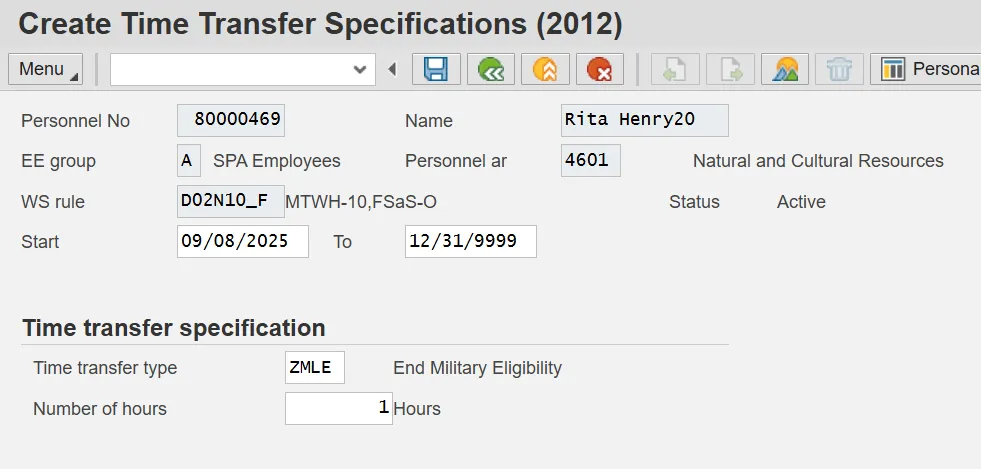
Step 3. Enter the Effective date in Start field and 12/31/9999 in To field.
Step 4. Enter ‘1’ in Number of hours.
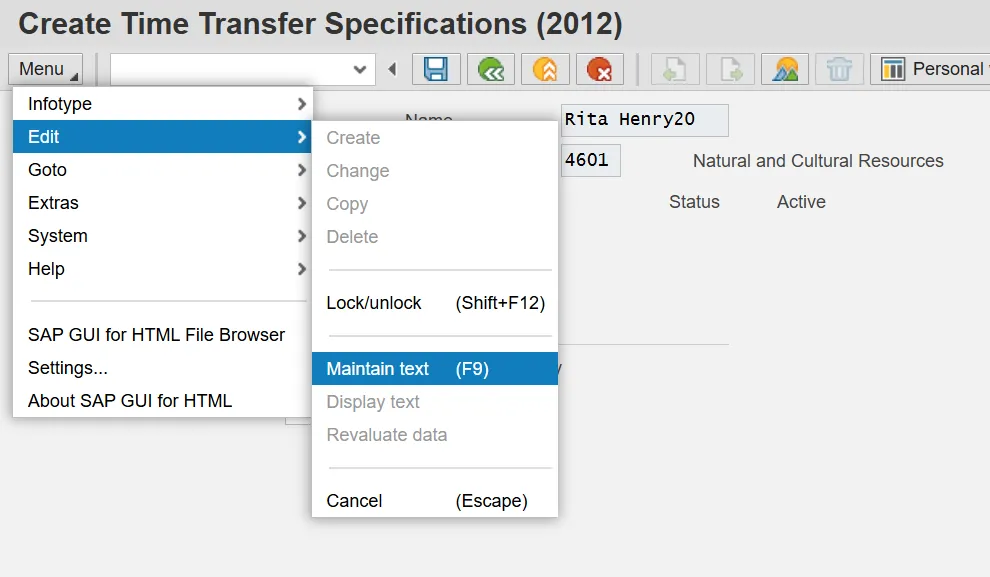
Step 5. On the toolbar at the top of the screen, click Menu > Edit > Maintain text.
Step 6. Type an appropriate message for the record.
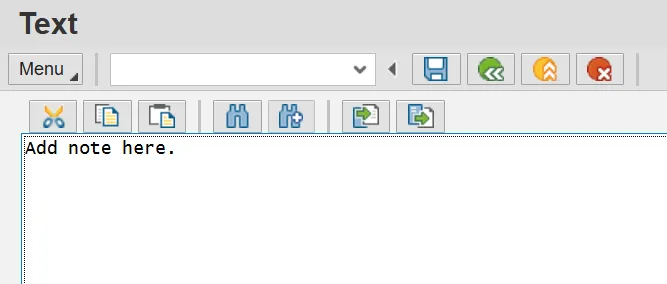
Step 7. Click the Save to save the text to the record.
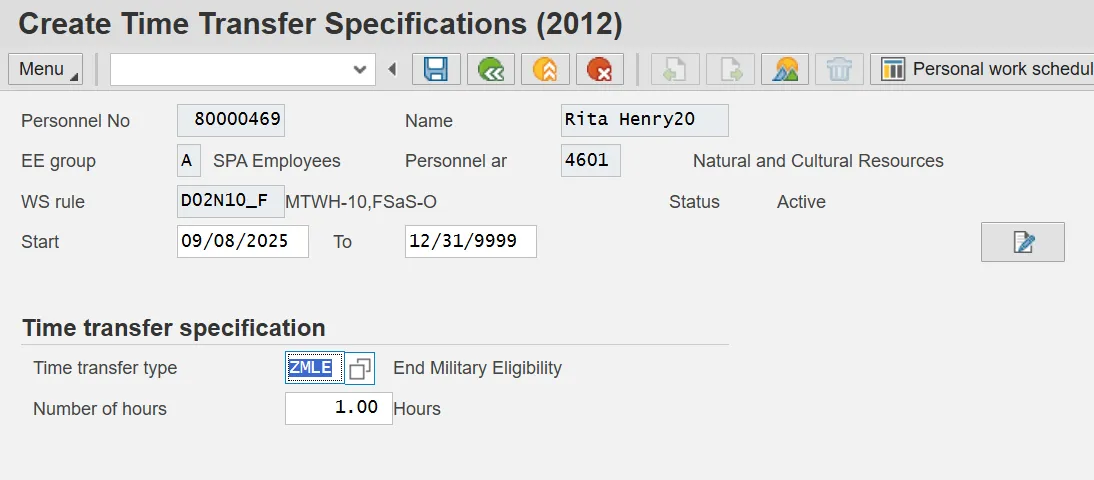
The Maintain Text icon will display on the infotype.
Step 8. Click the Save button to save the record.
The system task is complete.