Note: This document is provided as a reference guide only. Details and items may be changed by the individual email provider without notice. Please consult their documentation for specific questions.
Microsoft Outlook
Step 1. When composing a new message, select the Options button from the top menu bar.
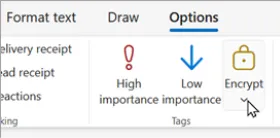
Step 2. Click on the Encrypt tab, then select the option “Encrypt” from the dropdown menu.

Step 3. Upon sending, the message and contents will be encrypted between the sender and receiver.
Step 4. Alternatively, typing [Encrypt] with square brackets in the tagline will automatically encrypt the document if your organization is set to do so.
Step 5. Email contents can only be opened by the person it was sent to, so it will not be accessible if forwarded.
Step 6. Email contents can only be opened by the person it was sent to, so it will not be accessible if forwarded.
Source Documentation: Send encrypted messages with a Microsoft 365 personal or family subscription - Microsoft Support (External link)
Gmail
1. When composing a new message, select the lock icon in the bottom right corner of the message window.

2. This will activate Confidential Mode. Select the options that pertain to the current email. Example: Expiration and Passcode Requirement.
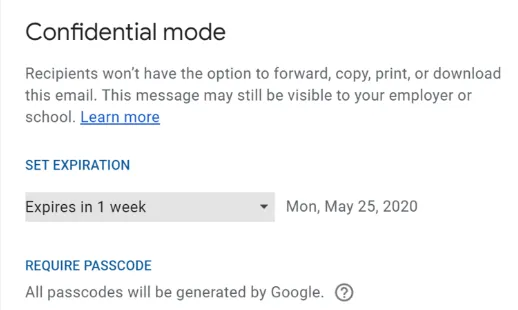
3. Choose “No SMS Passcode” so that the recipient will have an access code emailed to them.
4. Click the Save button and submit the email as normal.
5. Upon sending, they will be given the option to View the Email and input the passcode.
Source Documentation: Send & open confidential emails - Computer - Gmail Help (External link)
iCloud/Apple Mail
1. When composing a new message, be sure you have sent at least one regular email to the address you wish to send an encrypted email to.
2. Once that address has been added to your contacts, the option to click a blue lock icon will appear next to the tagline.

3. Click the lock icon to switch it into the “locked” position, which sets the encryption to On.
4. The message sent will be encrypted between you and the recipient.
Source Documentation: Use S/MIME to send and receive encrypted messages in the Mail app in iOS - Apple Support (External link)
Yahoo/Hotmail/etc.
1. These services to NOT have encryption. They also do not offer built-in options to encrypt emails through their own providers.
2. Users would need to install alternative encryption apps or add-ins instead, not recommended.
Source Documentation: Email Encryption & How To Encrypt Email – Kaspersky Antivirus (External link)