PURPOSE
The purpose of this job aid is to define each of the Business Workplace Button functions.
Image
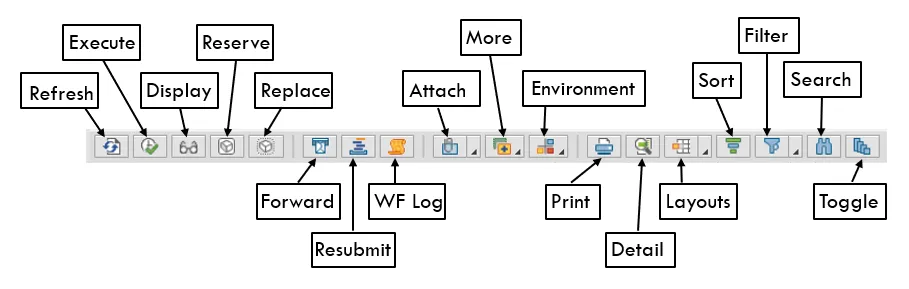
- Refresh: This button will refresh the User's Workplace to see if new items have arrived.
- Execute: This button is used to “take action” on the item.
- Display: This button will display the work item highlighted.
- Reserve: This button is used to reserve the work item so it can no longer be seen by any other recipients.
- Replace: This button is used to place an item back into the group of Recipients to be seen again.
- Forward: This button is used to forward the work item to another user.
- Resubmit: This button is used to set a Work item to 'resubmitted' and placed back into the Work List to be executed later. It will temporarily be placed in the "Resubmission" folder during this time for viewing.
- WF Log: This button will display the Workflow Log with all the Steps that have been completed so far with various information such as User who processed the Item, when processed, the result, where the Item is currently residing, etc.
- Attachments: This button allows one to access all the functions referring to the attachments of the Work Item: such as Create, Display, Change, and Delete.
- More Functions: This button can be used with the work item, but the functionality must be incorporated explicitly in the main developed Workflow Template definition to be accessible.
- Reject Execution: This function is used to Reject the Execution of the Work Item.
- Set to Done: This function is for the User to confirm that the processing of the Work Item has been completed.
- Change Priority: This function will change the Priority of the Work Item so it can be used as a measure of urgency. The priorities range between 1 (highest) and 9 (lowest).
- Environment: This button can be used with the Work Item and the objects within the workflow.
- Display Objects in Workflow: This function is used with the Work Item to display the objects within the workflow.
- Display Workflow Relationships: This function will display all the workflows that use this business object instance (ex. Vendor #).
- Start Workflow: Here the User can manually trigger a new Workflow with this business object instance.
- Create Link: This function will link the Work Item with a User's Personal Folder to better organize their work.
- Print: This button can be used to print a list of work items.
- Details: This button displays the details of the Work Item in a Popup window.
- Layouts: This button will let the User customize their Work List view to allow them to view different columns, to sort, filter, etc.
- Sort: This button allows the User to sort any of the columns in their Work List in ascending or descending order.
- Filter: This button allows the User to filter their Work Items by any criteria of their Work List.
- Search: This button allows the User to search their Work Items for items by certain criteria.
- Toggle: This button allows the User to toggle the Work Items to full screen.