Purpose
The purpose of this Quick Reference Guide (QRG) is to provide a step-by-step guide of how to generate production reports in the North Carolina Financial System (NCFS).
Introduction and Overview
This QRG covers the process of generating production reports. There are three main Production Reports that you will use when manufacturing for a Work Order: Movement Pick Slip Reports, Work Order Traveler, Components List, and Work Order Raw Material Consumption Report. This lesson will cover how to pull each of these reports.
Generating Production Reports
To generate a Movement Pick Slip Report in NCFS, please follow the steps below. There are 15 steps to complete this process.
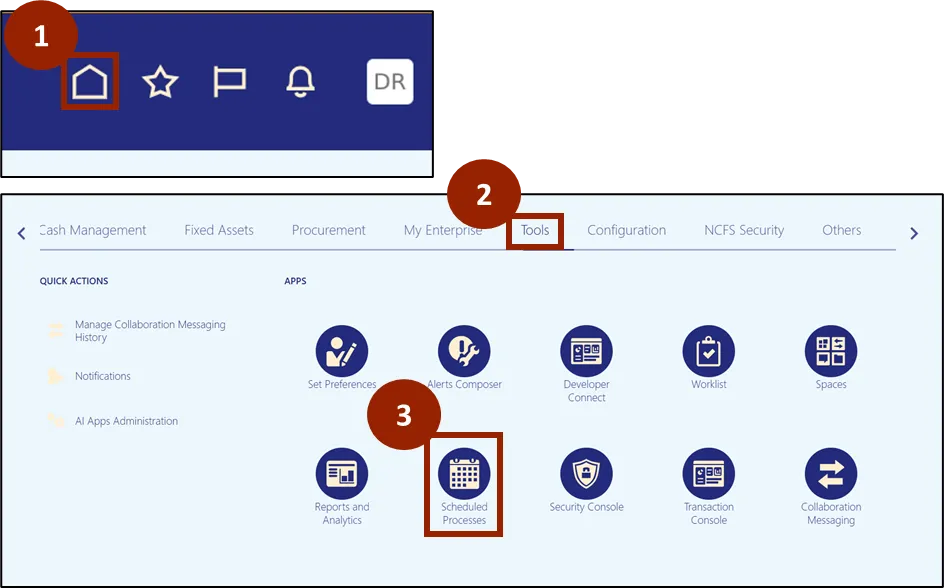
Step 1. Navigate to the Home page.
Step 2. Click on the Tools tab.
Step 3. Click on Scheduled Processes.
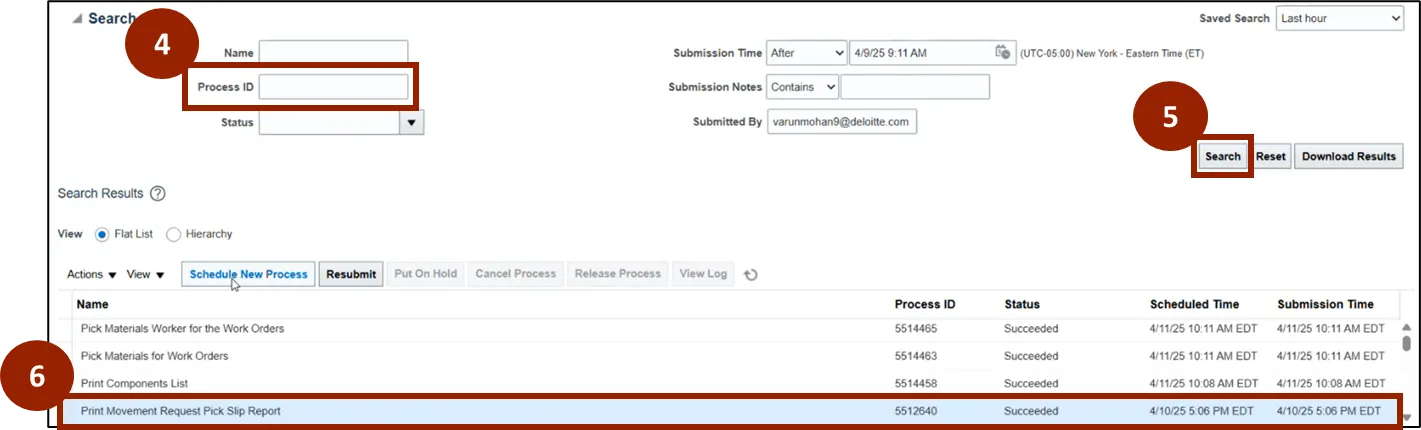
Step 4. Click the drop-down arrow next to the Search header section and enter the Process ID number.
Step 5. Click Search.
Step 6. Locate the Print Movement Request Pick Slip Report for the Work Order you released, then double click the process.
Note: If the Work Order does not have any raw material included, the Movement Request Pick Slip Report will not generate.
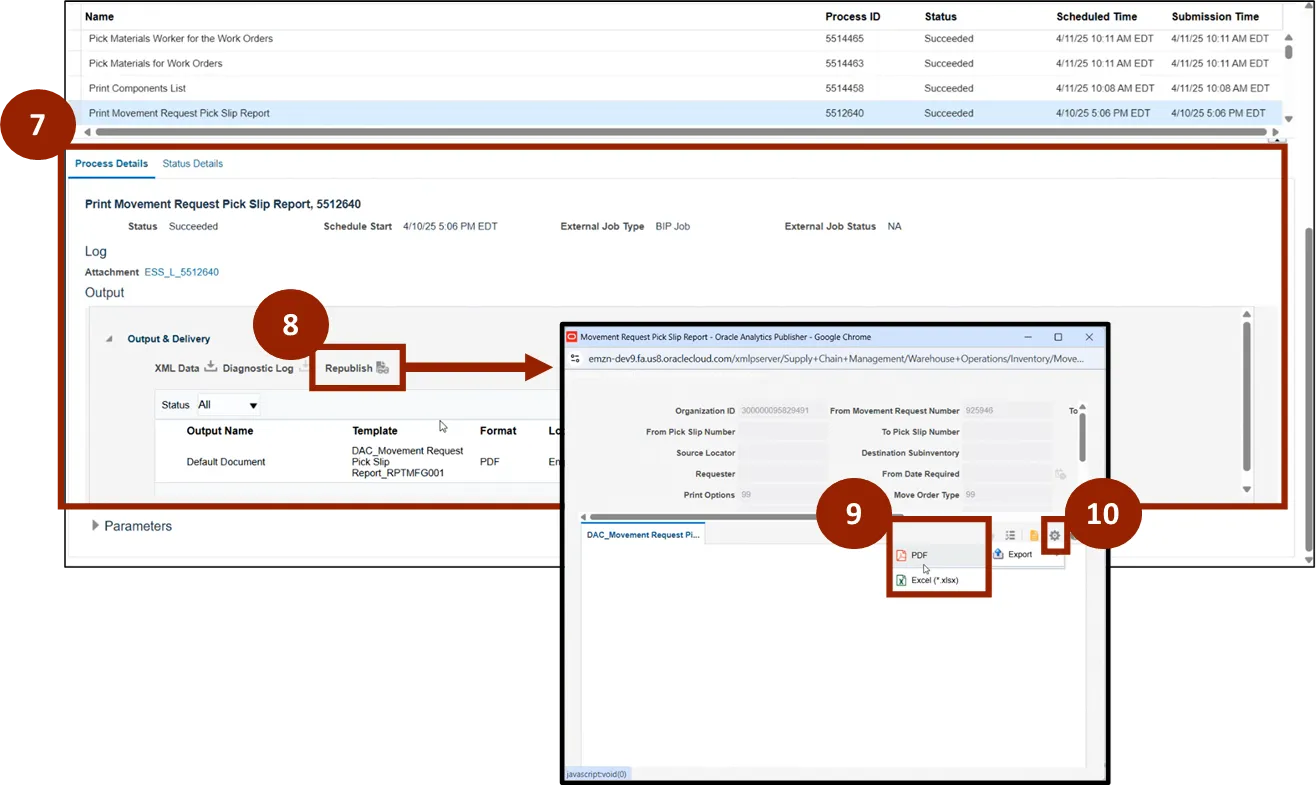
Step 7. Scroll down to see the Process Details of the selected process.
Step 8. Click on Republish.
Step 9. A pop-up will appear, click on the Action button, or Gear icon.
Step 10. Move your mouse over Export, and then click on PDF.
Note: The DAC Work Order Pick Slip will then be downloaded as a PDF. Take note of the Pick Slip ID.
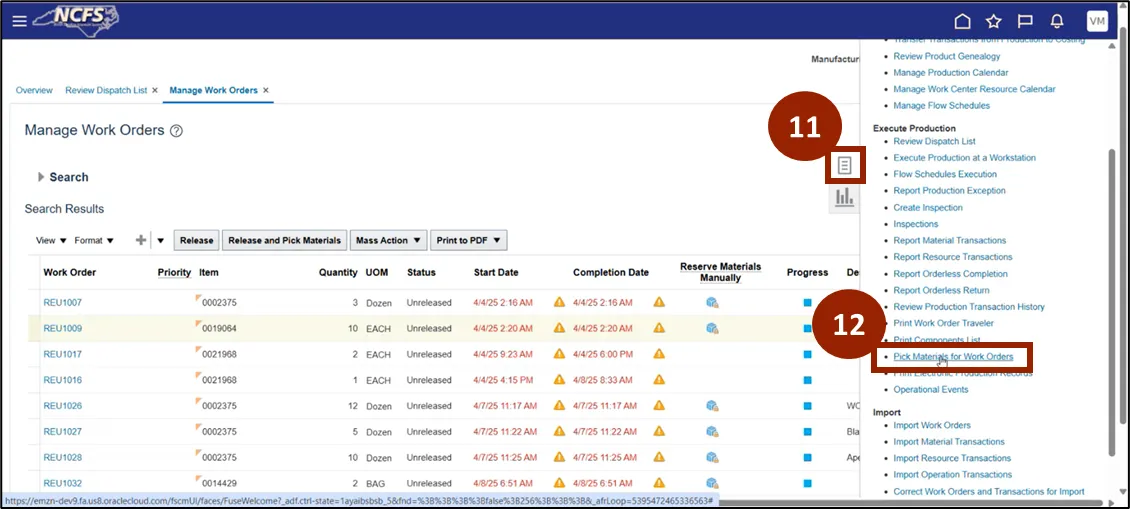
Note: It is also possible to include multiple Work Orders in a Pick Slip Report.
Step 11. If user would like to include multiple Work Orders, from the Manage Work Orders page, click on the Task icon on the right-hand side of the screen.
Step 12. Click on Pick Materials for Work Orders.
Step 13. Enter the information in the From Work Order and To Work Order field to include the range of Work Orders user would like included on the Movement Pick Slip Report.
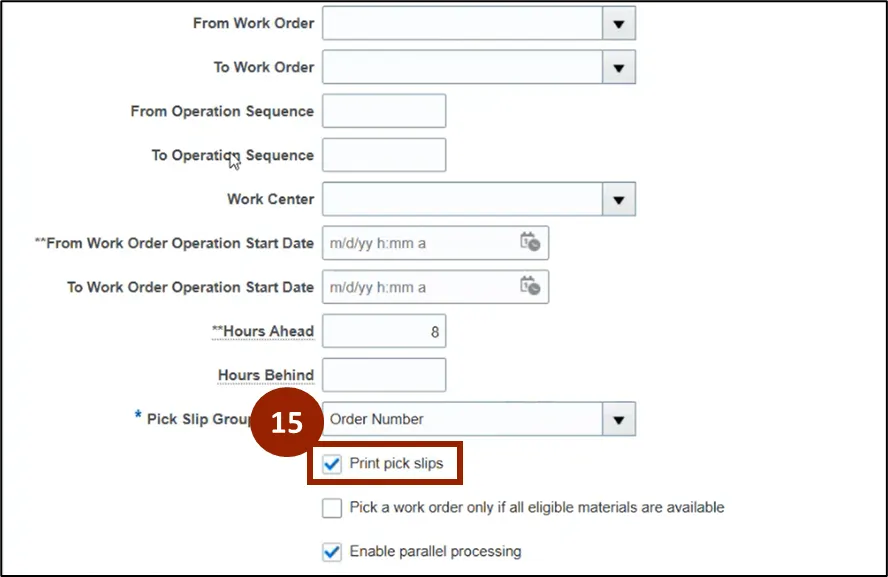
Step 14. Scroll down and confirm the box is checked for Print pick slips.
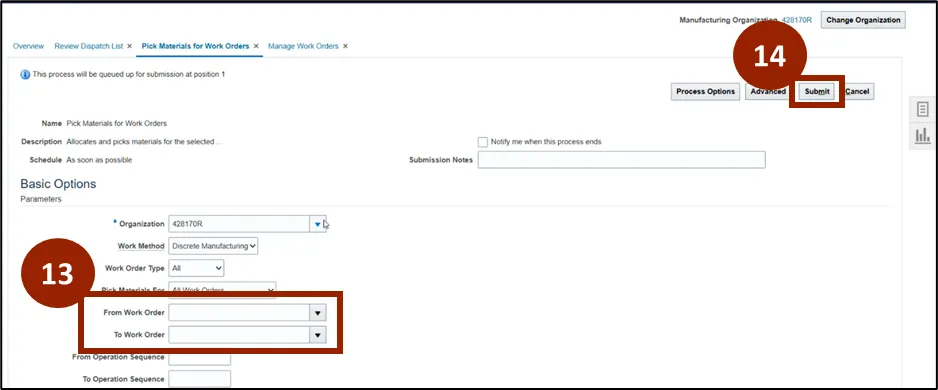
Step 15. Once finished, click on Submit.
Note: Once submitted, the report can be downloaded under Scheduled Process.
Generate a Work Order Traveler in NCFS
There are 8 steps to complete this process.
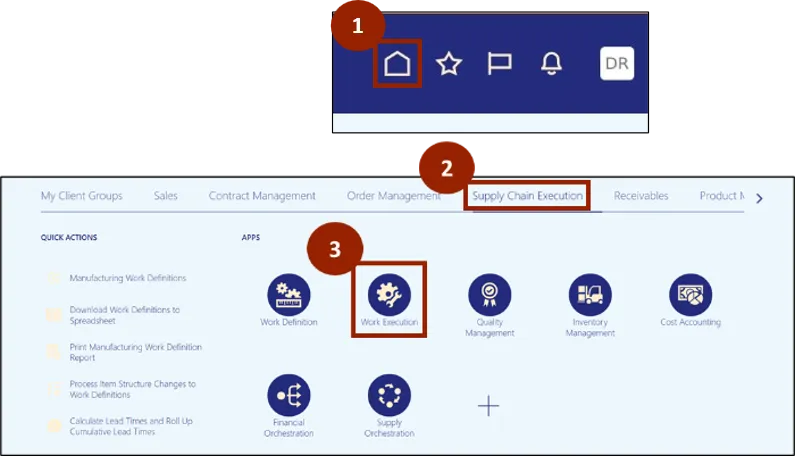
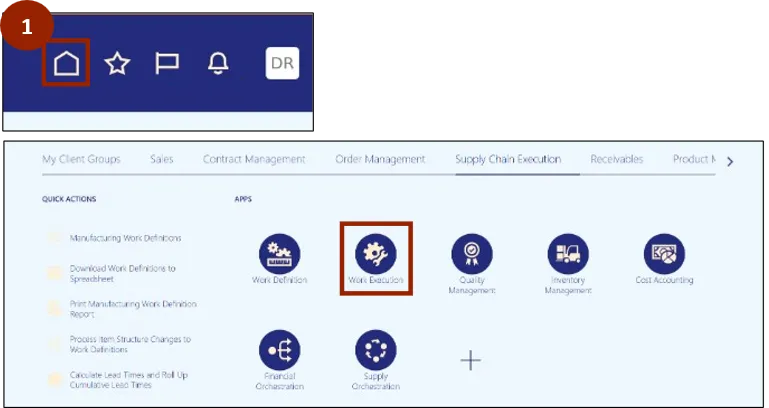
Step 1. Navigate to the Home page.
Step 2. Click on the Supply Chain Execution tab.
Step 3. Click on Work Execution.
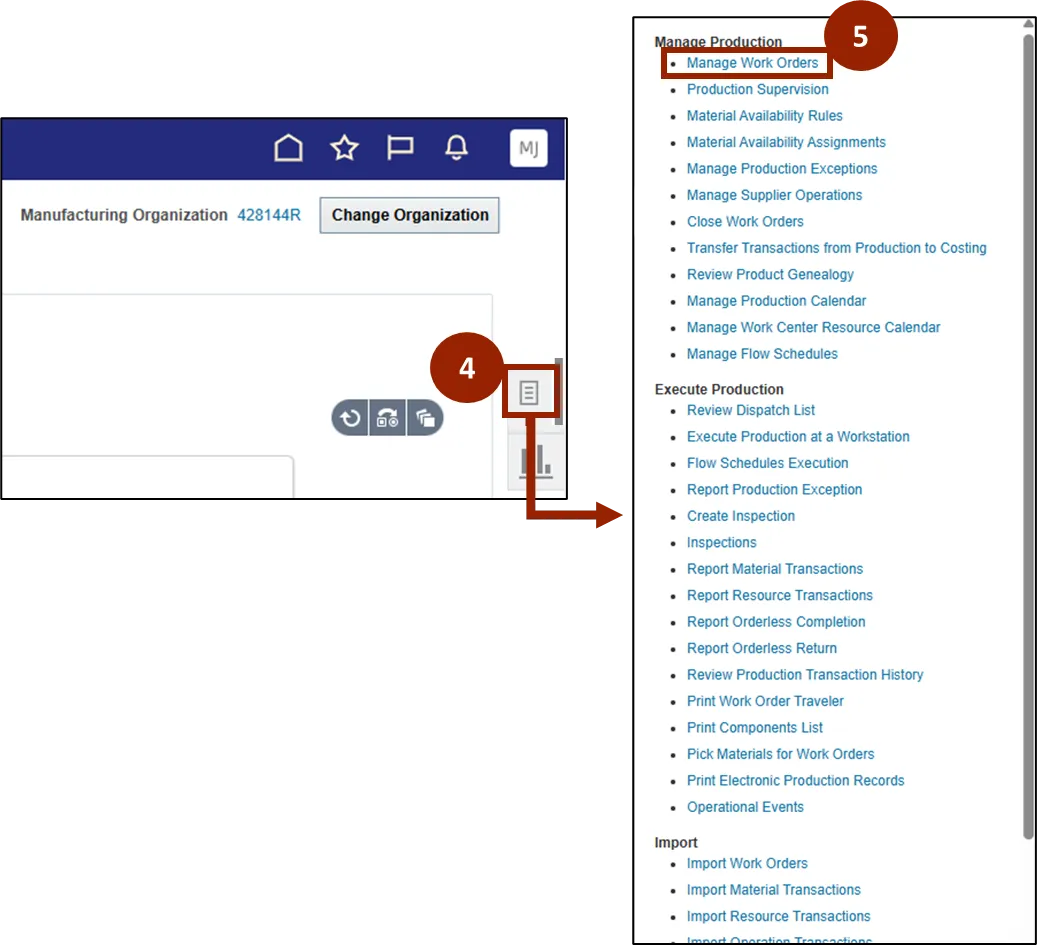
Step 4. On the right-hand side of the screen click on the Task icon.
Step 5. In the Task pane that opens, select Manage Work Orders.
Step 6. Select a Work Order.
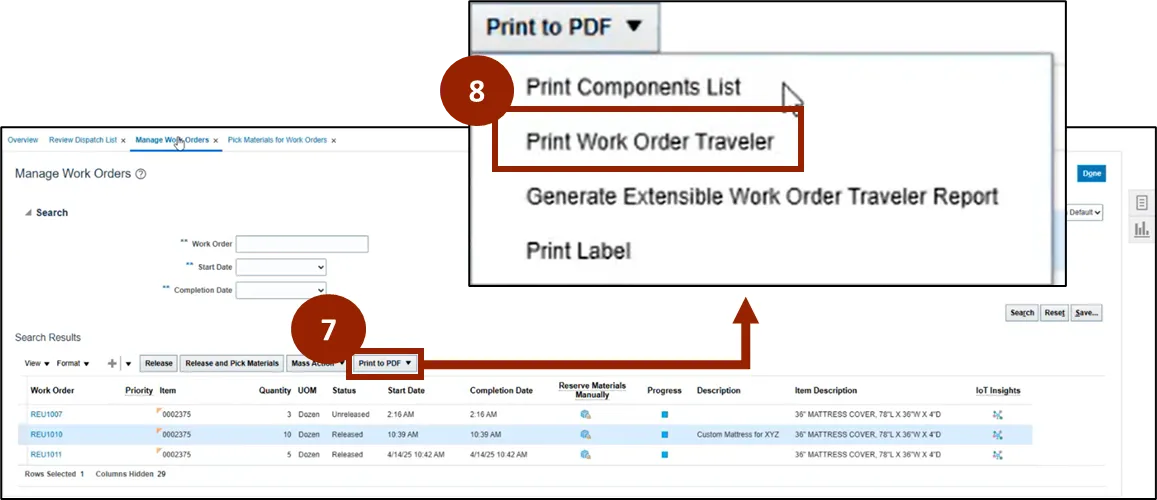
Step 7. From the Manage Work Orders screen, click on Print to PDF.
Step 8. From the drop-down menu, click on Print Work Order Traveler. The file will then be downloaded as a PDF.
Generate a Component List
There are 10 steps to complete this process.
Step 1. To acquire the Components List, navigate back to the Home page, select Supply Chain Execution, and select Work Execution.
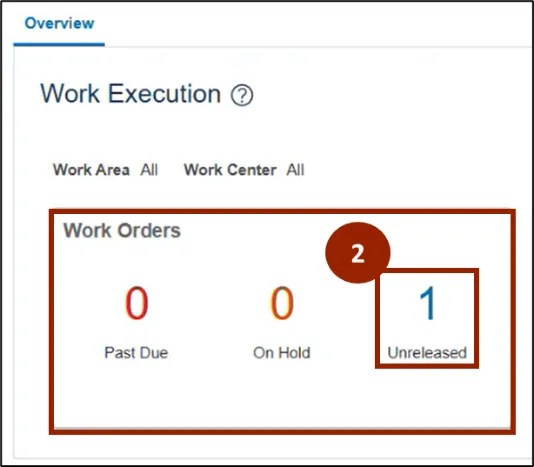
Step 2. In the Work Orders section, click on the number for Unreleased Work Orders.
Note: Reports can also be generated for Released Work Orders.
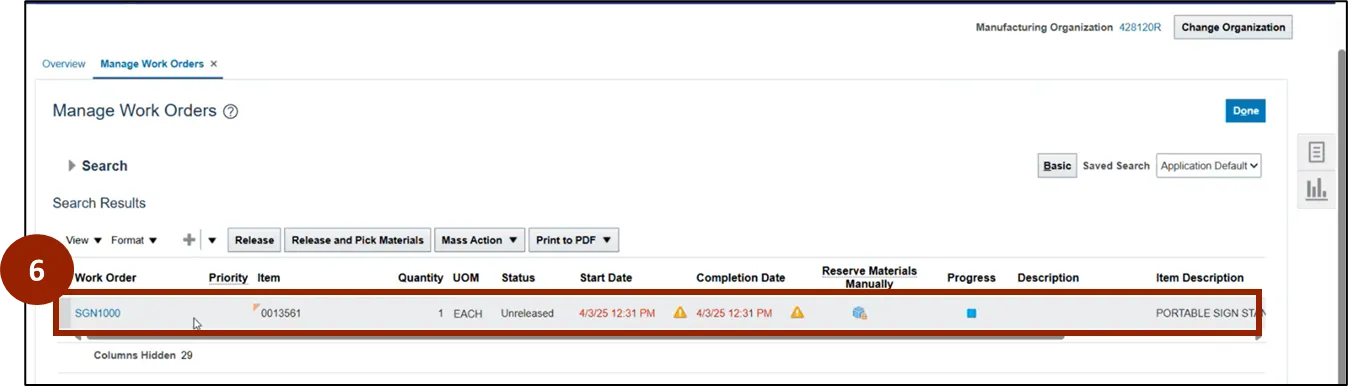
On the Manage Work Orders page users will see a list of unreleased Work Orders.
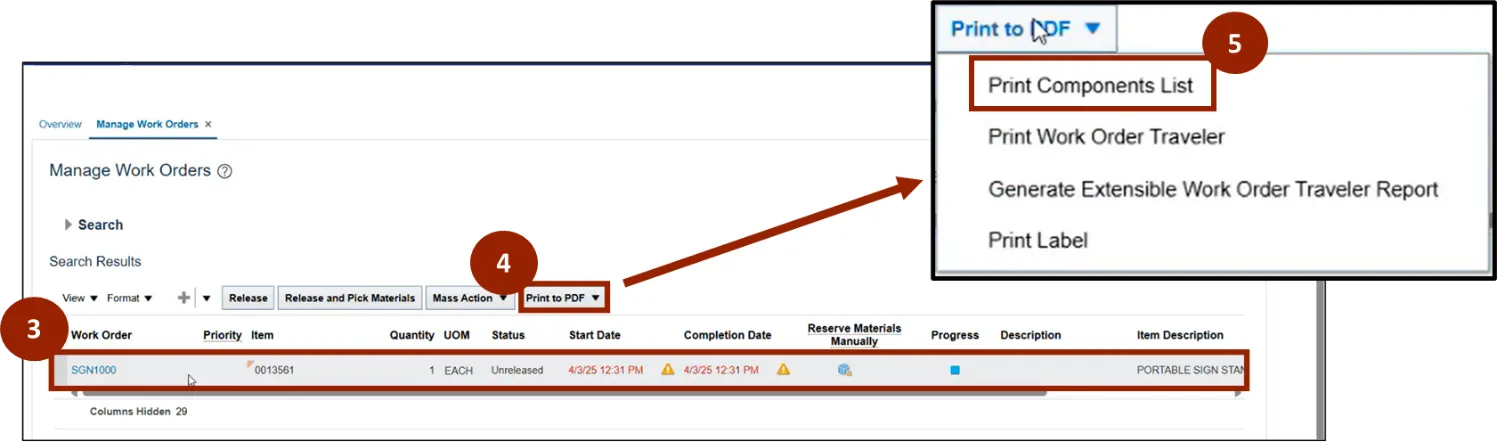
Step 3. Click on the line containing the Work Order.
Step 4. Click on Print to PDF, this will cause a drop-down to appear.
Step 5. Click on Print Components List.
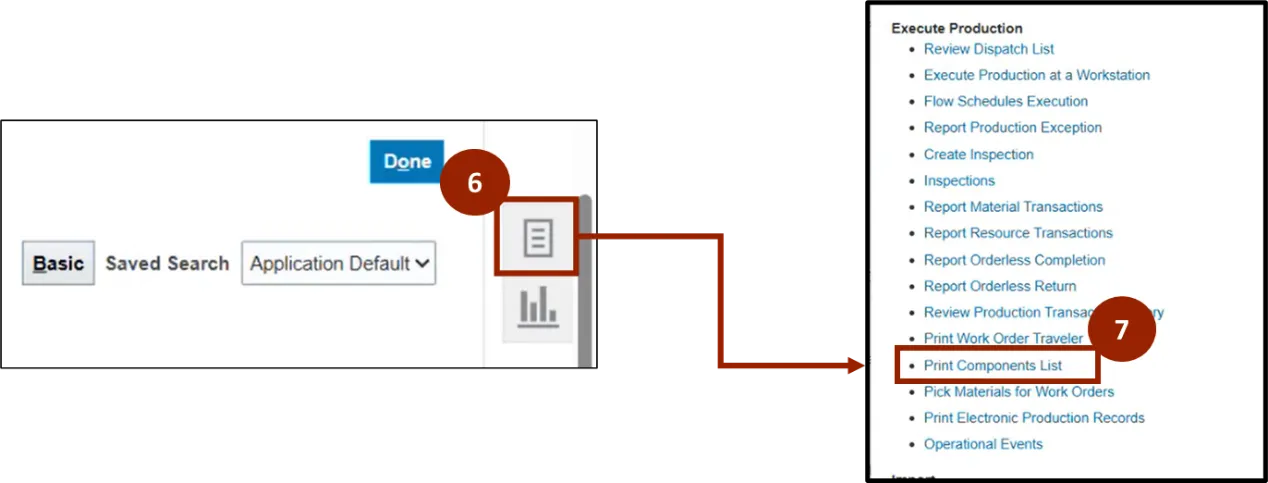
Step 6. If the user wants to generate the Components List Report for multiple Work Orders, click on the Task icon on the right-hand side of the screen.
Step 7. Then, click on Print Components List.
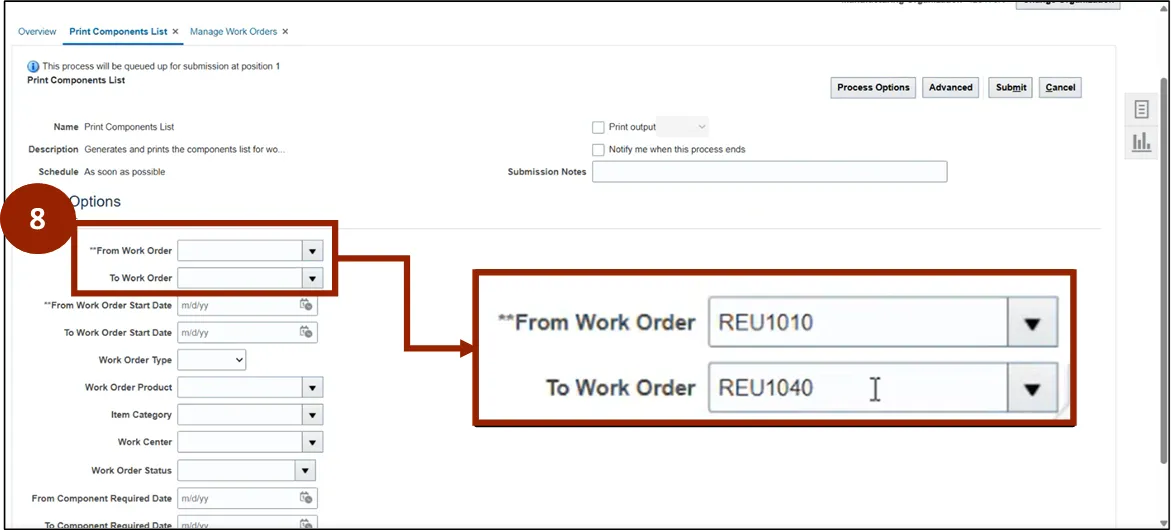
Step 8. To run the Print Components List report for multiple Work Orders, in the From Work Order and To Work Order fields, enter the range of Work Order numbers.
In the example below, a range of Work Orders from REU1010-REU1040 is used.
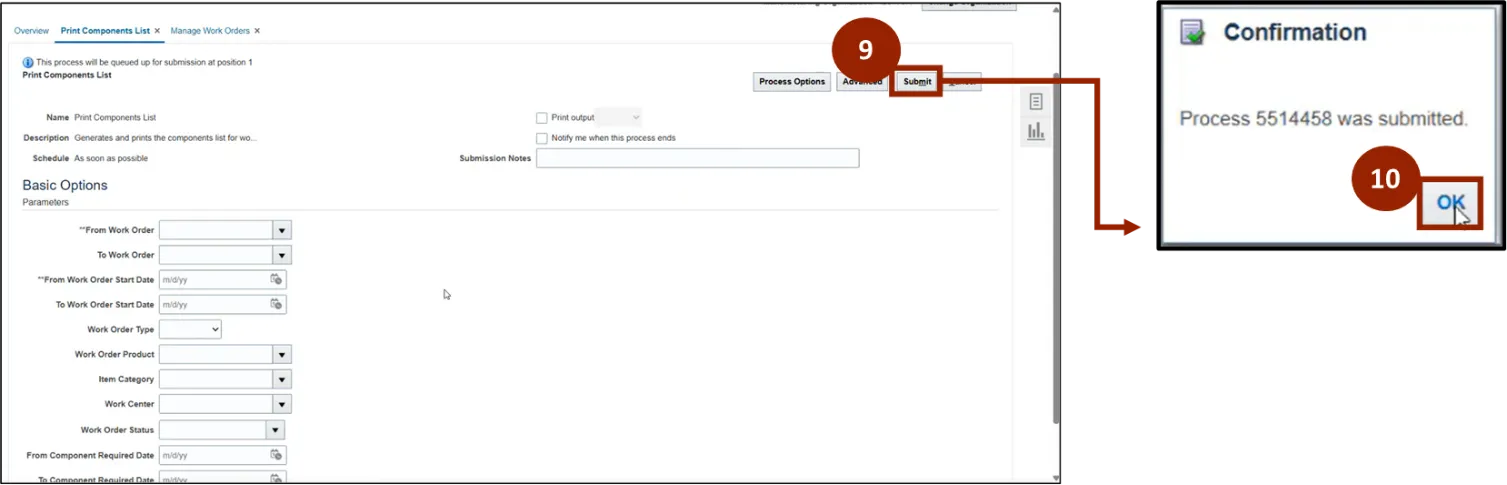
Step 9. When user has entered a range of Work Orders, click Submit.
Step 10. User will receive a pop-up Confirmation message, click OK.
Generate a Work Order Raw Material Consumption Report in NCFS
There are 8 steps to complete this process.
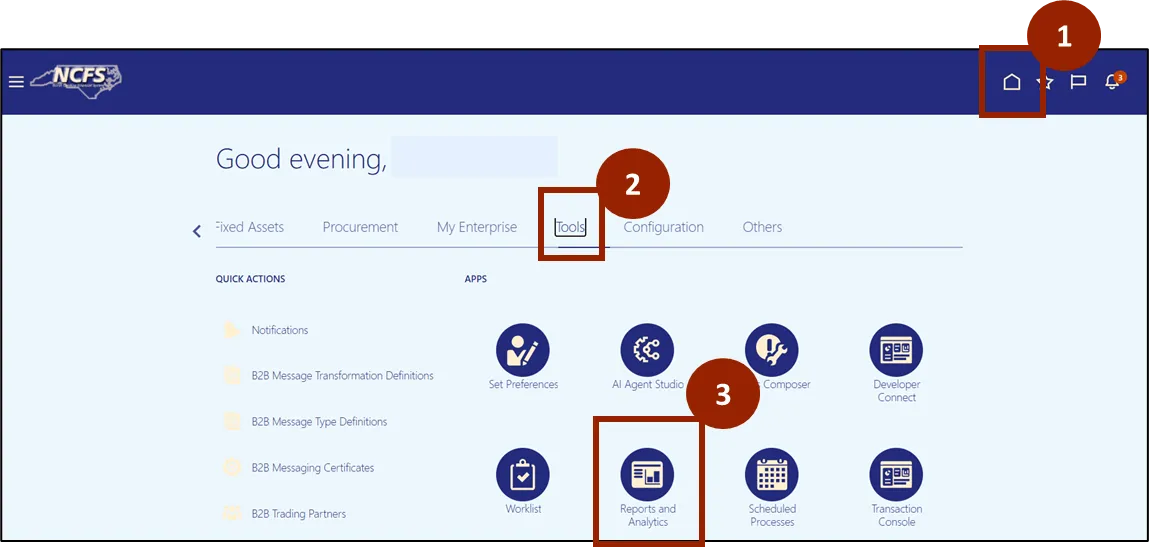
Step 1. To generate a “NC DAC Work Order Raw Material Consumption Report (RPTMFG002)”, navigate back to the Home screen and navigate to Tools tab.
Step 2. Clicks on Tools tab.
Step 3. Click on Reports and Analytics.
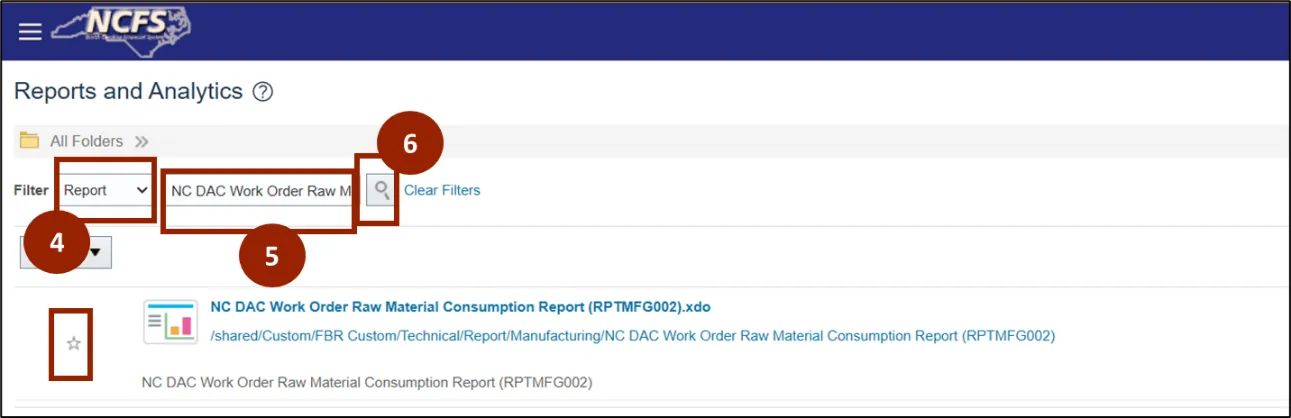
Step 4. Search for the report using the report name.
Step 5. Change the filter to Report and type the name NC DAC Work Order Raw Material Consumption Report (.xdo) and click on Search.
Note: If multiple reports appear, select the version ending in (.xdo).
Step 6. Click on the report.
Note: You can add the reports to your Favorite by clicking the Star icon.
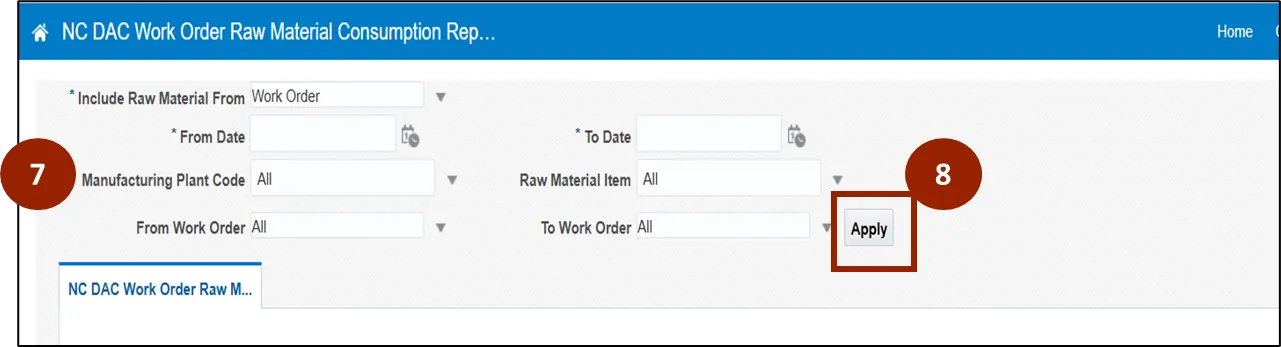
Step 7. Provide the parameters:
- Include Raw Material From: Select the raw material source to analyze.
- Date Range: Specify the time period for Work Orders to be included.
- Manufacturing Plant Code: Choose "All" for all plants or select a specific plant.
- Raw Material Item: Select "All" materials or choose specific raw materials.
- Work Order Range: Enter a range if focusing on Work Orders.
Step 8. Click on Apply. Report will be download to your local machine.
Wrap-Up
NCFS users can generate production reports using the steps above.
Additional Resources
- Instructor Led Training (ILT)
- Web-based Training (WBT)