Purpose
The purpose of this Quick Reference Guide (QRG) is to provide a step-by-step guide of how to update Work Definition in the North Carolina Financial System (NCFS).
Introduction and Overview
This QRG covers the process to revise work definitions and make minor updates within NCFS.
Update Work Definition
There are 14 steps to complete this process.
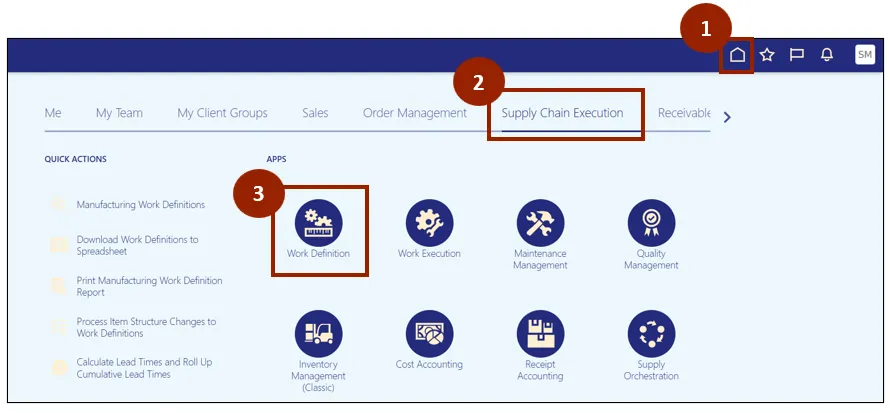
Step 1. Begin from the Home page, or click the Home icon.
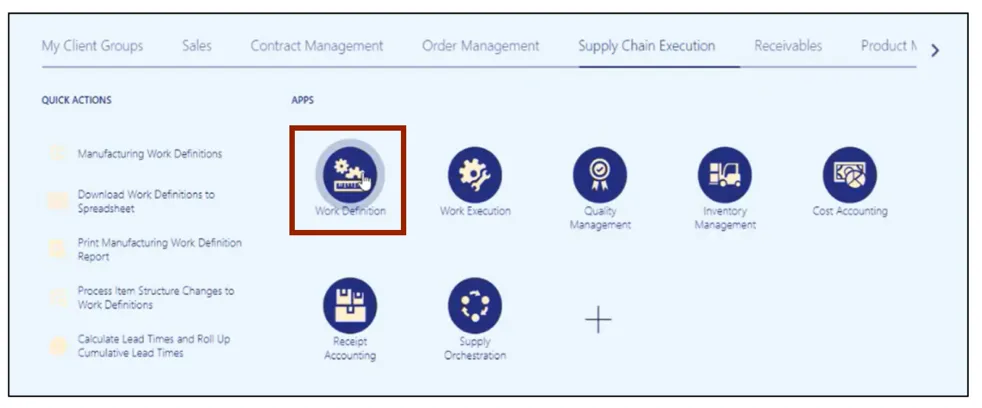
Step 2. On the Home page, select Supply Chain Execution.
Step 3. Within the Supply Chain Execution tab, select Work Definition.
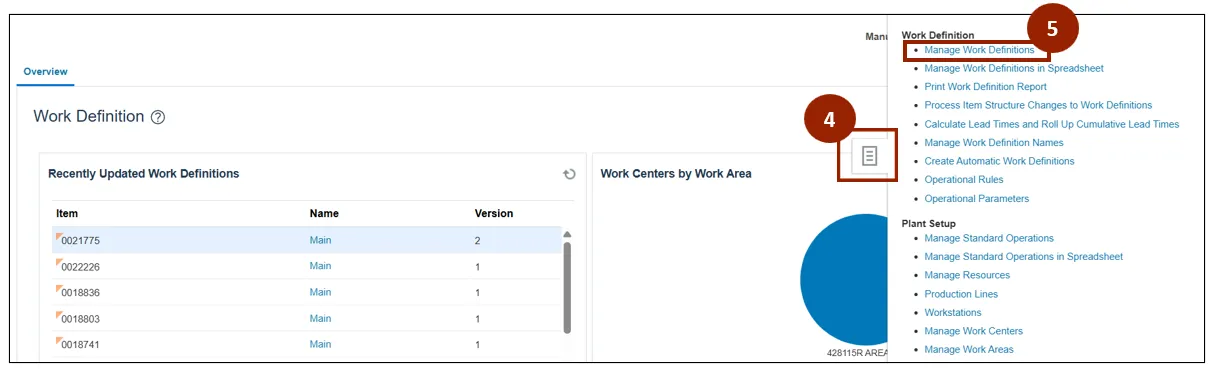
Step 4. From the Work Definition page, click the Task icon.
Step 5. Click the Manage Work Definitions task.
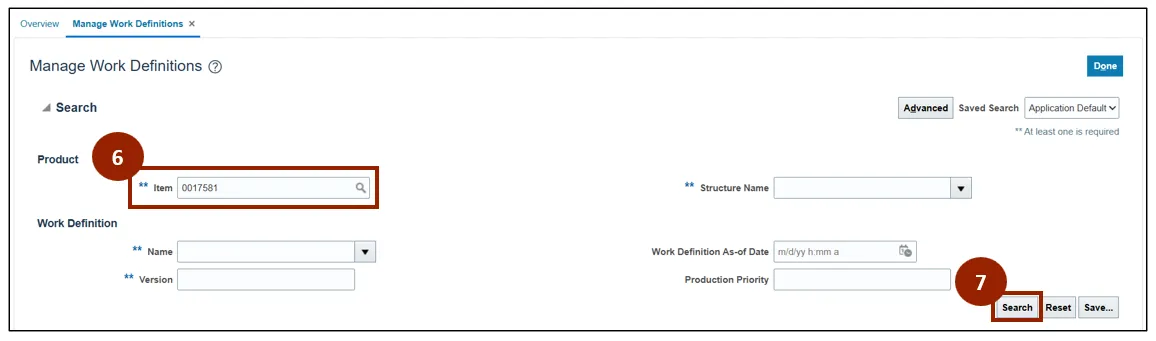
Step 6. From the Manage Work Definitions screen, in the Item field, input the Item Number.
Step 7. Click the Search button.
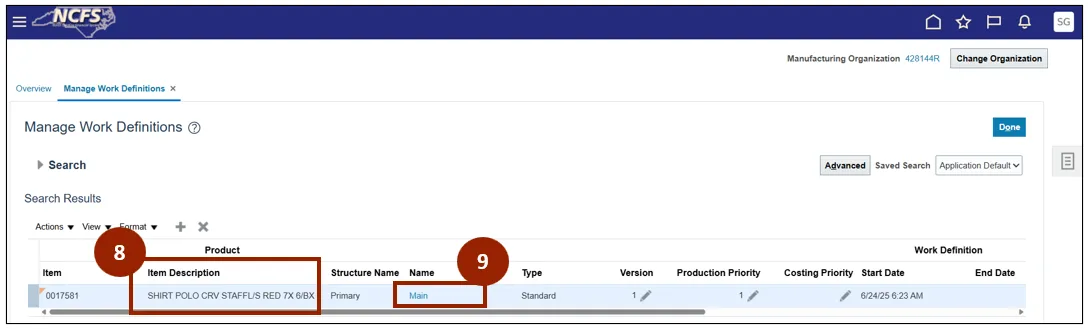
Step 8. Once the Work Definition populates, the Item Description displays and shows which Work Definition is created.
Step 9. In the Name field, click Main.
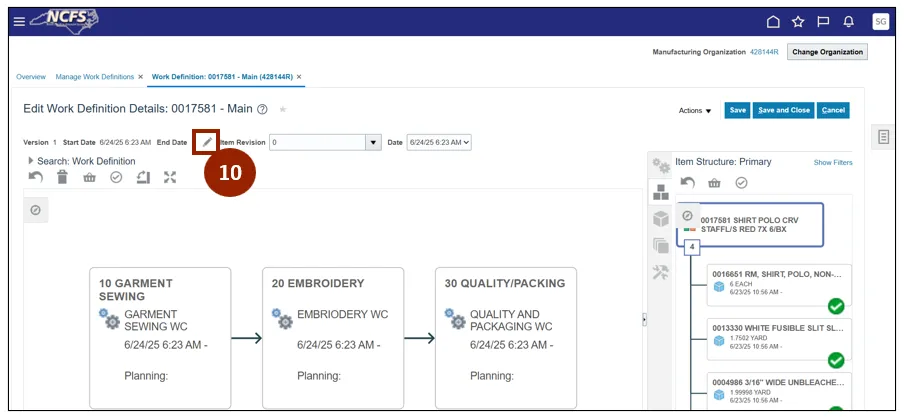
Step 10. Once the Edit Work Definition screen displays for the item, click the Edit icon to edit work definition details.
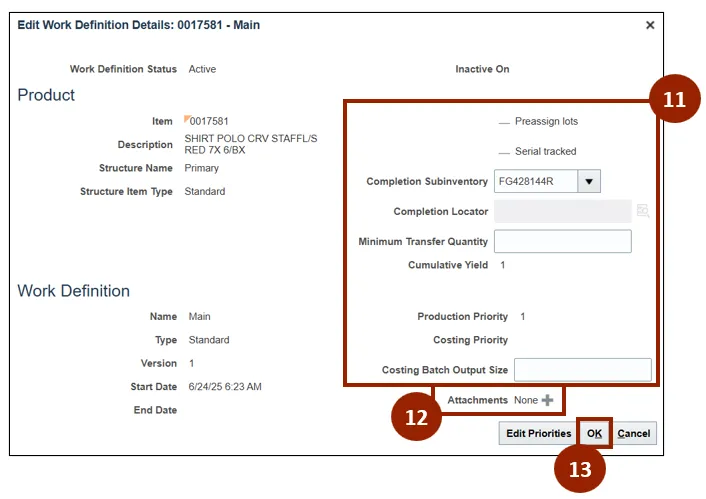
Step 11. Edit the appropriate Attributes.
Step 12. If you need to add Work Instructions, select the Add icon in the Attachments field.
Step 13. Click the OK button.
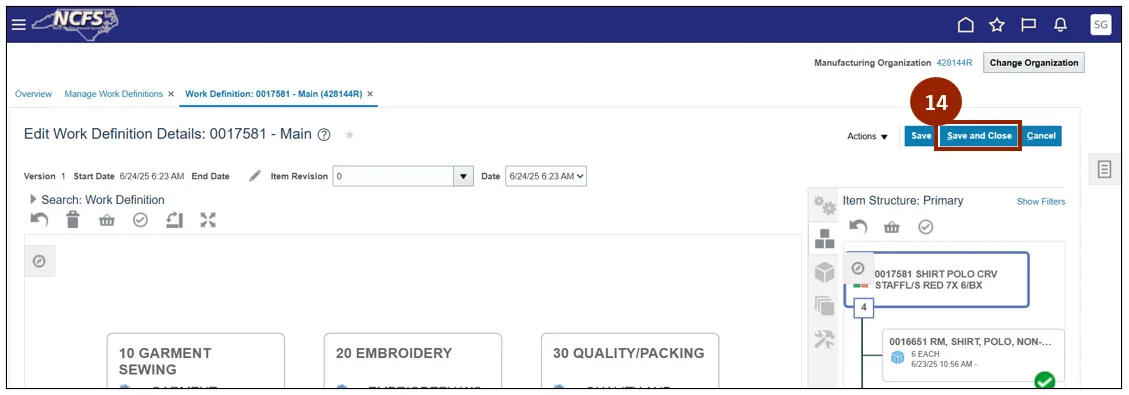
Step 14. Once returned to the Edit Work Definition Details page and all necessary items have been modified, click Save and Close.
Create a New Version of a Work Definition
There are 8 steps to complete this process.
Step 1. Begin from the Home page or click the Home icon.
Step 2. On the Home page, select Work Definition.
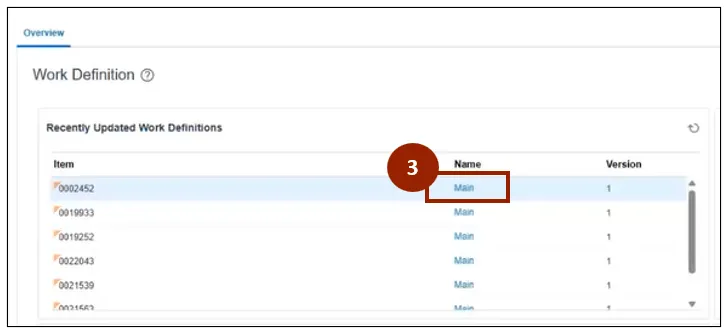
Step 3. Select the appropriate Version to open by clicking the Main link.
Note: All versions will appear in the Recently Updated Work Definitions area, on the Work Definition page.
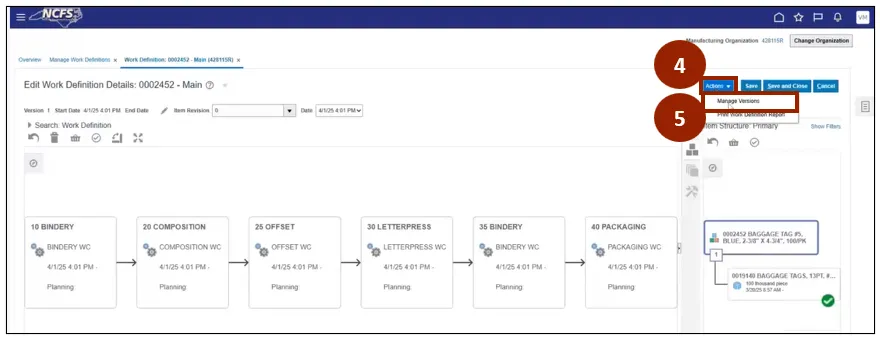
Step 4. On the Edit Work Definition Details page, click Actions.
Step 5. Select Manage Versions from the drop-down list.
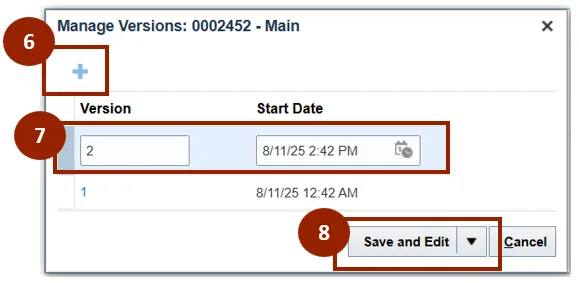
Step 6. Click the Add icon.
Step 7. The next version number will populate with a date and time.
Step 8. Click Save and Edit.
Note: Previous versions will be end dated and all new Work Orders will refer to the new work definition revision.
Delete a Standard Operation from a Work Definition
There are 4 steps to complete this process.
Step 1. To delete a Standard Operation, navigate to the Edit Work Definition Details page and select the appropriate Operation.
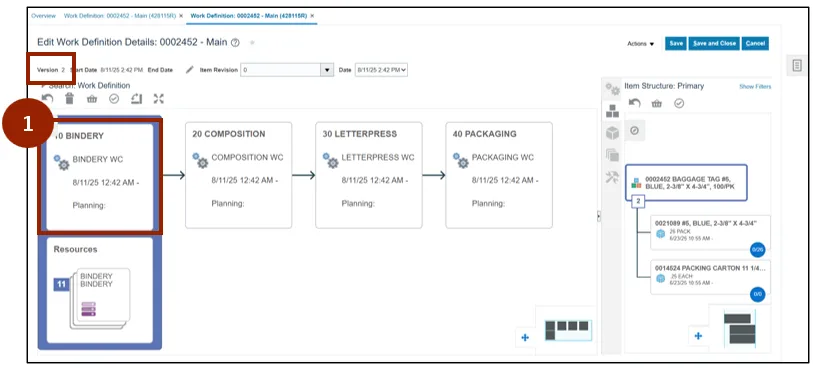
Step 2. Once the notification populates, select Actions.
Step 3. Select Delete.
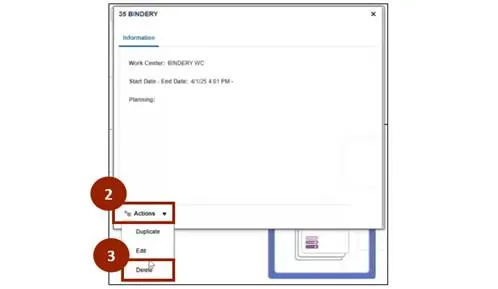
Step 4. Once the Delete notification populates, select OK.
Note: Once the Operation is deleted, all the resources and material tied to that Operation will be deleted from the Work Definition.

Modify Resources Aligned to Operations
There are 5 steps to complete this process.
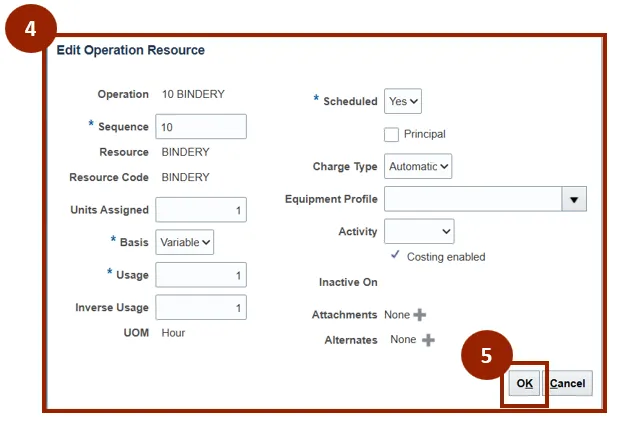
Step 1. To modify Resources, navigate to the Edit Work Definition Details page double-click the appropriate Resource to open it.
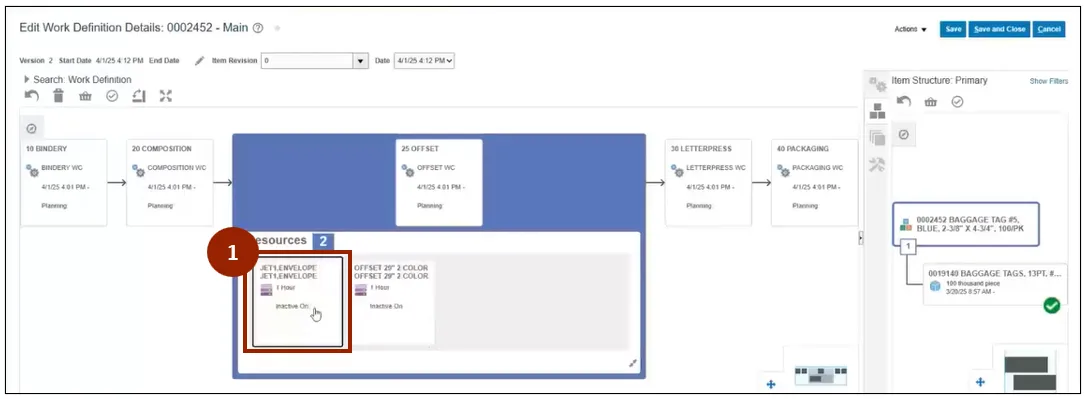
Step 2. On the pop-up, select Actions.
Step 3. Select Edit.
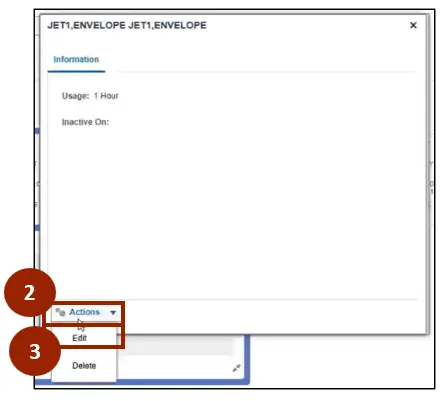
Step 4. Edit the desired fields. For example: Sequence or Attachments.
Note: Update the value to Fixed from the Basis drop-down field if the resource usage is fixed per product quantity produced. Update the value to Variable from the Basis drop-down field if the resource usage varies with the product quantity produced.
Step 5. Select OK.
Modify Raw Materials Aligned to Operations
There are 7 steps to complete this process.
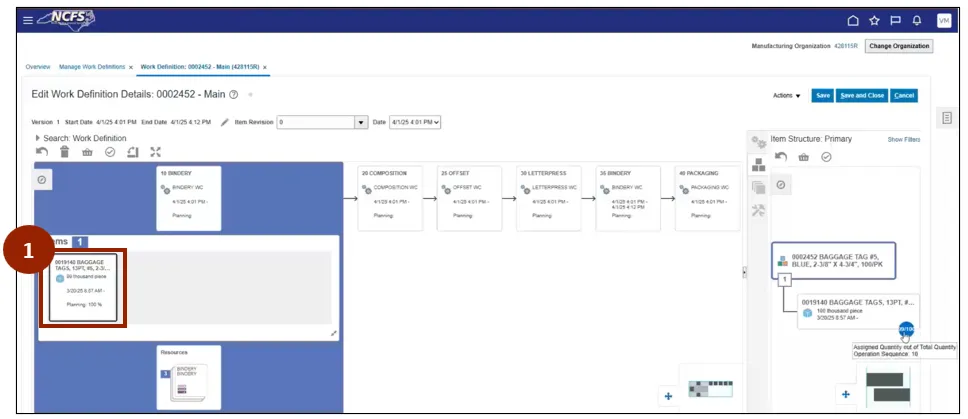
Step 1. On the Edit Work Definition Details page, double-click an Item to modify quantity.
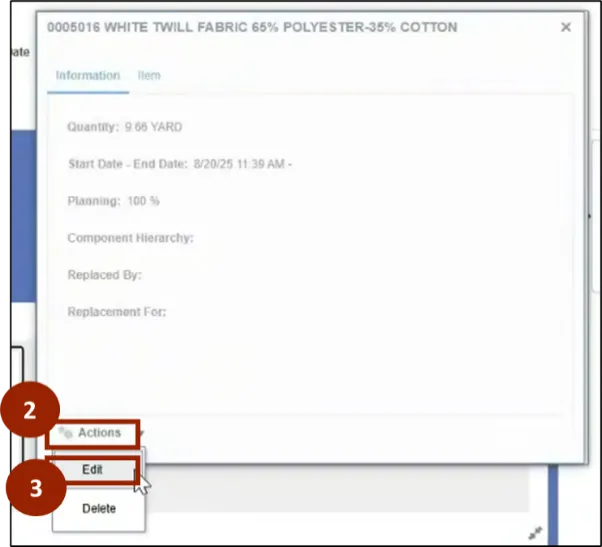
Step 2. Select the Actions drop-down.
Step 3. Select Edit.
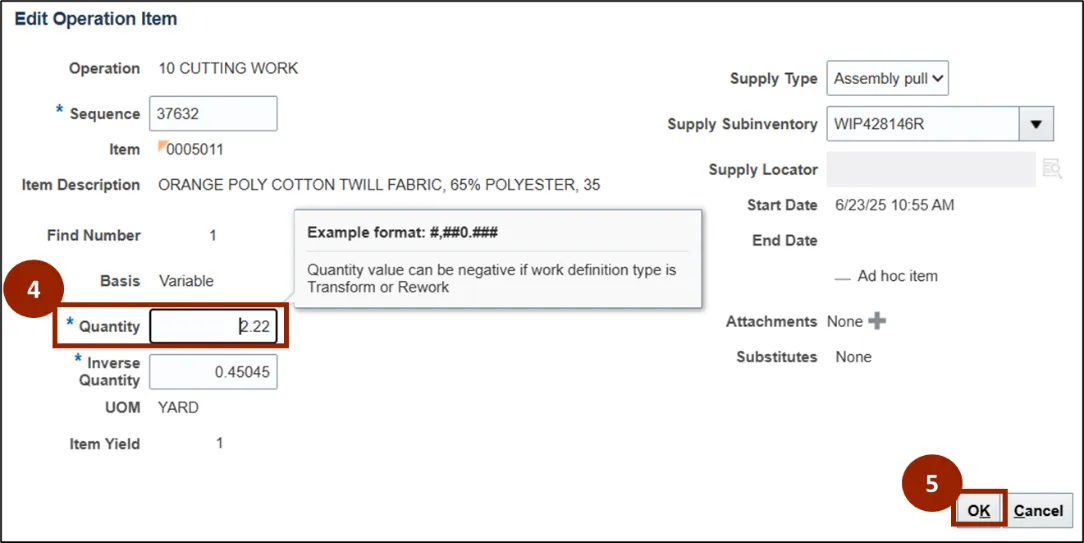
Step 4. In the Quantity field, input the quantity.
Step 5. Select OK.
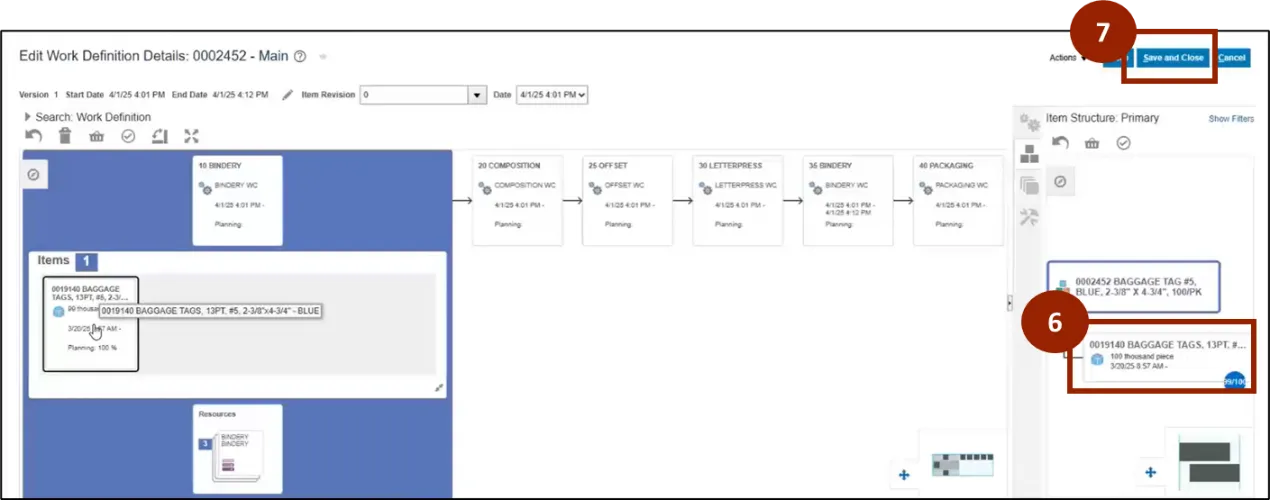
Step 6. The status indicator circle will not appear green if differences are present.
Step 7. Click Save and Close.
Review Work Definitions
There are 4 steps to complete this process.
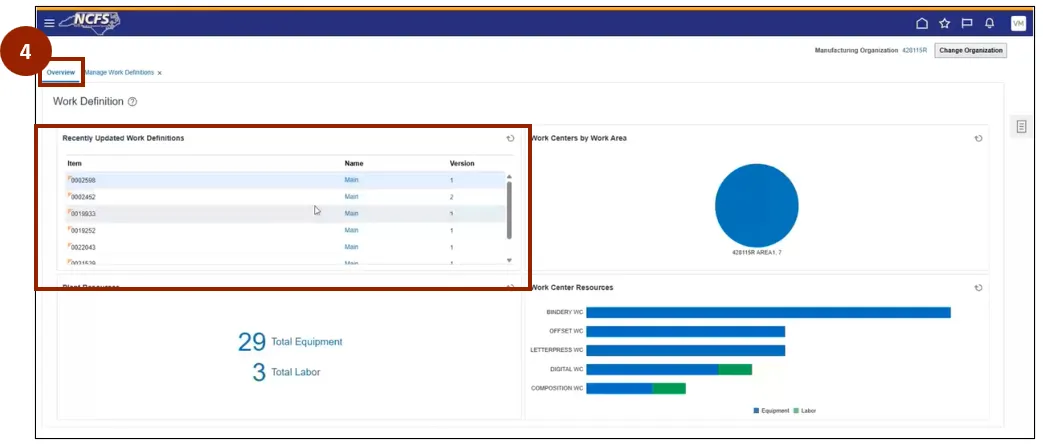
Note: After saving, the Work Definition page will appear, and the new Version will display in the Recently Updated Work Definitions area.
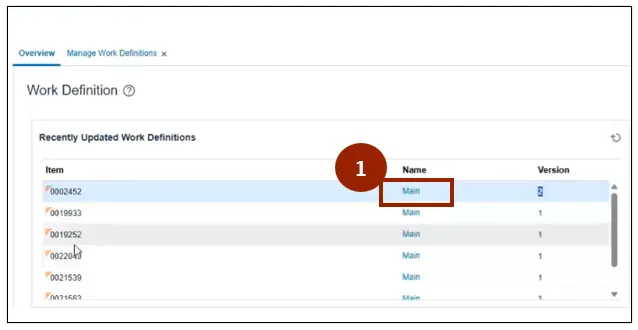
Step 1. From the Work Definition page, navigate to the active/latest Version to open by clicking the Main link.
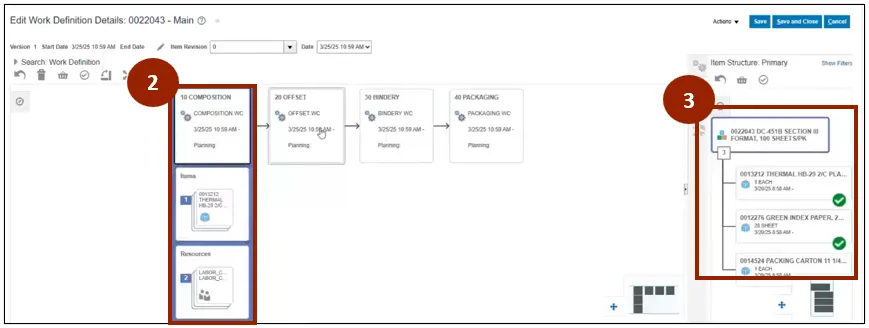
Step 2. You will see the respective Resources and Items required.
Step 3. Notice the Operation circles are now green as there are no discrepancies between the Item Structure and the Work Definition.
Step 4. On the Work Definition page, select the Overview tab.
Wrap-Up
NCFS users can update work definitions using the steps above.
Additional Resources
- Instructor Led Training (ILT)