Purpose
The purpose of this Quick Reference Guide (QRG) is to provide a step-by-step guide of how to navigate revenue and cost of goods sold (COGS) matching in the North Carolina Financial System (NCFS).
Introduction and Overview
This QRG covers the process for navigating revenue and cost of goods sold (COGS) matching in NCFS.
Analyze Gross Product Margin Navigation
There are 13 steps to complete this process.
Step 1. Click the Company Single Sign-On (SSO) button.
Step 2. Enter your @dac.nc.gov email address.
Step 3. Click Next then enter your password.
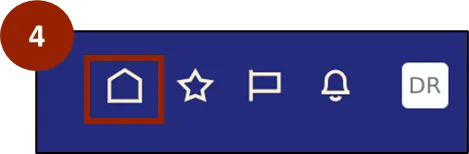
Step 4. Begin from the Home page, or click the Home icon.
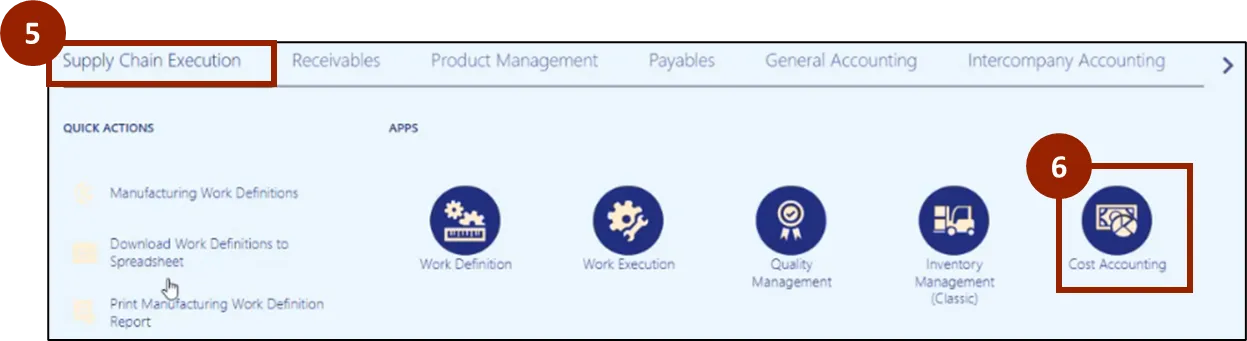
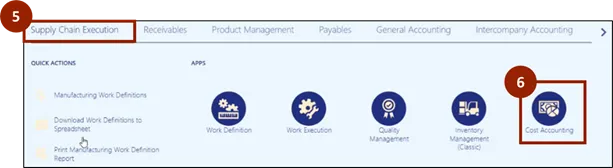
Step 5. On the Home page, select Supply Chain Execution.
Step 6. Within the Supply Chain Execution tab, select Cost Accounting.
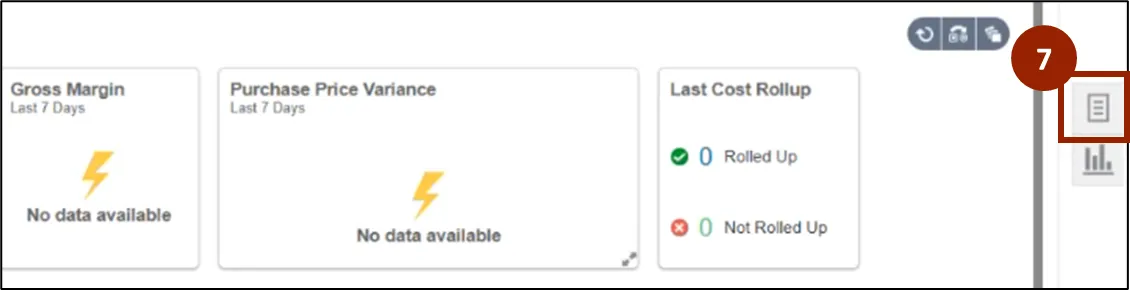
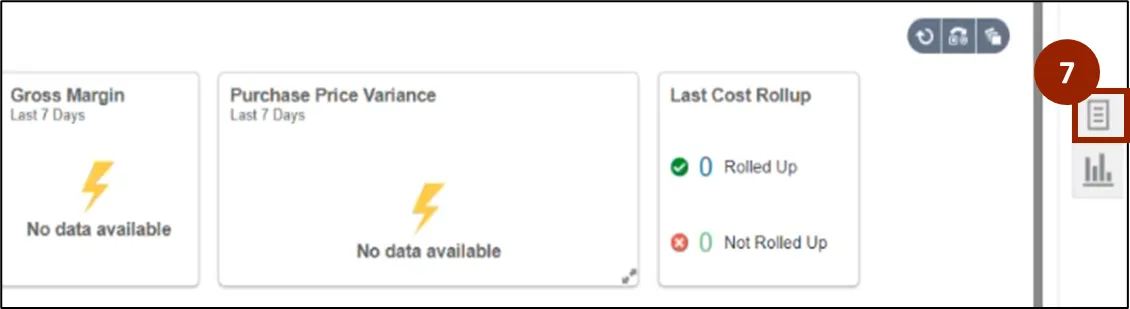
Step 7. On the Cost Accounting page, navigate to the Task icon.
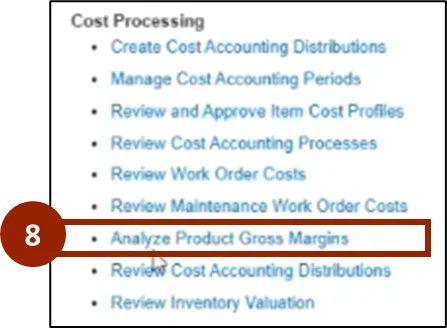
Step 8. Within the Task tab, select Analyze Product Gross Margins.
Step 9. Within the Analyze Product Gross Margins screen, select the appropriate dropdown from the following:
- Business Unit
- Cost Organization
- Start Date
- End Date
- Cost Book
- Inventory Organization
Step 10. Select Search.

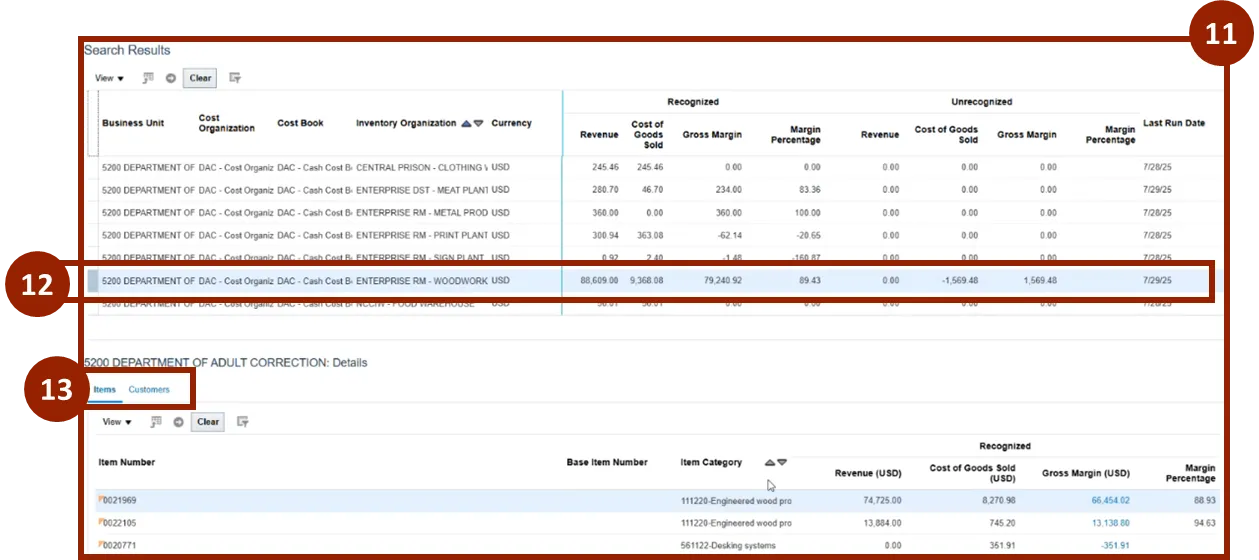
Step 11. View Results.
Step 12. Select a row to view additional details.
Step 13. View more results based on the highlighted row by selecting the tabs:
- Items
- Customers
Note: Select any blue number within the Gross Margin column to view more detail.
Revenue Cost Accounting Distributions
To navigate to the Review Cost Accounting Distributions View, complete the following steps. There are 13 steps to complete this process.
Step 1. Click the Company Single Sign-On (SSO) button.
Step 2. Enter your @dac.nc.gov email address.
Step 3. Click Next then enter your password.
Step 4. Begin from the Home page, or click the Home icon.
Step 5. On the Home page, select Supply Chain Execution.
Step 6. Within the Supply Chain Execution tab, select Cost Accounting.
Step 7. On the Cost Accounting page, navigate to the Task icon.
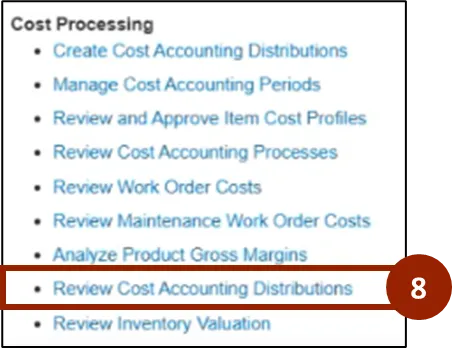
Step 8. Within the Task tab, select Review Cost Accounting Distributions.
Step 9. On the Review Cost Accounting Distributions screen, input and/or select the appropriate option from the following:
- Cost Organization: Select DAC - Cost Organization
- Cost Book: Select the appropriate Cost Book

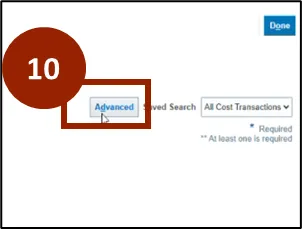
Step 10. Select Advanced.
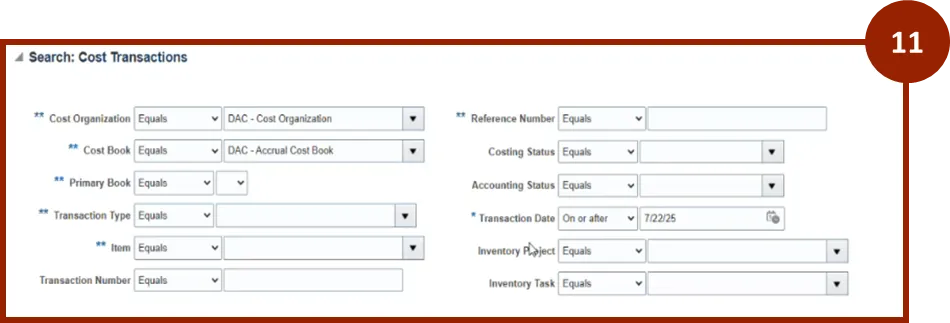
Step 11. On the Search: Cost Transactions screen, input and/or select the appropriate option from the following:
- Reference Number: Enter Sales Order Number.
- Item: Enter the NCFS Item Number to narrow the results for specific Finished Good.
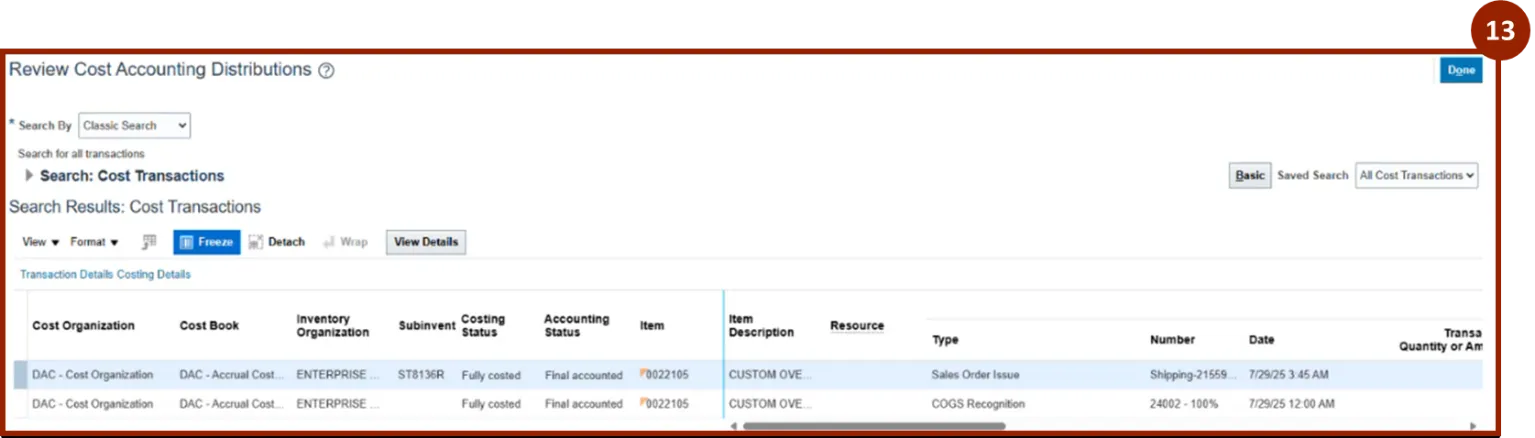
Step 12. Select Search.

Step 13. Review Cost Accounting Distributions for Sales Order Issue and COGS Recognition.
Wrap-Up
NCFS users can navigate revenue and cost of goods sold (COGS) matching by following the steps outlined above.
Additional Resources
- Instructor Led Training (ILT)