Purpose
The purpose of this Quick Reference Guide (QRG) is to provide a step-by-step guide of how to Set Up and Maintain Pricing Strategies and Assign Strategies in the North Carolina Financial System (NCFS).
Introduction and Overview
This QRG covers the process of assigning the correct strategies to deliver tailored pricing by systematically grouping records and applying the most appropriate pricing rules.
Manage Pricing Strategies
There are 9 steps to complete this process.
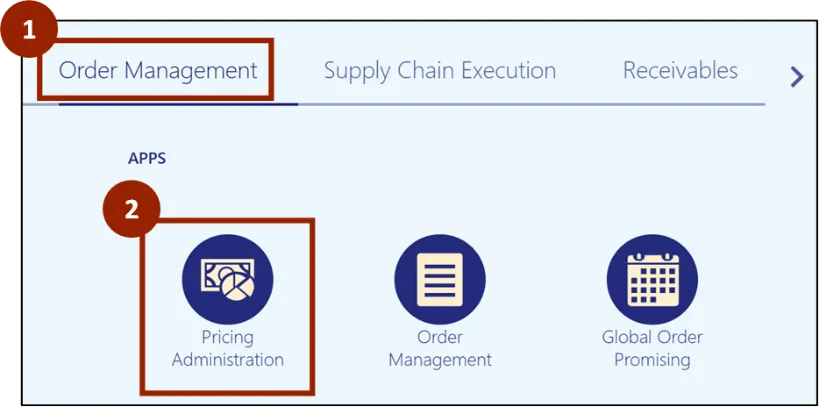
Step 1. From the Home screen, click the Order Management tab.
Step 2. Click on Pricing Administration.
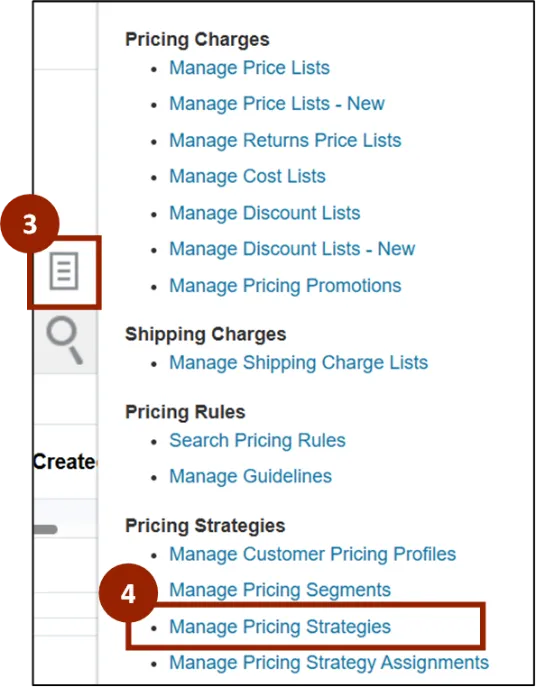
Step 3. Click the Task icon.
Step 4. Within the Pricing Strategies section, Click Manage Pricing Strategies.
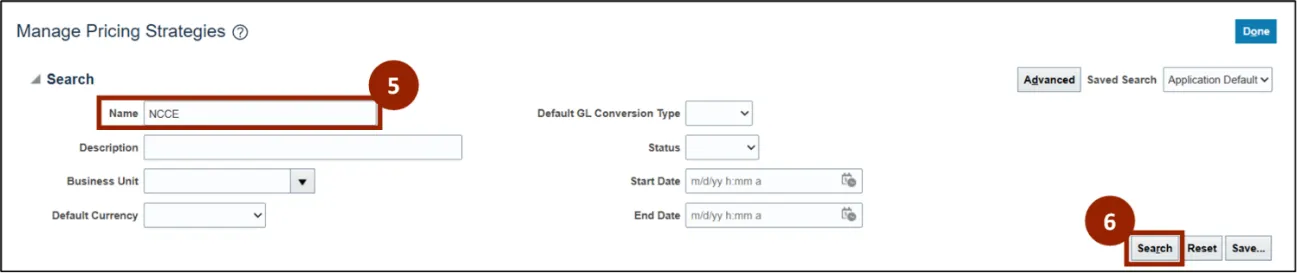
Step 5. In the Name field, enter NCCE.
Step 6. Select the Search button.
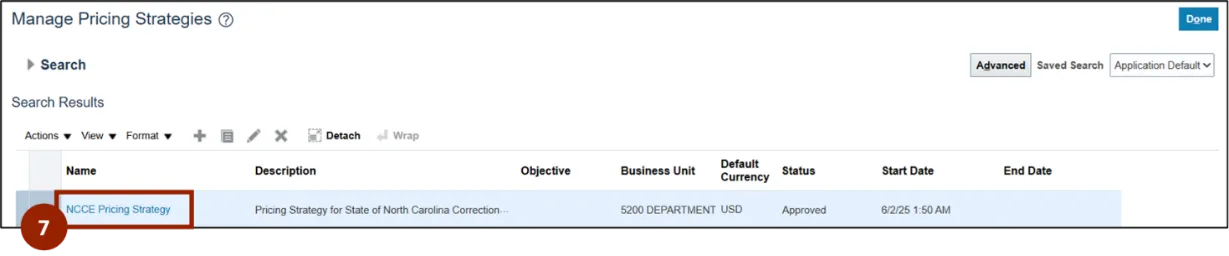
Step 7. Under the Search Results section within the Name column, click the NCCE Pricing Strategy link.
Step 8. The Edit Pricing Strategy: NCCE Pricing Strategy screen displays, review the associated Price List.
Note: The NCCE Price List link opens the Edit Price List: NCCE Price List screen within a new tab.
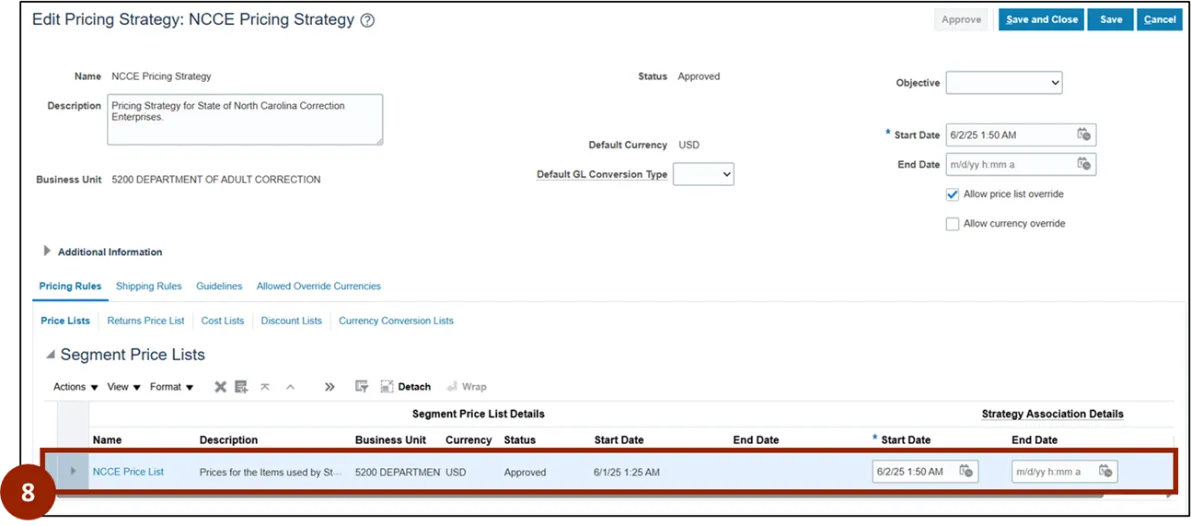
Note: Depending on your assigned Pricing Strategy, the associated Price List may vary or not yet display.
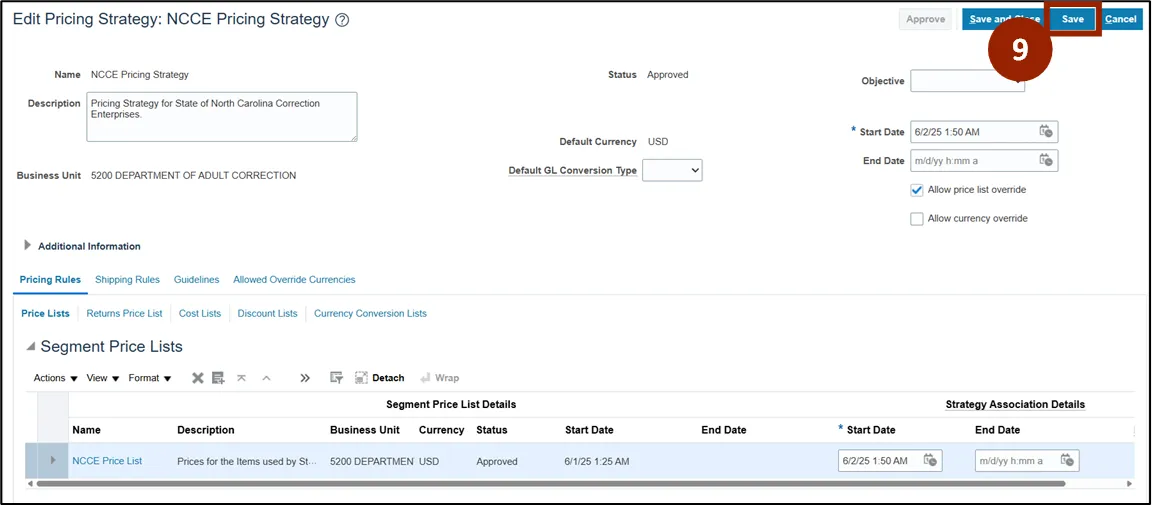
Step 9. If any changes are made to the unlocked fields, click the Save button within the Edit Price List screen to apply your updates.
Note: Unlocked fields within the Edit Pricing Strategy: NCCE Pricing Strategy screen may be updated, as needed.
Manage Pricing Strategy Assignments
There are 8 steps to complete this process.
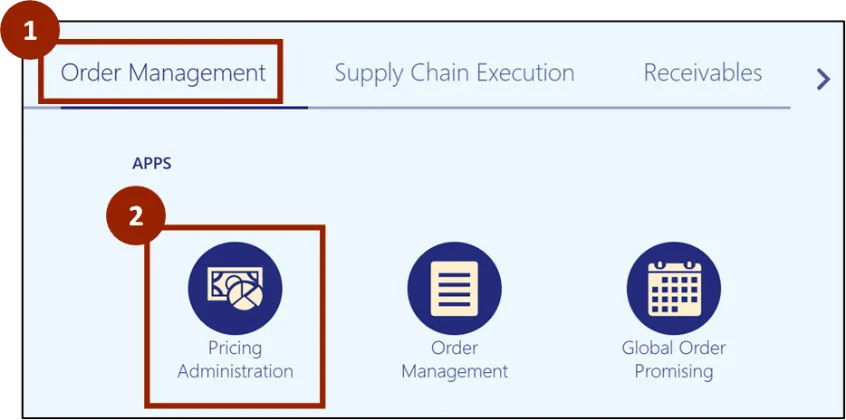
Step 1. From the Home screen, click the Order Management tab.
Step 2. Click on Pricing Administration.
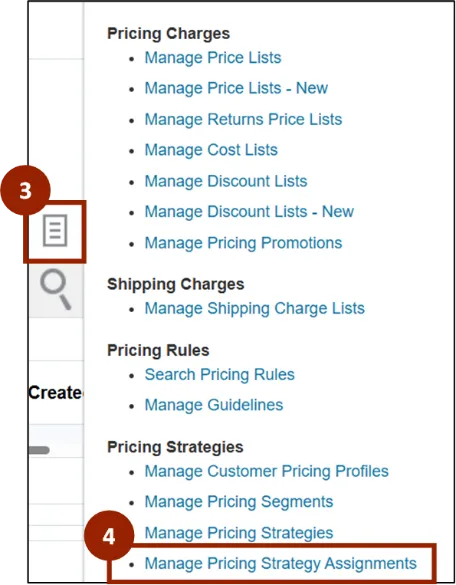
Step 3. Click the Task icon.
Step 4. Within the Pricing Strategies section, click Manage Pricing Strategy Assignments.
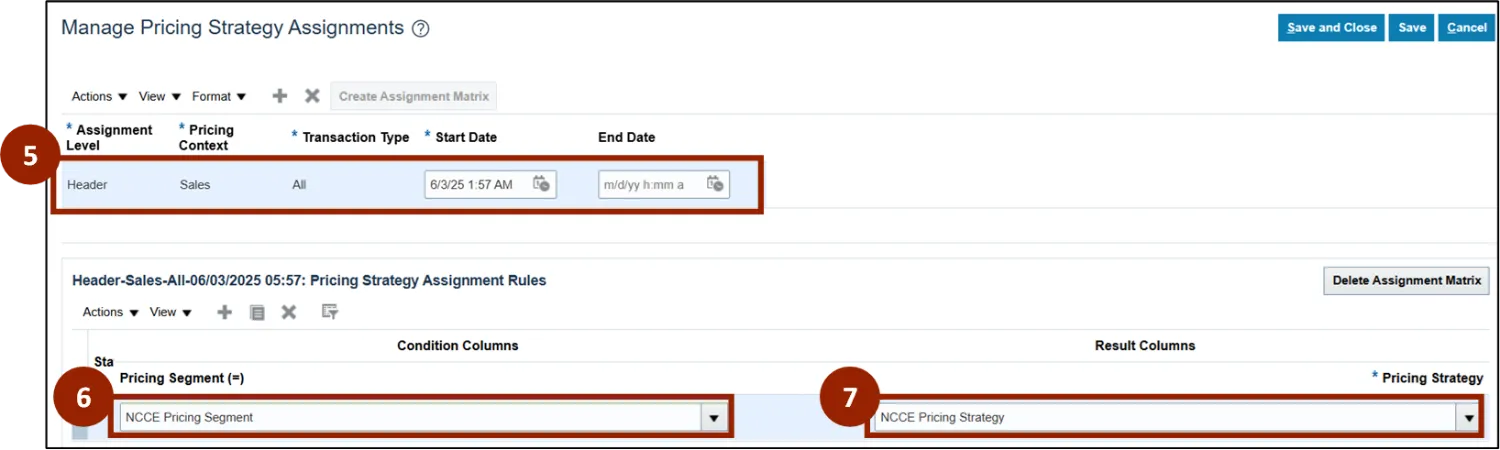
Step 5. Review the Assignment Matrix.
Step 6. Under the Pricing Strategy Assignment Rules section in the Pricing Segment field, verify the NCCE Pricing Segment is selected.
Step 7. In the Pricing Strategy field, verify the NCCE Pricing Strategy is selected.
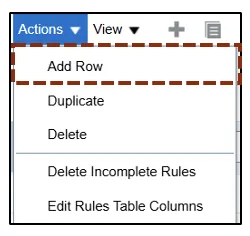
Note: For DAC the only available Pricing Strategy is the NCCE Pricing Strategy. If additional strategies are introduced in the future, you can add new rows to define them by clicking the Actions drop-down then select Add Row, or by clicking the Plus (+) icon in the Pricing Strategy Assignment Rules table.

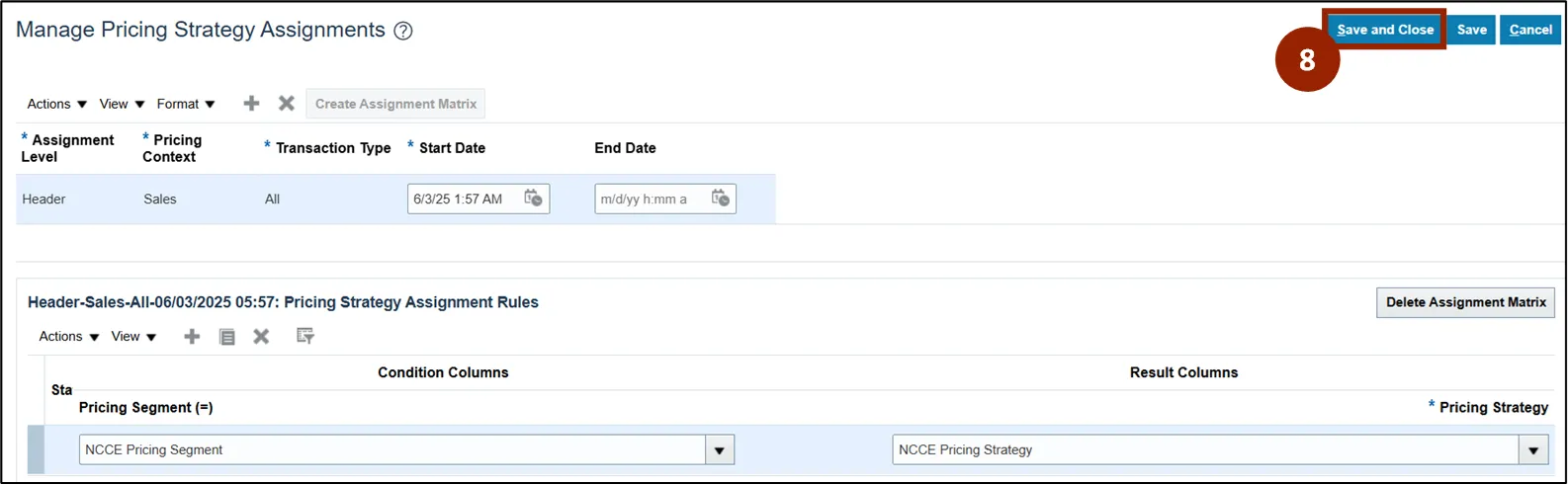
Step 8. If any changes are made to the unlocked fields, click the Save and Close button.
Note: Unlocked fields within the Manage Pricing Strategy screen may be updated, as needed.
Pricing Strategy and Segment in Sales Order
There are 9 steps to complete this process.
Step 1. Click the Company Single Sign-On (SSO) button.
Step 2. Enter your @dac.nc.gov email address.
Step 3. Click Next, then enter your password.
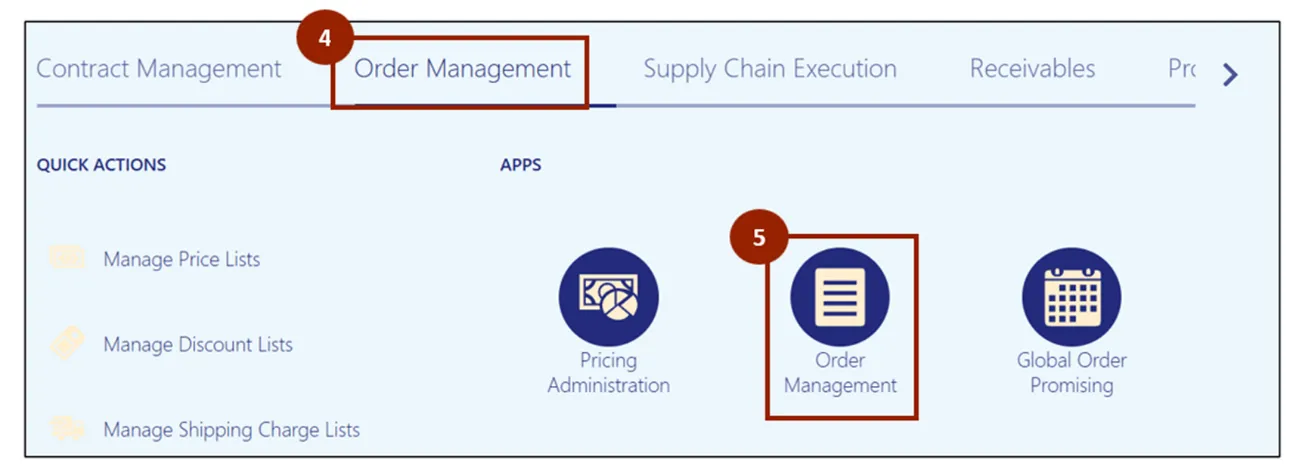
Step 4. On the Home page, select the Order Management tab.
Step 5. Click Order Management App.
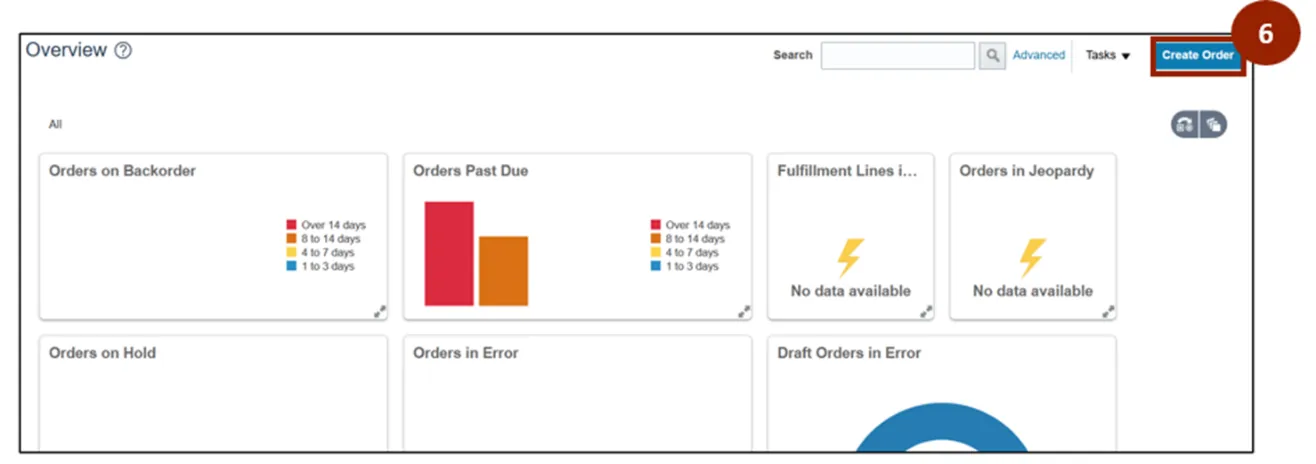
Step 6. Click the Create Order button.
Step 7. From the Create Order screen, click the Actions drop-down.
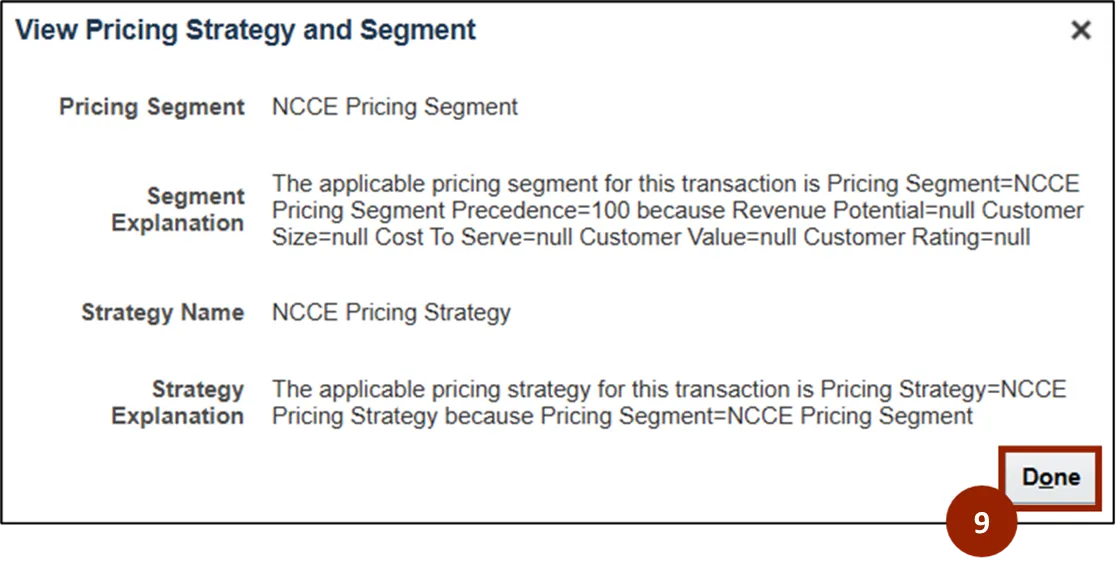
Step 8. Click on View Pricing Strategy and Segment.

Note: The View Pricing Strategy and Segment screen displays the defaulted NCCE Pricing Segment and the NCCE Pricing Strategy.
Step 9. Once you have reviewed the details in the View Pricing Strategy and Segment screen, click Done to close.
Note: This is an optional validation step for the CSR during sales order entry. This screenshot below shows the Price Segment and Price Strategy that have been defined for DAC and are properly configured in the NCFS system.
Wrap-Up
NCFS users can set up and maintain pricing strategies and assign strategies using the steps above.
Additional Resources
- Instructor Led Training (ILT)
- Web-based Training (WBT)