Purpose
The purpose of this Quick Reference Guide (QRG) is to provide a step-by-step guide of how to execute the Costing Accounting Periods process in the North Carolina Financial System (NCFS).
Introduction and Overview
This QRG covers the process of Costing Accounting Periods. This process provides information on how to Run report to view costing account balances, identify exceptions and errors in cost accounting periods using reports and review cost accounting distributions processes and exceptions.
Subledger Period Close Exceptions Report
There are 17 steps to complete this process.
Step 1. Log in to the NCFS portal using the Company Single Sign-On (SSO) button.
Step 2. Enter your @dac.nc.gov email address.
Step 3. Click Next, then enter your password.
Step 4. Begin from the Home page, or click the Home icon.
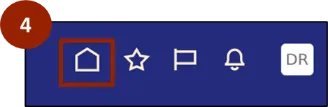
Step 5. On the Home page, select Tools.
Step 6. Within the Tools tab, select Scheduled Processes.
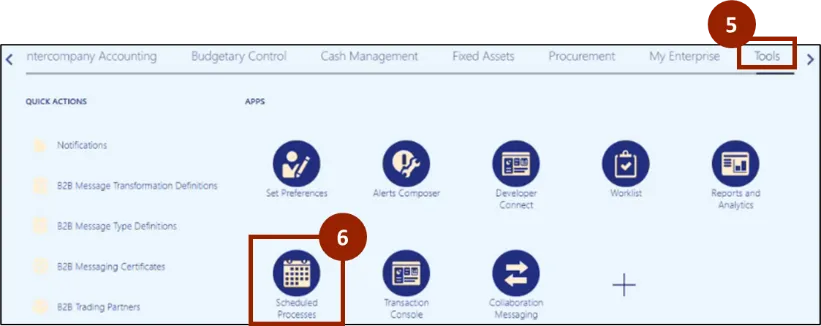
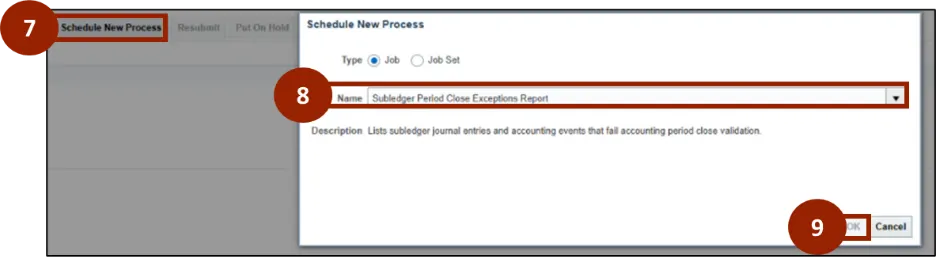
Step 7. Select Schedule New Process.
Step 8. Type into the Name box Subledger Period Close Exceptions Report.
Step 9. Select OK.
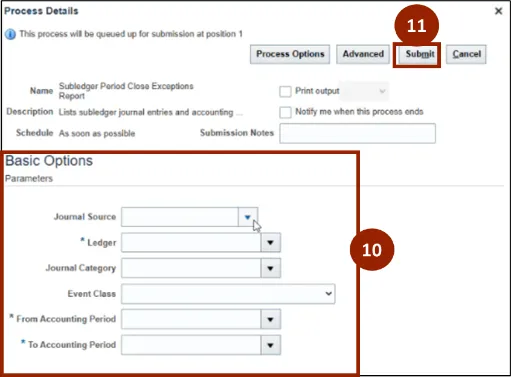
Step 10. On the Process Details screen, input and/or select the appropriate option from the following:
- Journal Source: Select Cost Accounting
- Ledger: Select the appropriate ledger
- From Accounting Period
- To Accounting Period
Step 11. Select Submit.
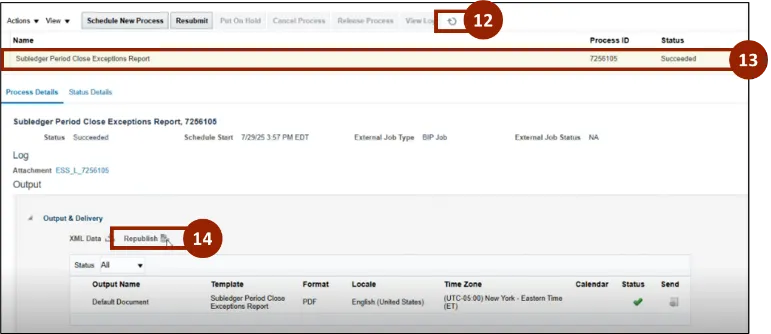
Step 12. Select the Refresh icon.
Step 13. Select and highlight the succeeded row Subledger Period Close Exceptions Report.
Step 14. Select Republish.
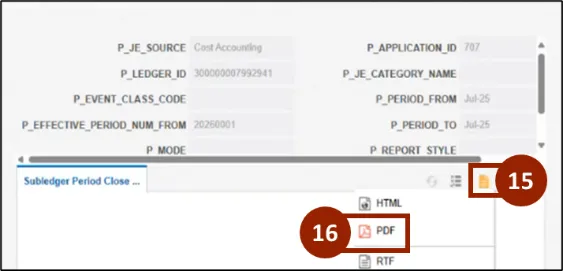
Step 15. Select the Report icon.
Step 16. Select PDF.
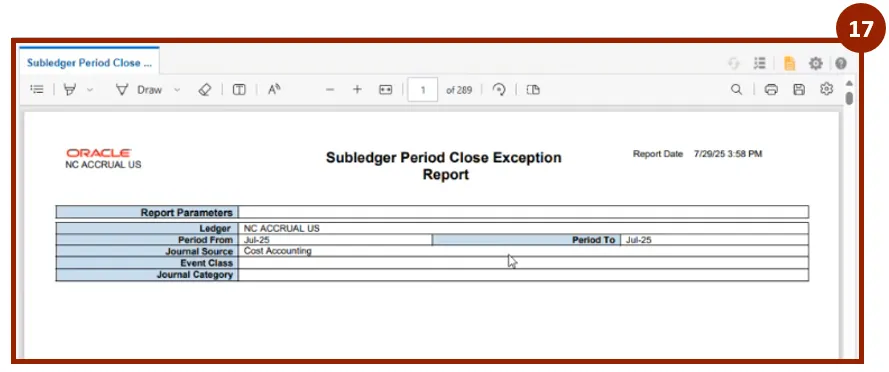
Step 17. Scroll to view the entire Subledger Period Close Exceptions Report.
Period Costing Accounting Balances by Supporting References Report
There are 14 steps to complete this process.
Step 1. Begin from the Home page, or click the Home icon.
Step 2. On the Home page, select Tools.
Step 3. Within the Tools, select Scheduled Processes.
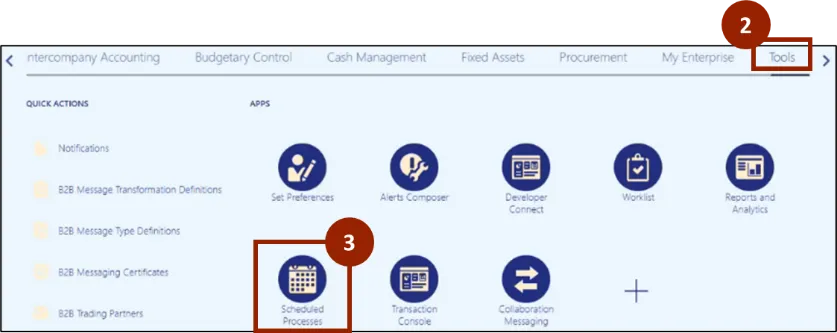
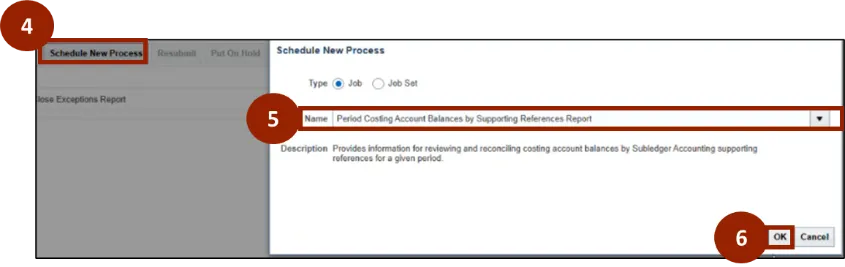
Step 4. Select Schedule New Process.
Step 5. Type into the Name box Period Costing Account Balances by Supporting References Report.
Step 6. Select OK.
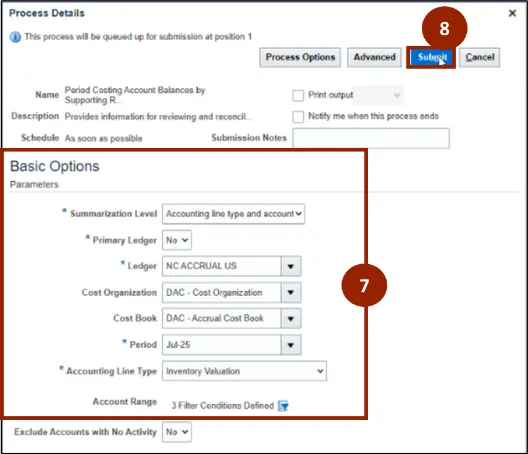
Step 7. On the Process Details screen, input and/or select the appropriate option from the following:
- Summarization Level
- Primary Ledger: Select Yes to filter by primary ledger or select No to show results from non-primary ledgers
- Ledger: Select the appropriate ledger
- Period
- Accounting Line Type: Select Inventory Valuation
Step 8. Select Submit.
Step 9. Select the Refresh icon.
Step 10. Select and highlight the Succeeded row Period Costing Account Balances by Supporting References Report.
Step 11. Select Republish.
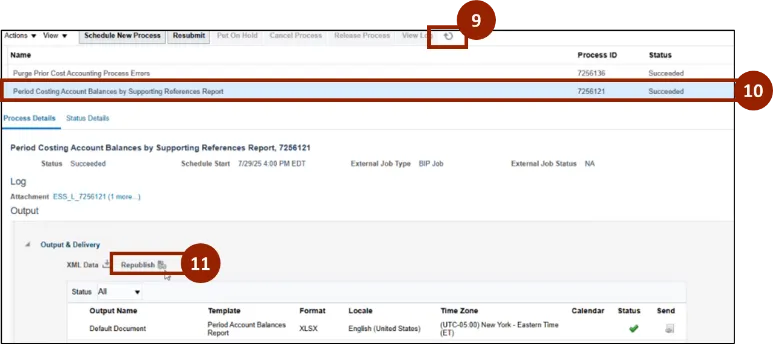
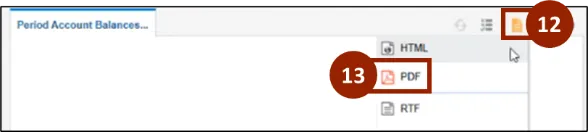
Step 12. Select the Report icon.
Step 13. Select PDF.
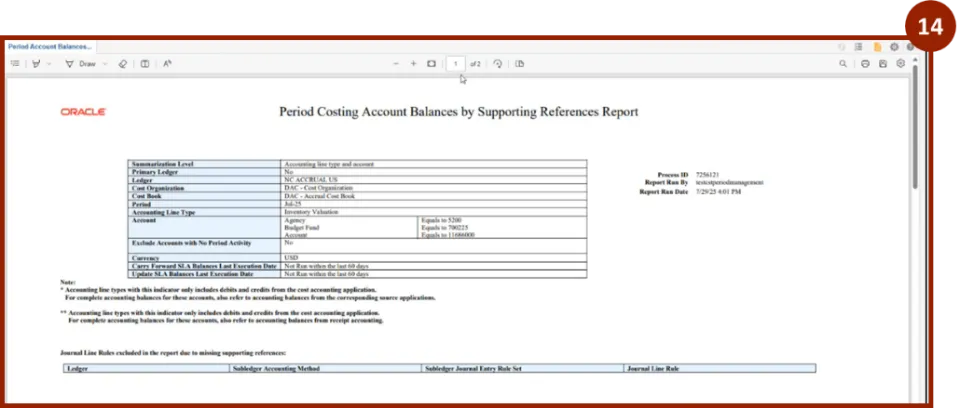
Step 14. Scroll to view the entire Period Costing Account Balances by Supporting References Report.
Cost Accounting Processes
There are 9 steps to complete this process.
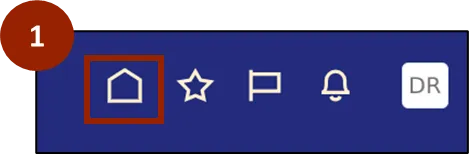
Step 1. Begin from the Home page, or click the Home icon.
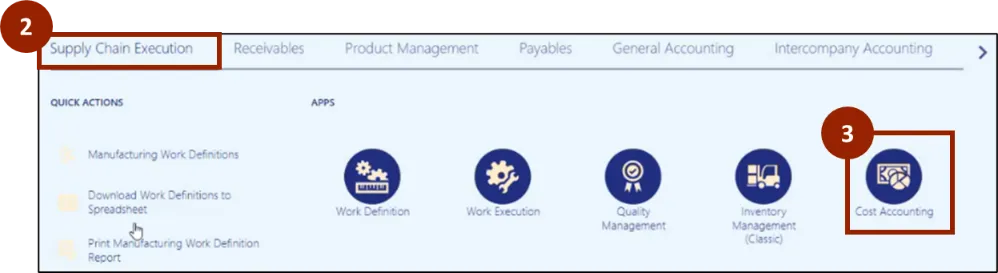
Step 2. On the Home page, select Supply Chain Execution.
Step 3. Within the Supply Chain Execution tab, select Cost Accounting.
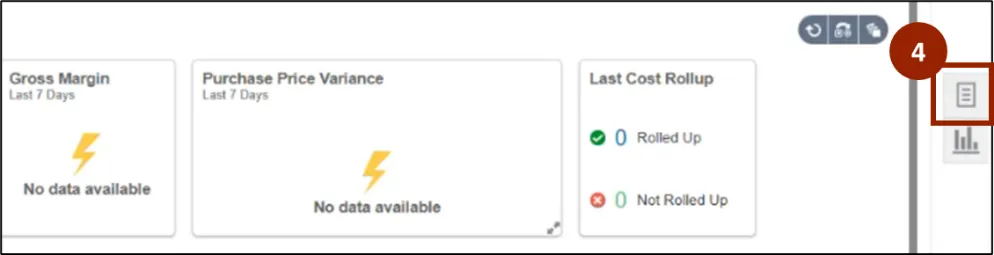
Step 4. On the Cost Accounting page, navigate to the Task icon.
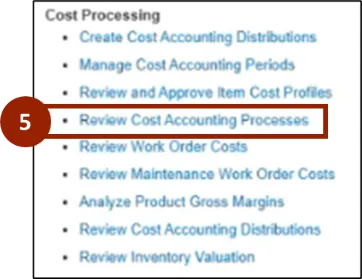
Step 5. Within the Task tab, select Review Cost Accounting Processes.
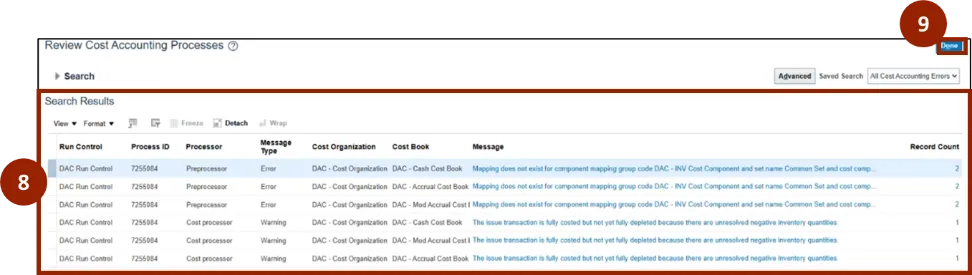
Step 6. On the Review Cost Accounting Processes screen, input and/or select the appropriate option from the following:
- Run Control: Select DAC Run Control
- Process ID
- Message Type: Select Error, Warning
Step 7. Select Search.

Step 8. View Exceptions Search Results Area.
Step 9. Select Done.
Wrap-Up
NCFS users can reference the Costing Accounting Periods using the steps above.
Additional Resources
- Virtual Instructor Led Training (vILT)