Purpose
The purpose of this Business Process Procedure (BPP) is to explain how an employee can update banking details in the Integrated HR-Payroll System.
Trigger
Use this procedure when the employee is hired and/or the employee has an update to his or her banking details (e.g., a new bank account for their direct deposit).
Business Process Procedure Overview
Infotype 0009 (IT0009) holds an employee's bank information. If an employee chooses to receive multiple direct deposits, the first deposit is paid as a flat dollar amount or percentage of net pay to IT0009/subtype Other Bank. The remaining portion of net pay is paid to IT0009/subtype Main Bank. Travel expense bank detail type is used for Accounts Payable reimbursements from North Carolina Finance System (NCFS).
CRITICAL! Any change made to the bank must be made on the first day of the payroll period (monthly or biweekly). This includes changes being made through transaction code PA30 and FIORI as an end user. If a change is made in the middle of the payroll period, the payroll process will pick up both records as valid for the entire payroll period.
- For example, if you are sending 90% of your pay to your main bank account A, and 10% to a second savings account B, and make a change in the middle of the payroll period to move the 10% from savings account B to a new savings account C, the system will read both B and C as valid. For that payroll period, you will receive 80% in your main account A and 10% in the other 2 accounts B and C. The secondary accounts are funded first.
Also, bank details cannot be deleted for past payroll events if the monies have not been disbursed. If the payroll was run, the record cannot be deleted.
Bank details with a subtype 0 (Main Bank) look at what is effective on the check date. Bank details with a subtype 1 (Other Bank) look at all records in effect during any day in the period. Bank details with a subtype 2 (Travel Expenses) are submitted to NCFS for accounts payable reimbursements.
Tips and Tricks
If a user fails to assign an IT0009 record to an employee, the payroll program will recognize the missing IT0009 and will generate a yellow Warning message, indicating the employee's personnel number.
Access Transaction
Via menu Path: Your menu path may contain this custom transaction code depending on your security roles.
Via Transaction Code: PA30
Procedure
There are 10 steps to complete this process.
Step 1. Update the following field.
| Field Name | Description | Values |
|---|---|---|
| Command | White alphanumeric box in upper left corner used to input transaction codes. |
Enter value in Command. Example: PA30 |
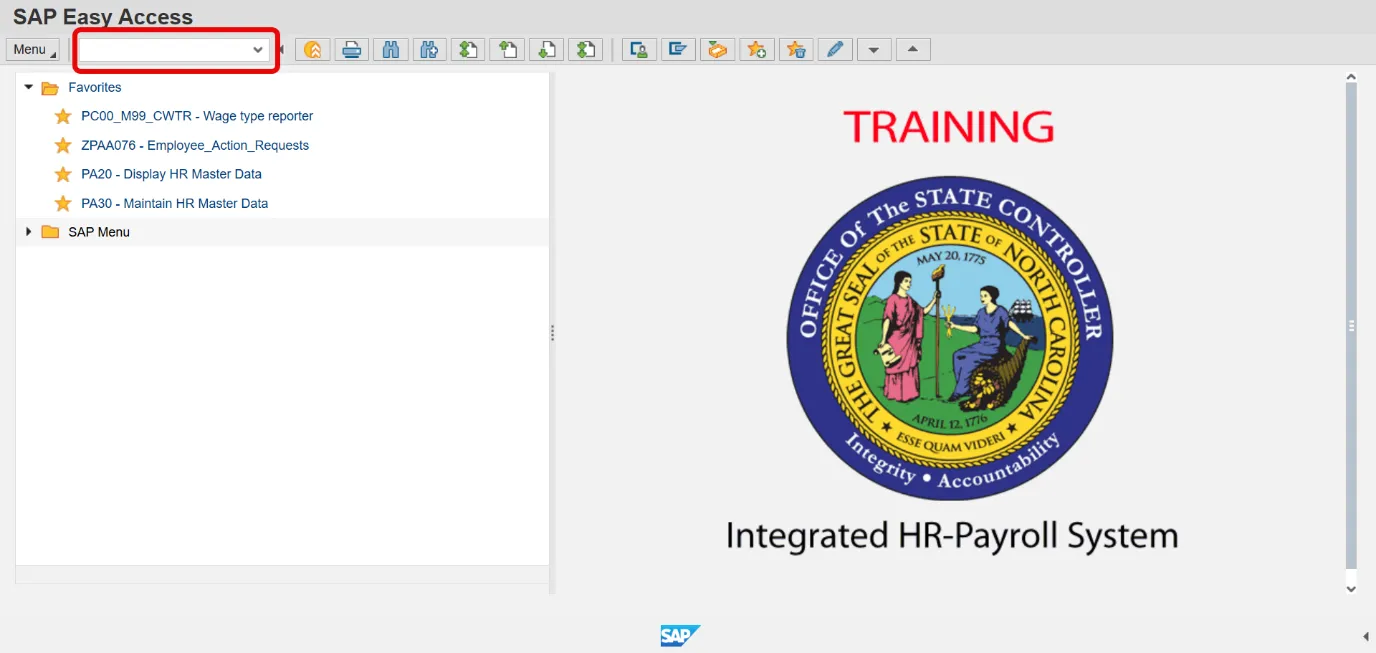
Step 2. Click Enter.
Step 3. Update the following field.
| Field Name | Description | Values |
|---|---|---|
| Personnel No. | Unique employee identifier. |
Enter value in Personnel No. Example: 80001183 |
Note: Verify that the correct personnel number was entered.
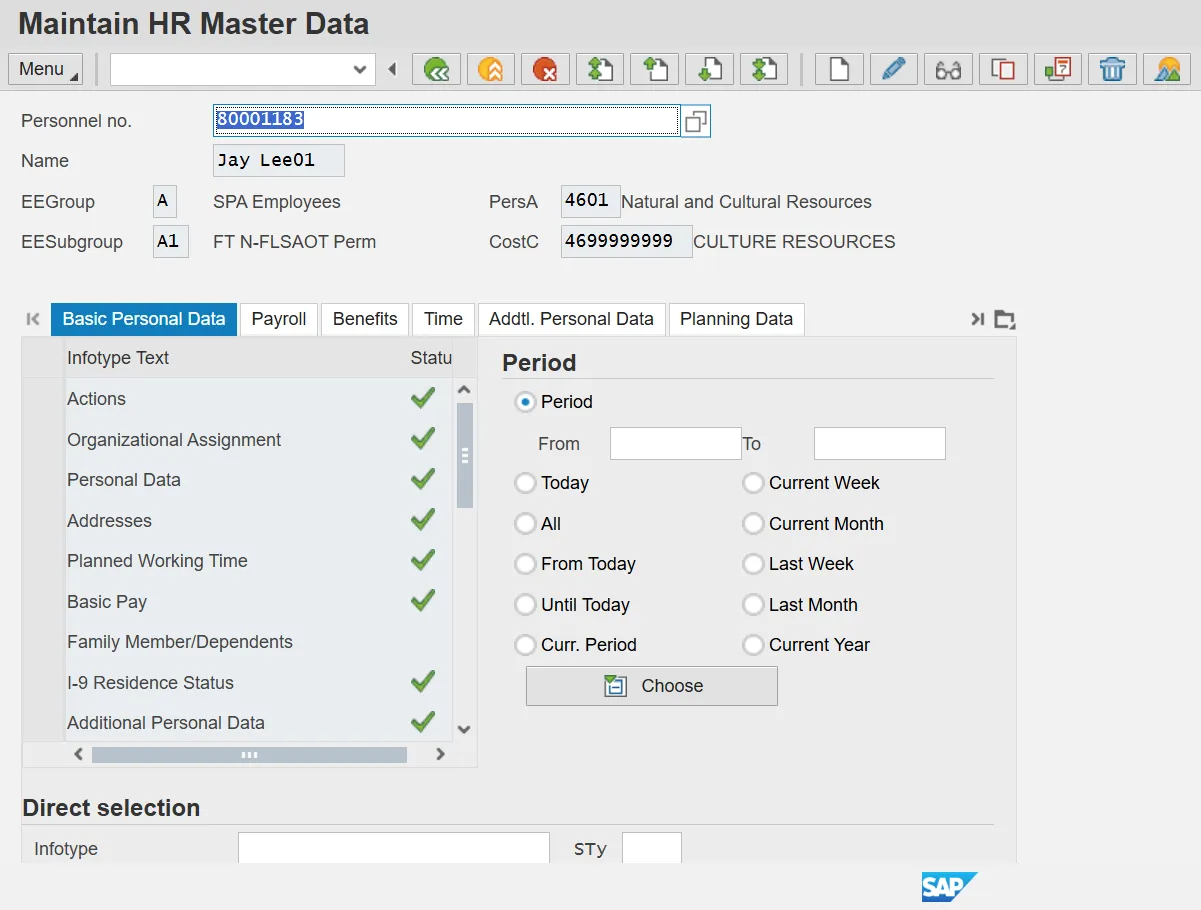
Step 4. Click Enter.
Step 5. Click the Payroll tab.
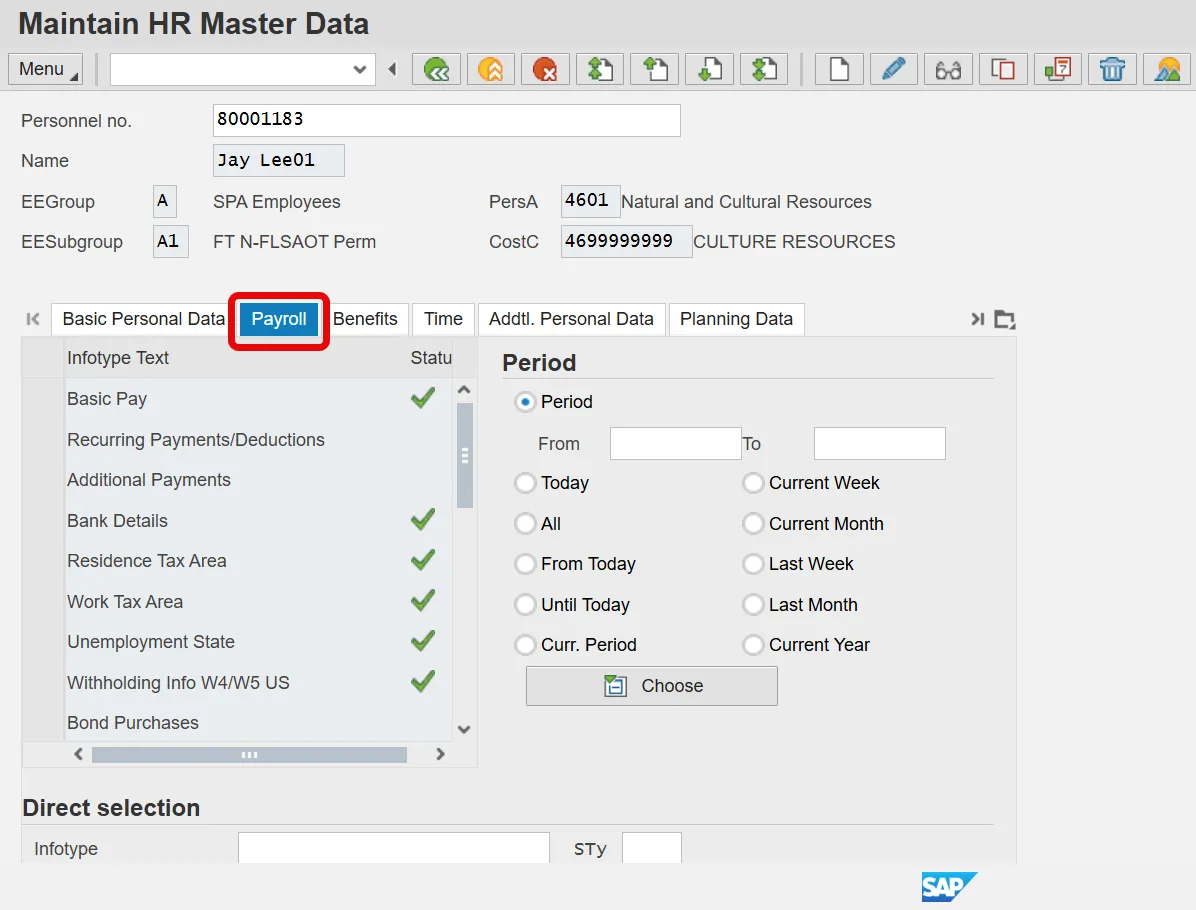
Step 6. Select Bank Details.
Infotypes listed within the Tabs with a corresponding green checkmark indicate that the infotype records are populated with data. Infotypes without a green checkmark may not be populated at this time.
Step 7. Click the Overview button.
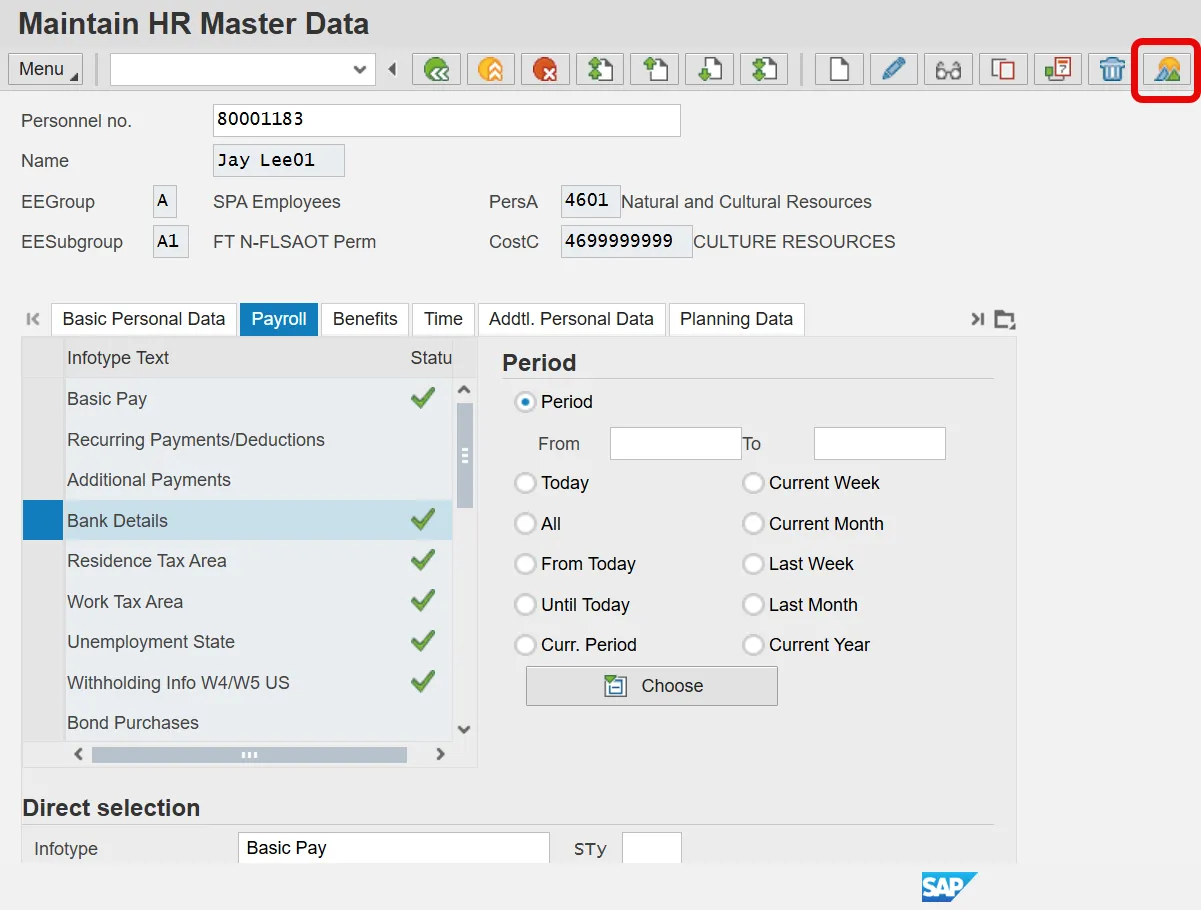
Step 8. Select the bank account record row to be changed.
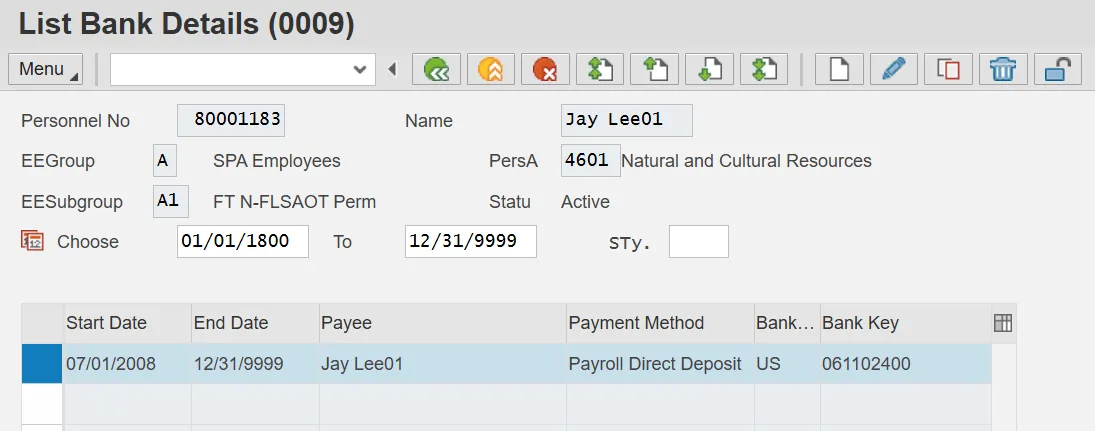
Step 9. Click the Change (F6) button.
Information: Typically, a user will create bank information. Only use the Change function if an error was typed when creating the bank record. If you try to correct the bank record on an employee who has already had payroll processed for the time period in question, you will get an error message stating the change is not possible.
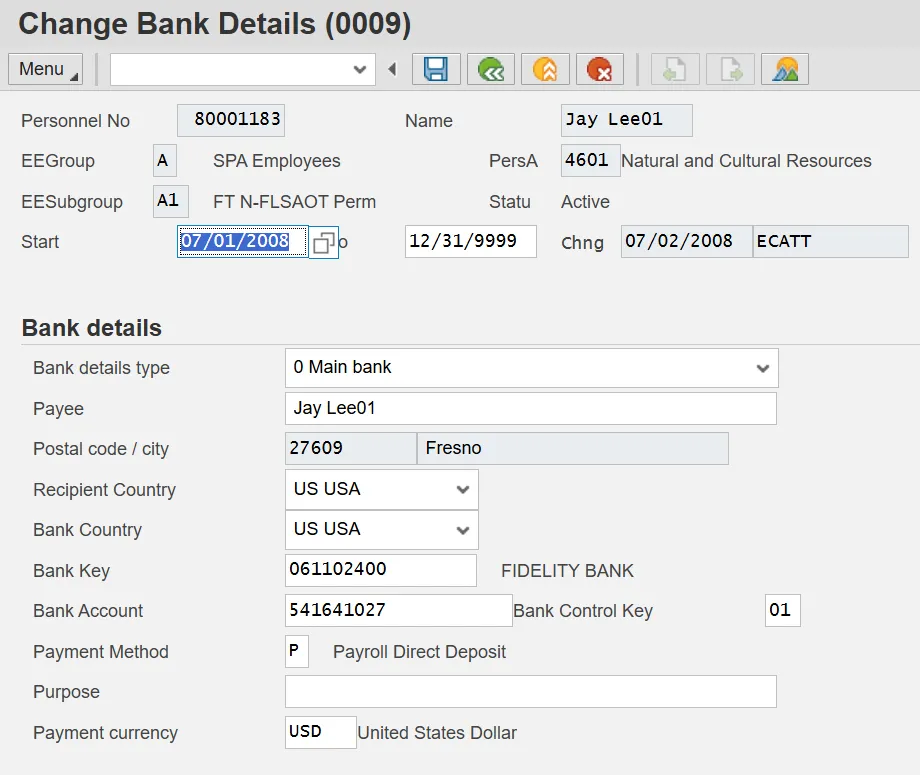
Step 10. Click the Back (F3) button.
Information: Each employee must have one Main bank detail entered in IT0009. An employee may have up to three Other bank details entered. An employee does not have to have a travel expense bank detail type. Employees that may receive an accounts payable reimbursement are encouraged to enter their bank details here, or they can contact NCFS.
If the employee wishes to add a NEW bank account, the following steps should be followed.
There are 12 steps to complete this process.
Step 1. Click the Create (F5) button.
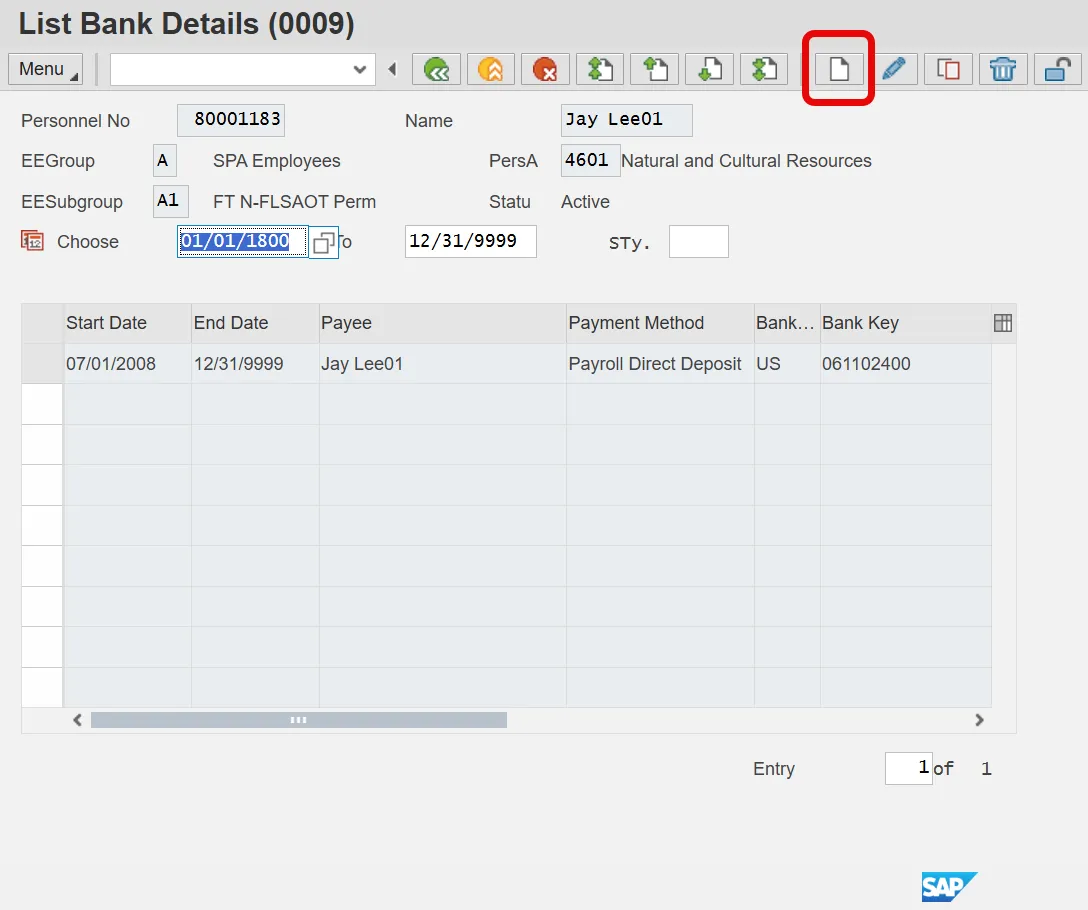
The table below lists the field name descriptions for IT0009.
| Fields | Description |
|---|---|
| Bank Details Type | Bank detail type 0 (Main Bank) is the employee’s primary bank details payments of wages and salaries. There can only be one active record at a time. |
| Bank Details Type | Bank detail type 1 (Other Bank) is used when an employee wants to split their payment of wages and salaries. |
| Bank Details Type | Bank detail type 2 (Travel Expense) is used when an employee may be authorized to receive an accounts payable reimbursement from NCFS. That information can be entered here or with NCFS directly. |
| Bank Key | The ABA number from the employee’s voided check. |
| Bank Account | The Bank account number from the employee’s voided check. |
| Payment Method |
Specifies how payment is to be made:
|
| Standard Value | Used when Other Bank is entered in the Bank Details Type indicates that a portion of the employee’s wage/salary is transferred to the bank. |
| Standard Percentage | Used when Other Bank is entered in the Bank Details Type; indicates what percentage of the employee’s wage/salary is transferred to the bank. |
Step 2. Update the following field.
| Field Name | Description | Values |
|---|---|---|
| Start | Beginning date of the event. |
Enter value in Start. Example: 09/25/2025 |
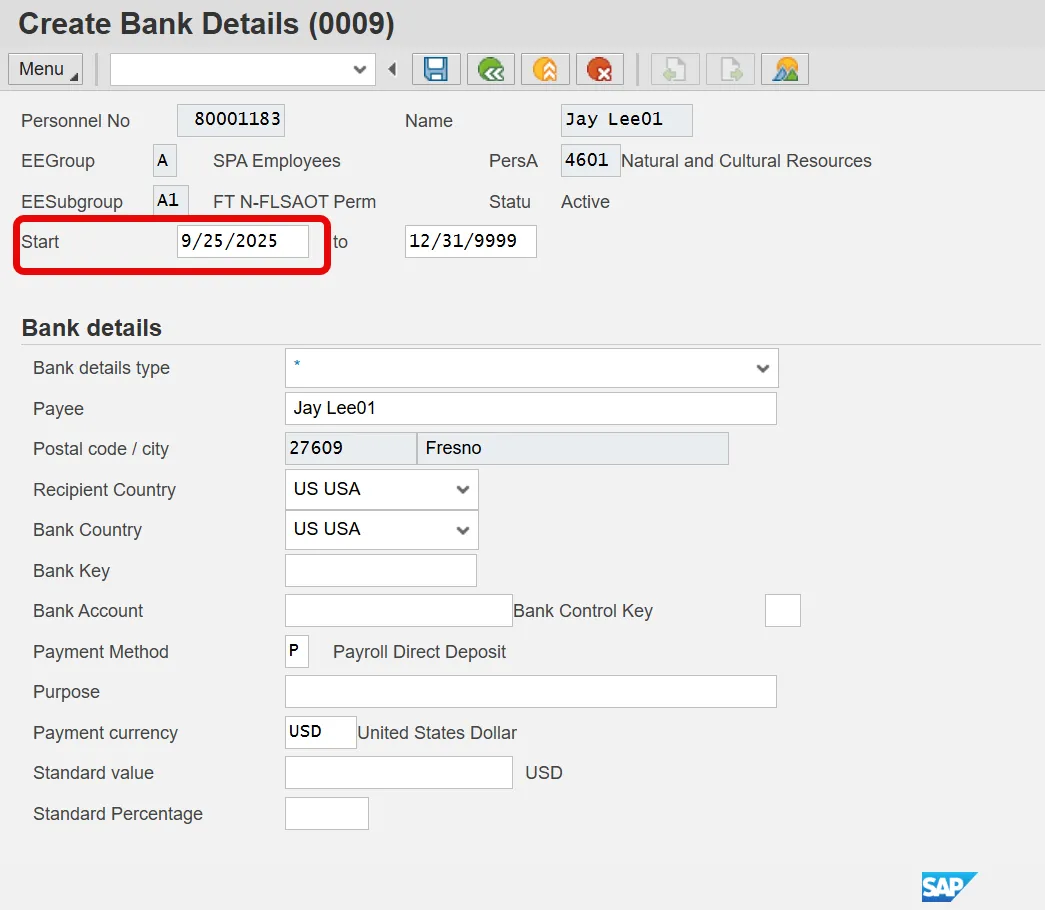
Step 3. Click the Bank details type drop-down list.
IT0009 manages an employee's method of payment for net pay. There are two primary IT0009 subtypes used in the Integrated HR-Payroll System:
- Main - pertains to the first direct deposit bank chosen.
- Other - used to add additional banks to where the direct deposit will be split.
Travel expenses bank detail type is used for accounts payable reimbursements from the North Carolina Finance System (NCFS). Travel expense bank details entered into the HR/Payroll Integrated System either directly on IT0009 or through FIORI will be shared with NCFS. An employee can also contact NCFS to enter this information.
The payroll program (driver) will recognize the Other bank first. It will determine how the employee's net pay is to be distributed (either by a flat dollar amount or a percentage). Once the payroll program distributes monies to Other, it will then distribute the remaining net pay funds to the Main bank.
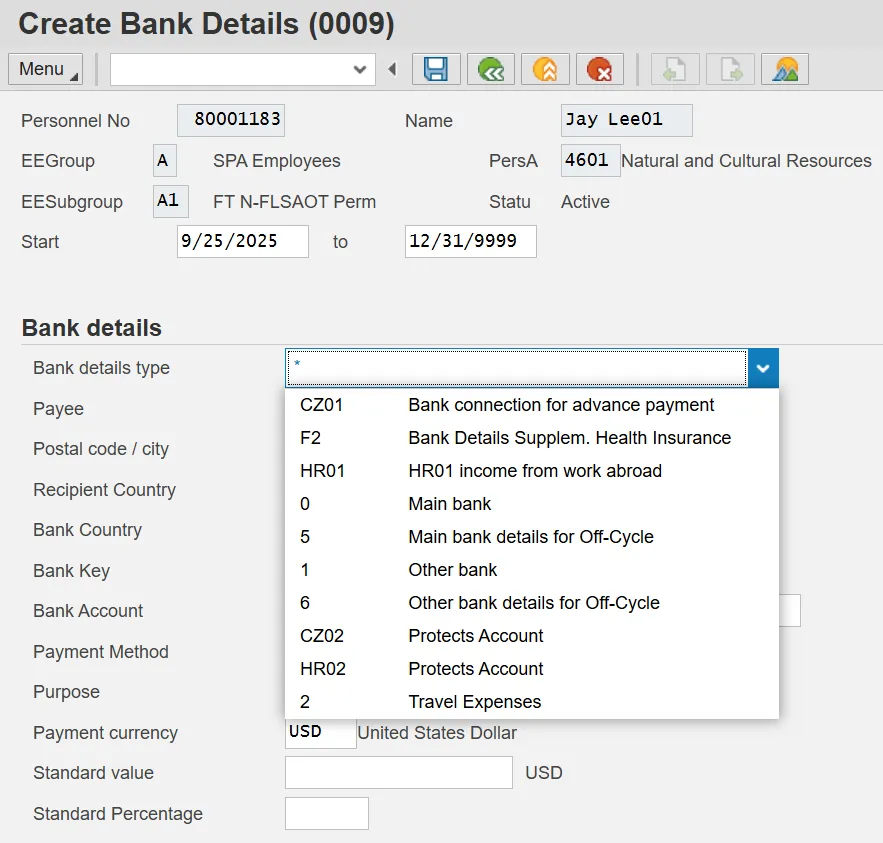
Step 4. Select Other bank in the list box.
Step 5. Update the following field.
| Field Name | Description | Values |
|---|---|---|
| Bank Key | The ABA number from the employee’s voided check. |
Enter value in Bank Key. Example: 253177049 |
For direct deposits, if you do not know the routing/ABA number for the employee's bank, click on the drop-down list on the Bank Key field.
Step 6. Update the following fields.
| Field Name | Description | Values |
|---|---|---|
| Bank Account | The Bank account number from the employee’s voided check. |
Enter value in Bank Account. Example: 456456458 |
| Bank Control Key | Key to control and identify bank number. |
Enter value in Bank Control Key. Example: 01 |
CRITICAL! Don't forget to enter 01 or 02 in the Bank Control field to indicate what type of account the direct deposit is for. If this field is left blank the employee will error out during the payroll processing procedures. Choose from:
- 01 = Checking Account
- 02 = Savings Account
Step 7. Update the following field.
| Field Name | Description | Values |
|---|---|---|
| Payment Method |
Specifies how payment is to be made:
|
Enter value in Payment Method. Example: P |
Information: Choose from the following:
- C = payroll check
- P = direct deposit
Step 8. Update the following field.
| Field Name | Description | Values |
|---|---|---|
| Standard Value | Used when Other Bank is entered in the Bank Details Type. |
Enter value in Standard Value. Example: 25.00 |
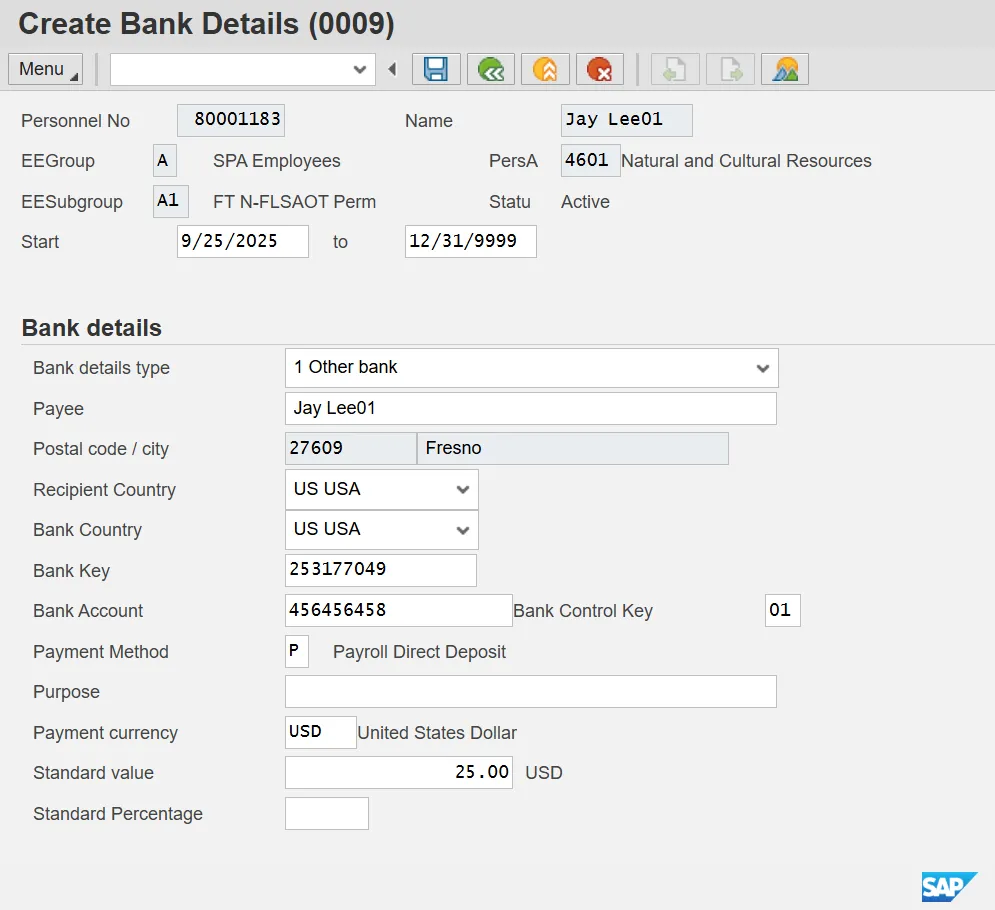
Information: The Standard Value field use indicates that a portion of the employee’s wage/salary is transferred to this bank.
Step 9. Click Enter. Verify the data entered for accuracy.
Step 10. Click Save (Ctrl+S).
Step 11. On the Overview screen, the List Bank Details displays showing the new bank that has been added.
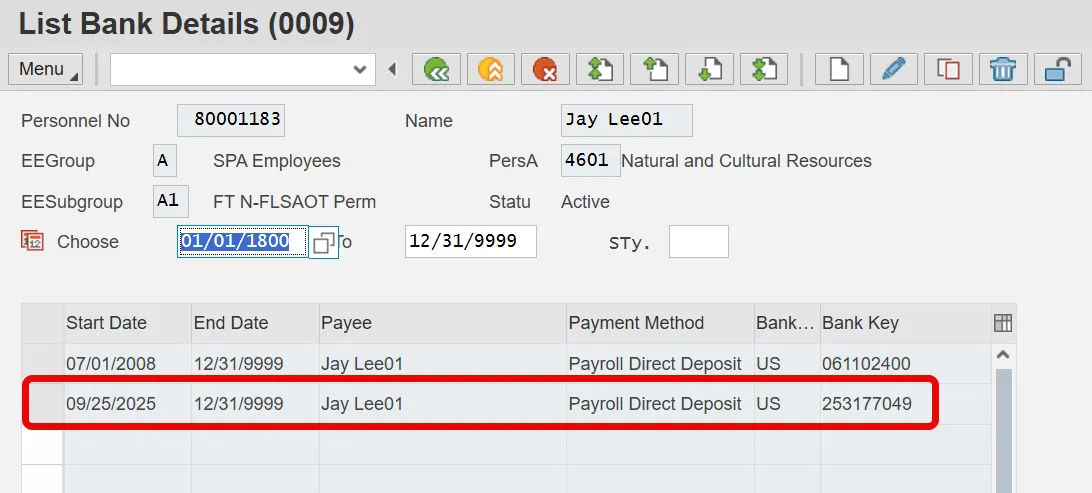
Step 12. The system task is complete.