Purpose
The purpose of this Business Process Procedure is to explain how to enter a one-time deduction or payment that is either deducted from an employee’s pay or paid to an employee in the Integrated HR-Payroll System.
Trigger
A one-time deduction or payment that is either deducted from an employee's pay or paid to an employee needs to be entered into the System.
Business Process Procedure
Use this procedure to enter a one-time payment or deduction. Examples include:
- Incentive Award
- Court Settlement – Payments
Access Transaction
Via Menu Path: SAP menu >> Human Resources >> Personnel Management >> Administration >> HR Master Data >> PA30 - Maintain
Via Transaction Code: PA30
Procedure
There are 12 steps to complete this process.
SAP Easy Access
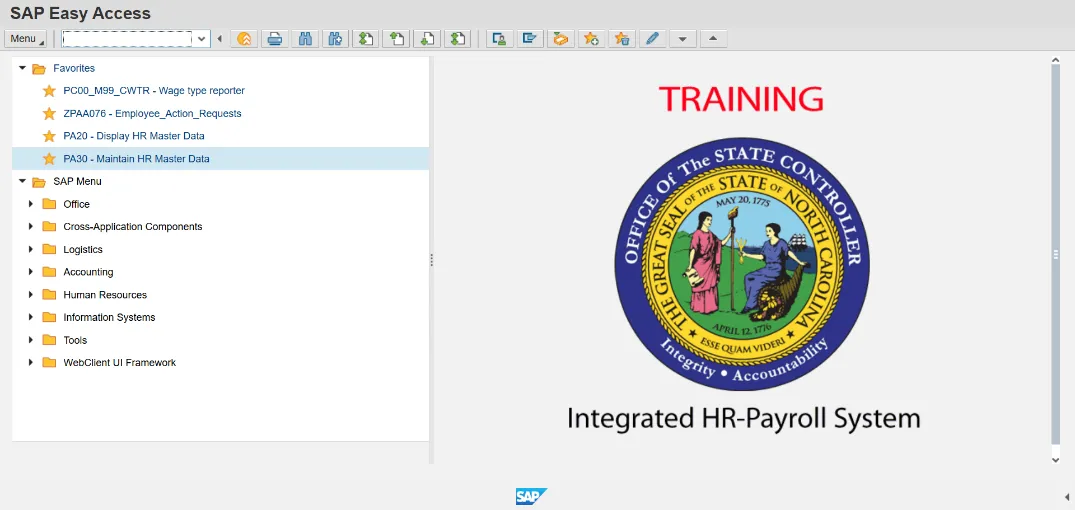
Step 1. Update the following required and optional fields.
| Field Name | Description | R/O/C | Values |
|---|---|---|---|
| Command | White alphanumeric box in upper left corner used to input transaction codes. | R |
Enter value in Command. Example: PA30 |
Step 2. Click Enter.
Maintain HR Master Data
Step 3. Update the following required and optional fields.
| Field Name | Description | R/O/C | Values |
|---|---|---|---|
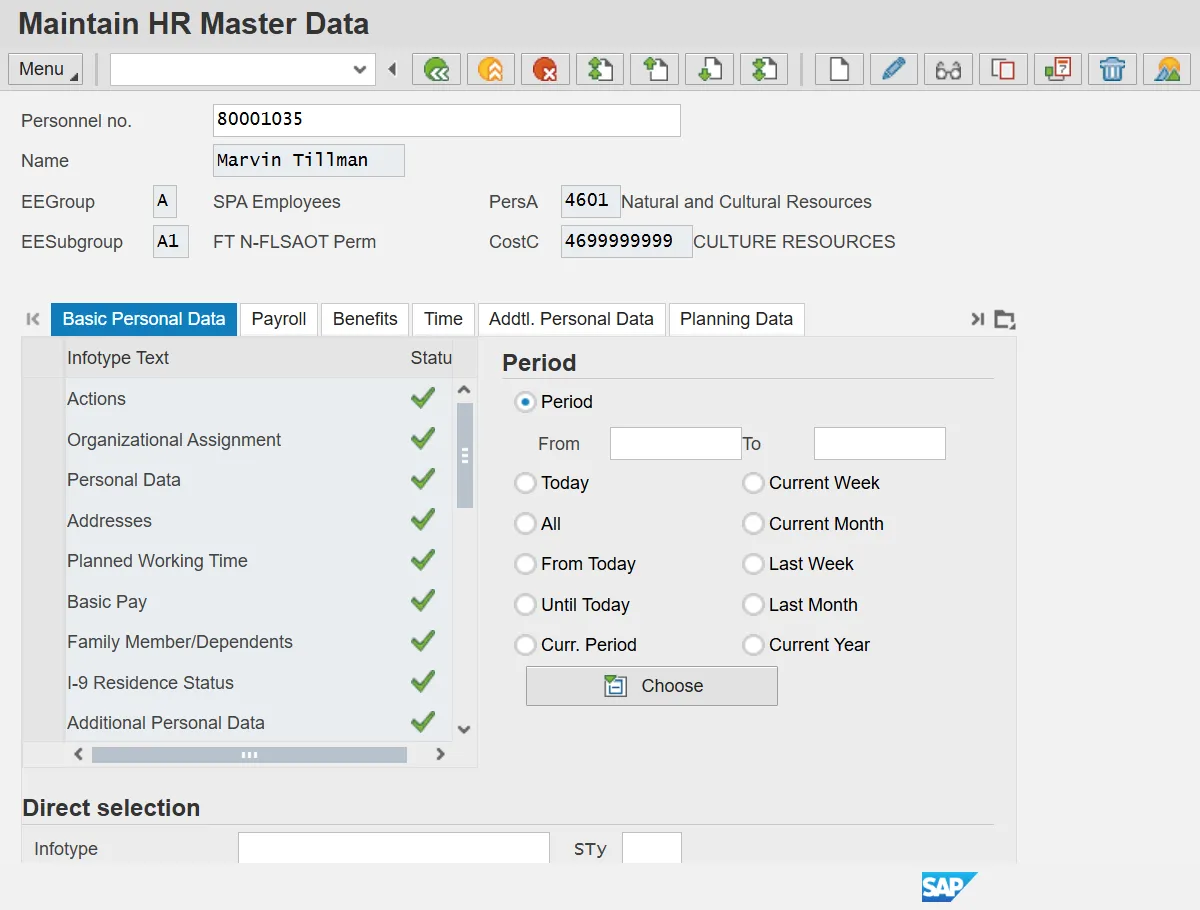
| Personnel no. | Unique employee identifier. | R |
Enter value in Personnel no. Example: 80001035 |
Information: Ensure the correct personnel number was entered.
Step 4. Click Enter.
Maintain HR Master Data
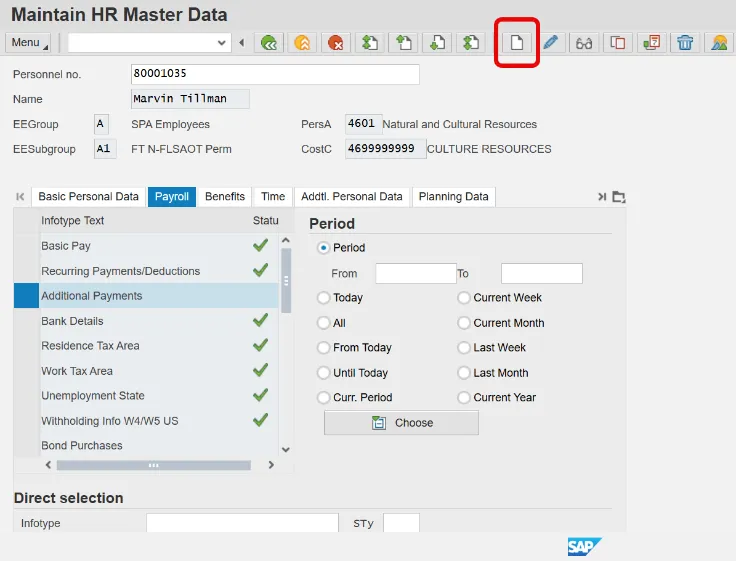
Step 5. Click the Payroll tab.
Step 6. Select the Additional Payments infotype.
Information: Select the appropriate Infotype to display. Infotype records can be accessed through the various /Tabs/ or through the /Direct Selection/ section of the screen. Infotypes listed within the Tabs with a corresponding green checkmark indicate that the infotype record is populated with data. Infotypes without a green checkmark may not be populated at this time.
Step 7. Click the Create (F5) button.
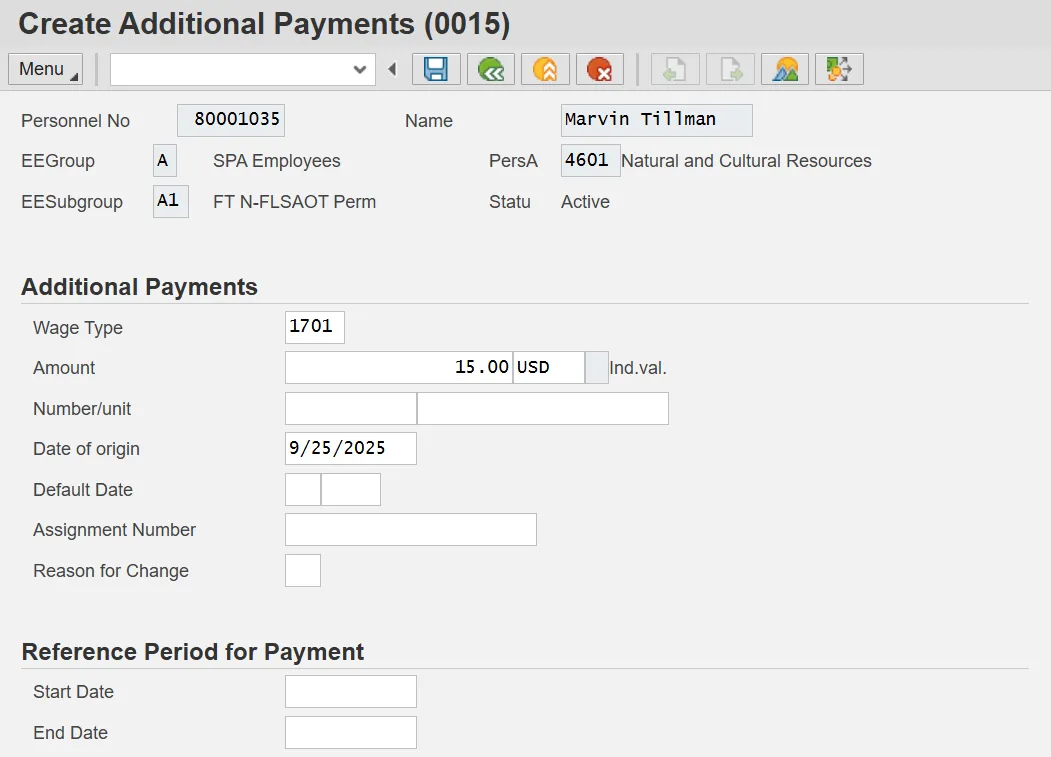
Step 8. The table below displays the field descriptions for Infotype 0015.
| Field | Description |
|---|---|
| Wage Type | Type of deduction/payment for the employee per pay period. |
| Amount | Amount of deduction or payment. |
| Date of Origin | The date the information was entered into the infotype. |
| Reason for Change | In this field, you enter the reason for change in the data in the infotype. |
Information: The available wage types assigned for one-time payments are listed in the matchcode search. Click the matchcode search button to view the options.
Step 9. Update the following required and optional fields.
| Field Name | Description | R/O/C | Values |
|---|---|---|---|
| Wage Type | Type of deduction/ payment for the employee per pay period. | R |
Enter value in Wage Type. Example: 1701 |
| Amount | Amount of deduction/ payment. | R |
Enter value in Amount. Example: 15.00 |
Critical: When processing a deduction wage type, confirm there is an 'A' to the left of the amount field. If an 'A' exists, you are processing a deduction wage type. If an 'A' does not exist, you are processing a payment wage type.
Step 10. Update the following required and optional fields.
| Field Name | Description | R/O/C | Values |
|---|---|---|---|
| Date of origin | R |
Enter value in Date of origin. Example: 9/25/2025 |
Information: Verify the information is correct before saving.
Create Additional Payments (0015)
Step 11. Click Save (Ctrl+S).
Step 12. The system task is complete.