Purpose
The purpose of this Business Process Procedure is to explain how to display an employee’s payroll history in the Integrated HR-Payroll System.
Trigger
There is a need to display an employee’s payroll history.
Business Process Procedure Overview
Use this procedure to display an employee's payroll history. The payroll history includes payments of direct deposits and checks, correction payments, on-demand payments, bonus payments, replacement checks, and reversal payments. The payroll history allows the ability to display an employee's payroll activity and is also used as an aid in determining off-cycle activities.
Access Transaction
Via Menu Path: Human Resources >> Payroll >> Americas >> USA >> Off-Cycle >> PUOC_10 - Off-Cycle Workbench
Via Transaction Code: PUOC_10
Procedure
There are 9 steps to complete this process.
SAP Easy Access
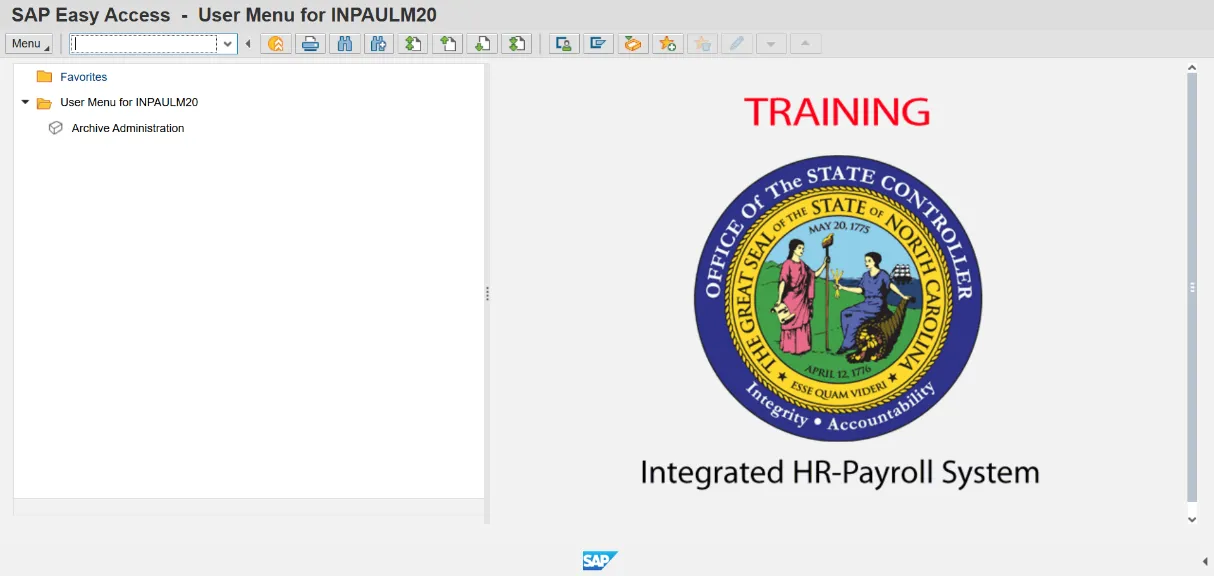
Step 1. Update the following field.
| Field Name | Description | Values |
|---|---|---|
| Command | White alphanumeric box in upper left corner used to input transaction codes. |
Enter value in Command. Example: PUOC_10 |
Step 2. Click the Enter button.
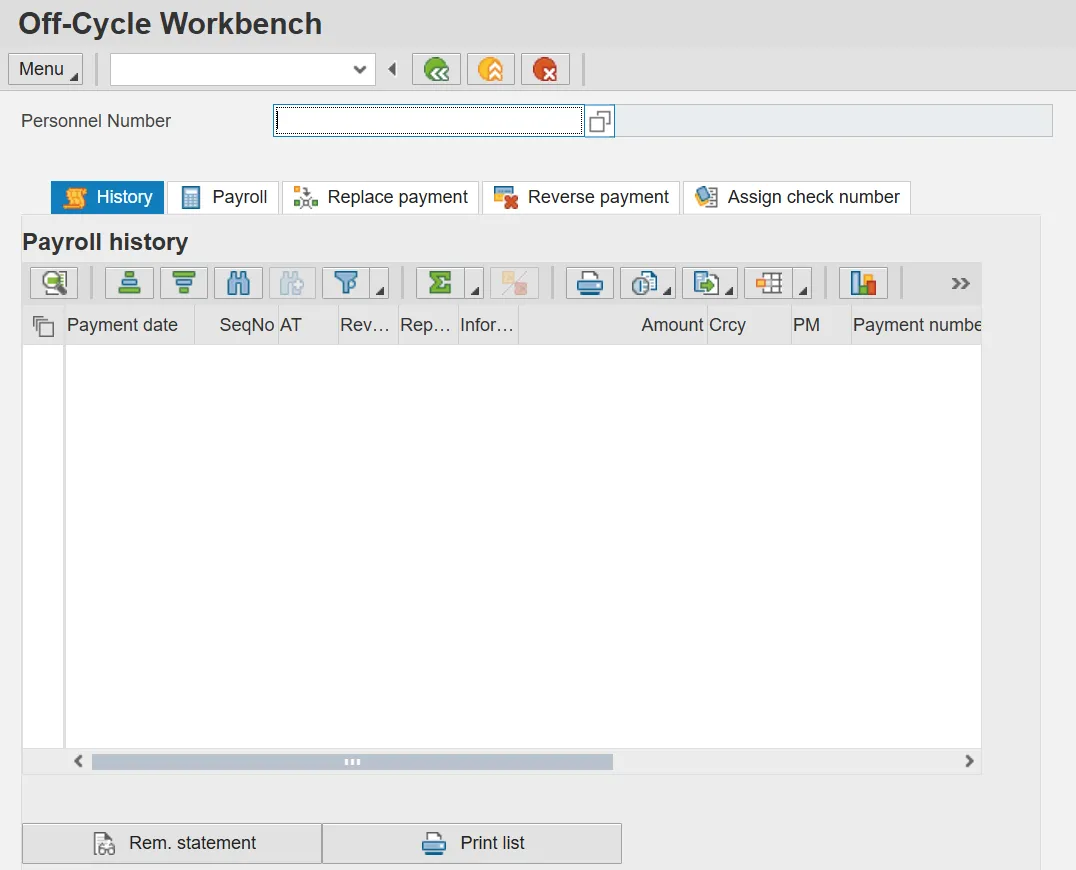
Step 3. Update the following fields.
| Field Name | Description | Values |
|---|---|---|
| Personnel Number | Unique number identifying an individual’s master record data in the system. |
Enter value in Personnel Number. Example: 80001035 |
Step 4. Click Enter.
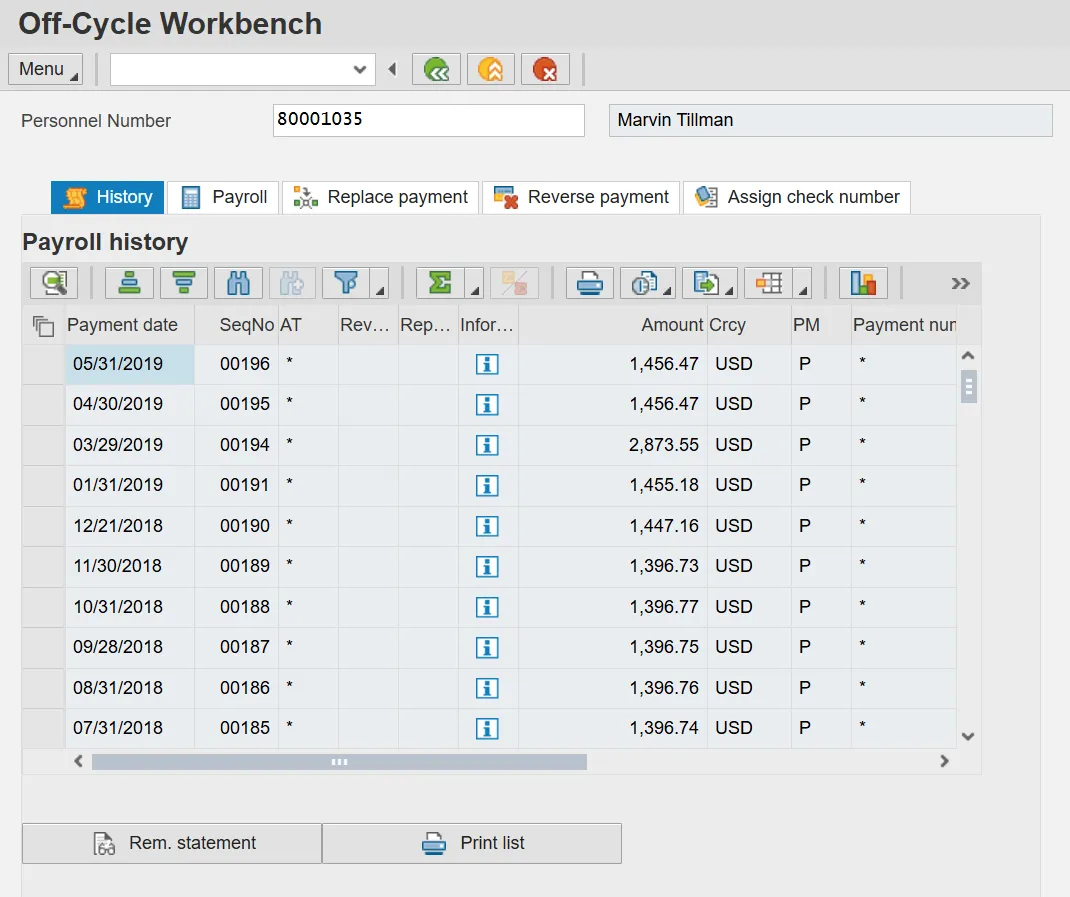
Step 5. Click the History tab.
Below is a list of descriptions for each column found on the History tab.
- Pmt date - Payment date – This is the date payment was made.
- SeqNo – Sequence number - This is the sequence number of the employee’s payroll results. Note: This is a unique, ascending number.
- Account Transfer (AT) - the number of bank accounts the payment is split between.
- Payment reversed – A payment reversed icon displays if the payment was reversed.
- Payment replaced – A payment replaced icon displays if the payment was replaced.
- Amount – Amount of payment.
- Crcy - Type of currency in which payment was made.
- Payment method - This indicates if payment was made by (C) check or (P) direct deposit.
- Payment number – This field indicates the payment transfer date and ID number.
- Reason - Reason for off-cycle payment.
- Payroll Period - Payroll period in which payment was made.
- Payment information - Click on the information icon to access the Bank Transfer information. This icon will display a pop-up box that displays transfer amount, payment date, amount, an employee’s bank account number.
- Pay.type – Payroll Type – The payroll run that was executed for the payment.
Note: You can display the history of only one employee at a time.
Note: You can change the report layout using the Change Layout function. For more information on how to change report layouts, view the GN-01 How to Manage Reporting Layouts job aid.
Step 6. Select the desired pay row.
Note: Select the row corresponding with the pay information to be viewed
Step 7. Click Rem. statement button.
Note: The Remuneration statement is the pay statement that the employee can view in paper format or on ESS.
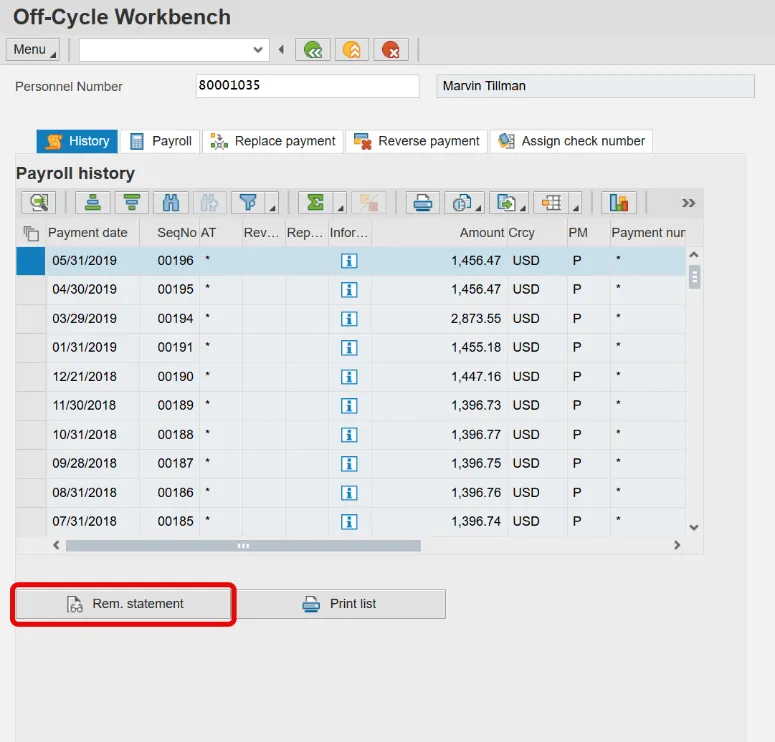
NOTE: Confirm the information that pertains to the pay statement received by the employee. You may need to scroll down to view all available information.
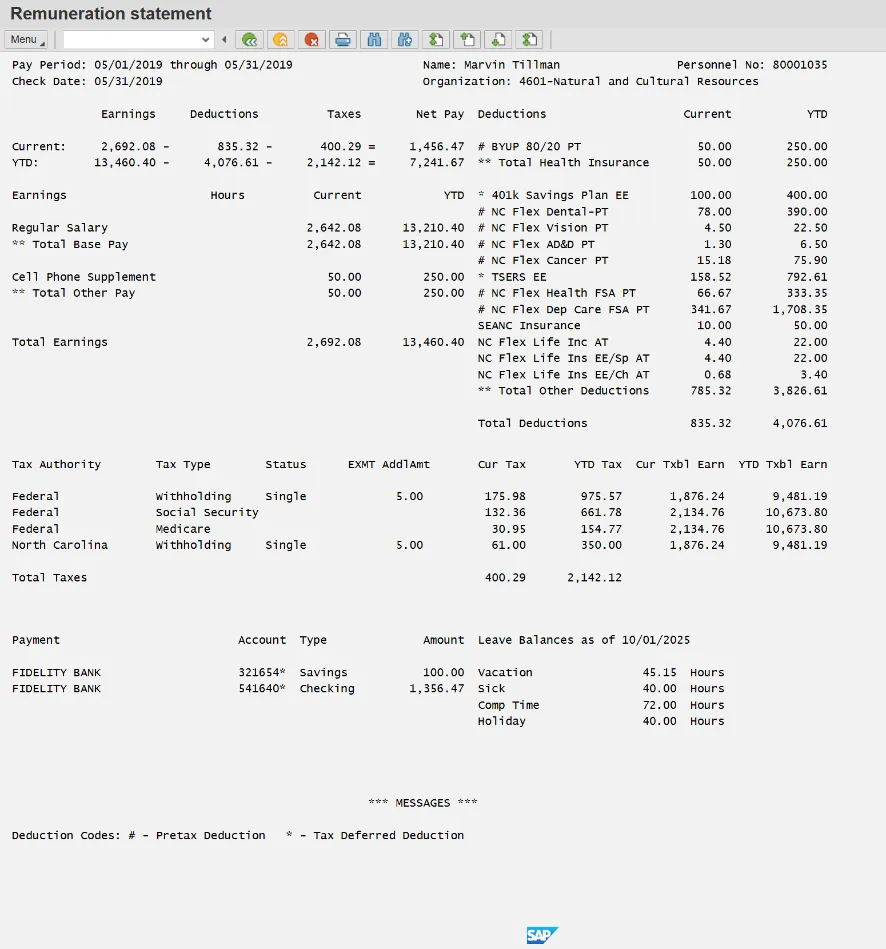
Step 8. Click the Back (F3) button.
Step 9. The system task is complete.