Purpose
The purpose of this Business Process Procedure is to explain how to display benefits enrollment information for employees in the Integrated HR-Payroll System.
Trigger
Benefit information for an individual is required.
Business Process Procedure Overview
This function allows you to display information about the benefit enrollments for individual employees. It can be used to provide a general overview when a Benefit Administrator receives inquiries from employees regarding their current enrollment information.
This function can be accessed separately via HRBEN0006 or through other HR processing functions (enrollment, termination, participation, and insurability) by selecting the Overview tab.
The overview of employee benefits shows the following information:
- Plan data - The selected options, dependents/beneficiaries, costs, employee, and employer contributions costs.
- Cost data - The costs for the employer (if applicable) and employee are shown.
- Employee master data - A summary of relevant employee data is shown from the infotypes Personal Data (0002), General Benefits Information (0171), Organizational Assignment (0001), Family/Related Person (0021).
- Participation overview - A diagram shows participation in plans over a specific block of time.
Access Transaction
Via Menu Path: SAP menu >> Human Resources >> Personnel Management >> Benefits >> HRBEN0006 - Participation Overview
Note: Your menu path may contain this custom transaction code depending on your security roles.
Via Transaction Code: HRBEN0006
Procedure
There are 15 steps to complete this process.
Step 1. Update the following field:
| Field Name | Description | Values |
|---|---|---|
| Command | White alphanumeric box in upper left corner used to input transaction codes |
Enter value in Command. Example: HRBEN0006 |
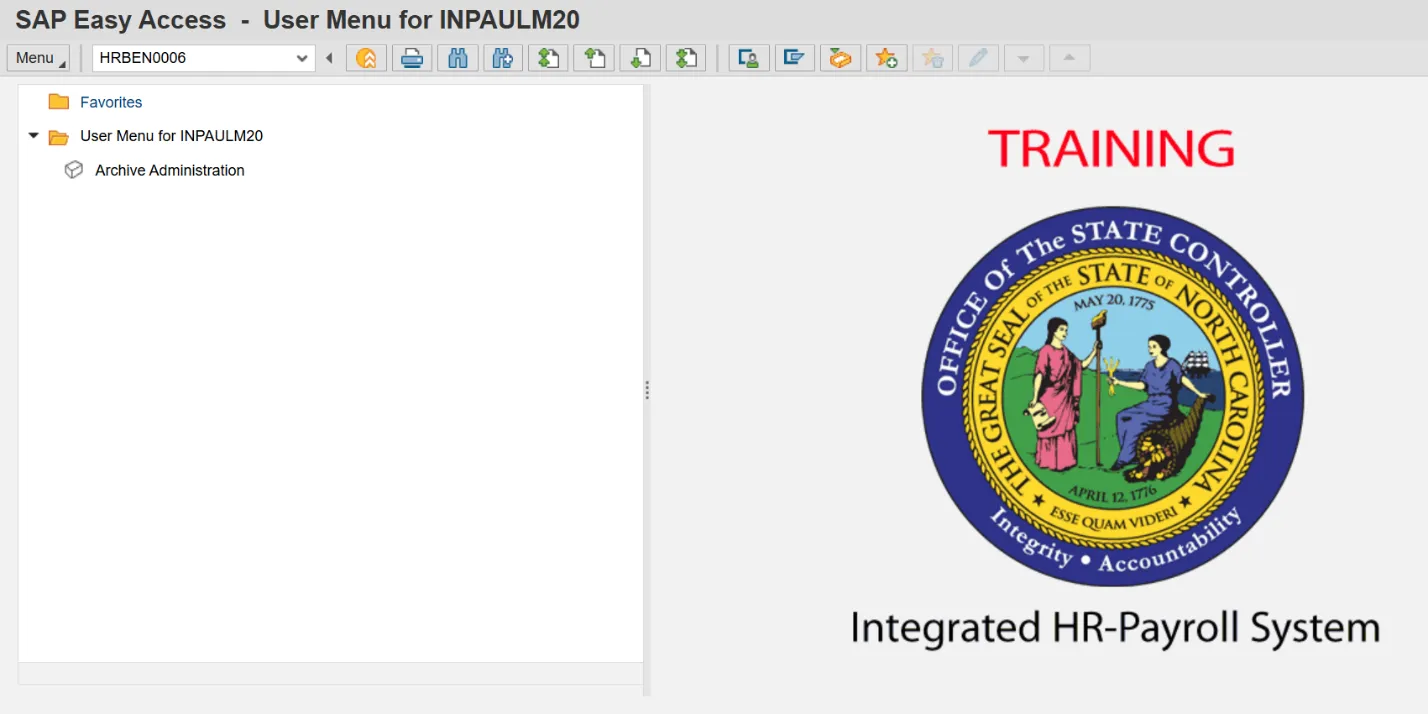
Step 2. Click the Enter button.
Step 3. Update the following fields:
| Field Name | Description | Values |
|---|---|---|
| Personnel no. | Unique employee identifier |
Enter value in Personnel no. Example: 80001036 |
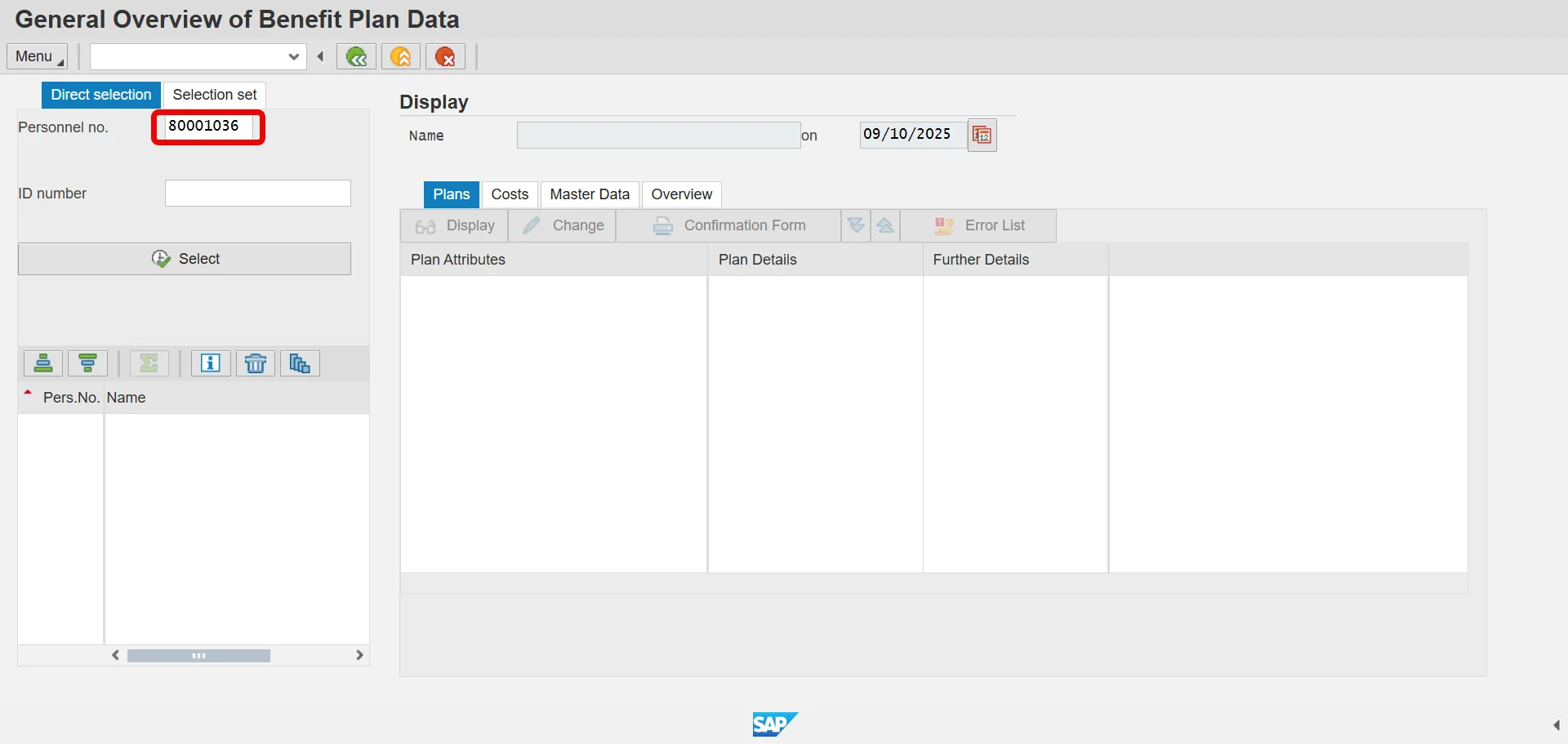
Step 4. Click Enter.
Ensure the correct personnel number was entered after clicking Enter.
Note: To generate an overview for a different date, click on the Change date button (to the right of the screen) or the calendar next to the date field and change the system date.
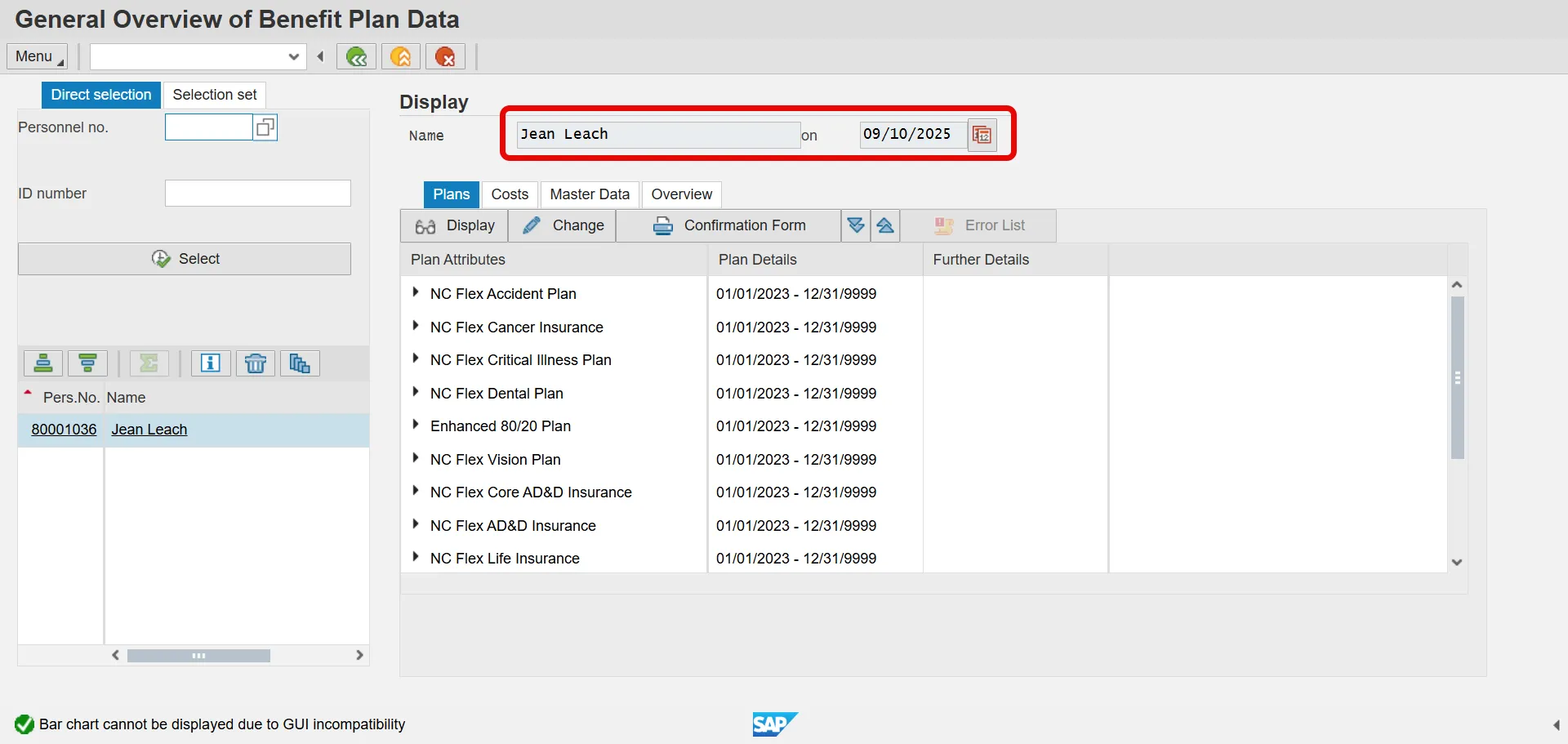
Step 5. Click the Select button.
Step 6. Click the Expand All button.
The gray triangles may be used to expand or collapse an individual folder or all folders at once.
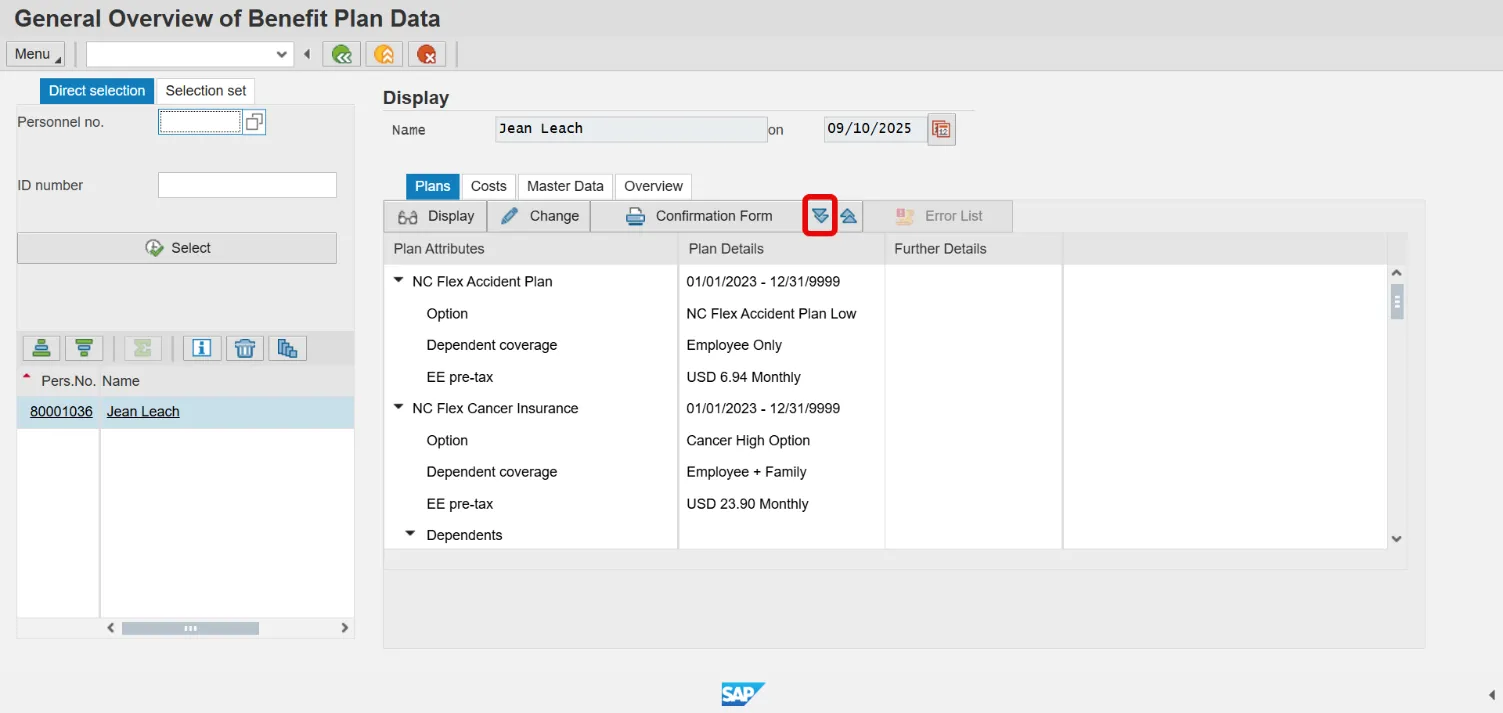
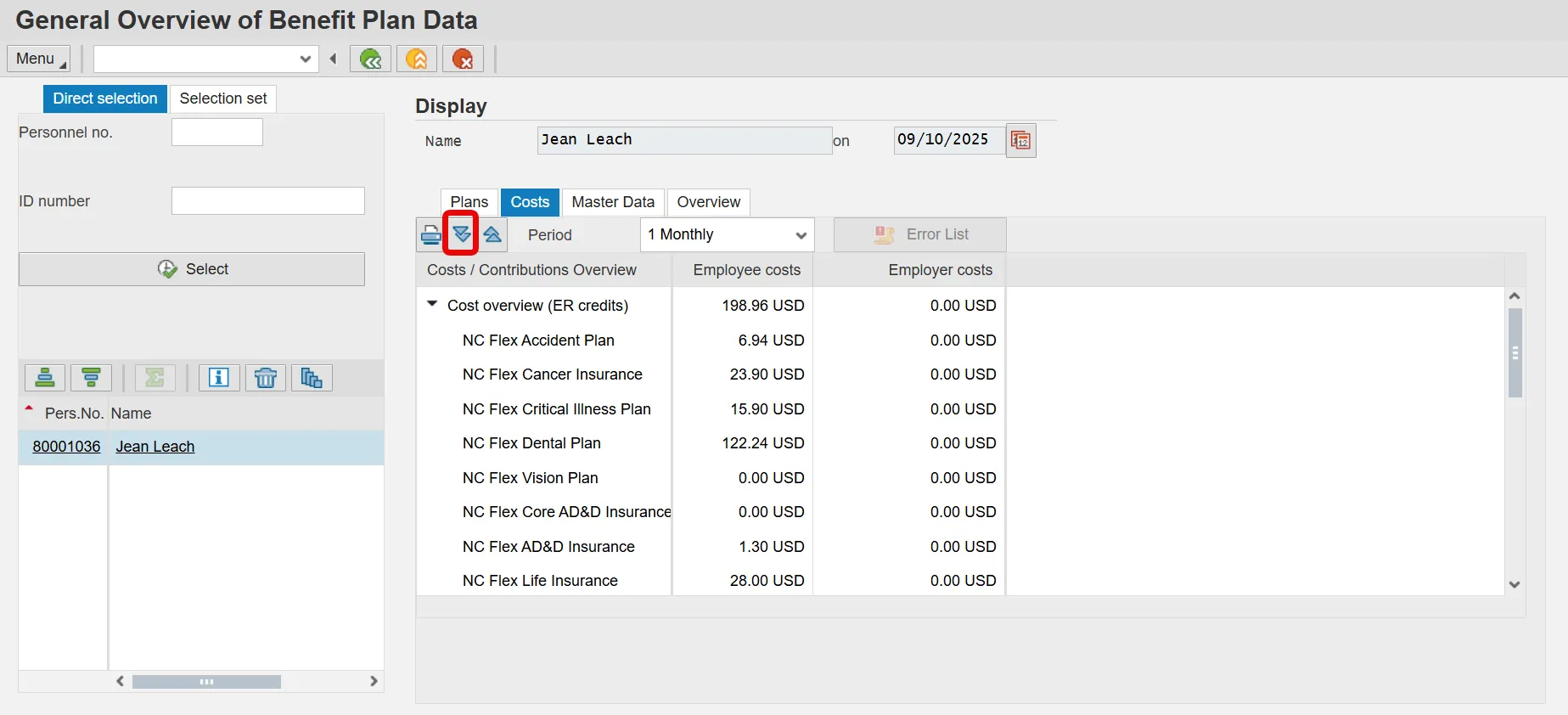
Step 7. Click the Costs tab.
Step 8. Click the Expand All button.
The Costs tab will provide an overview of the costs and contributions an employee is making each payroll cycle to their benefit plans. It provides details for both the employee and the employer costs. The total expected contributions per plan year will be available if the employee is enrolled in either the Health or Dependent Day Care Flexible Spending Accounts.
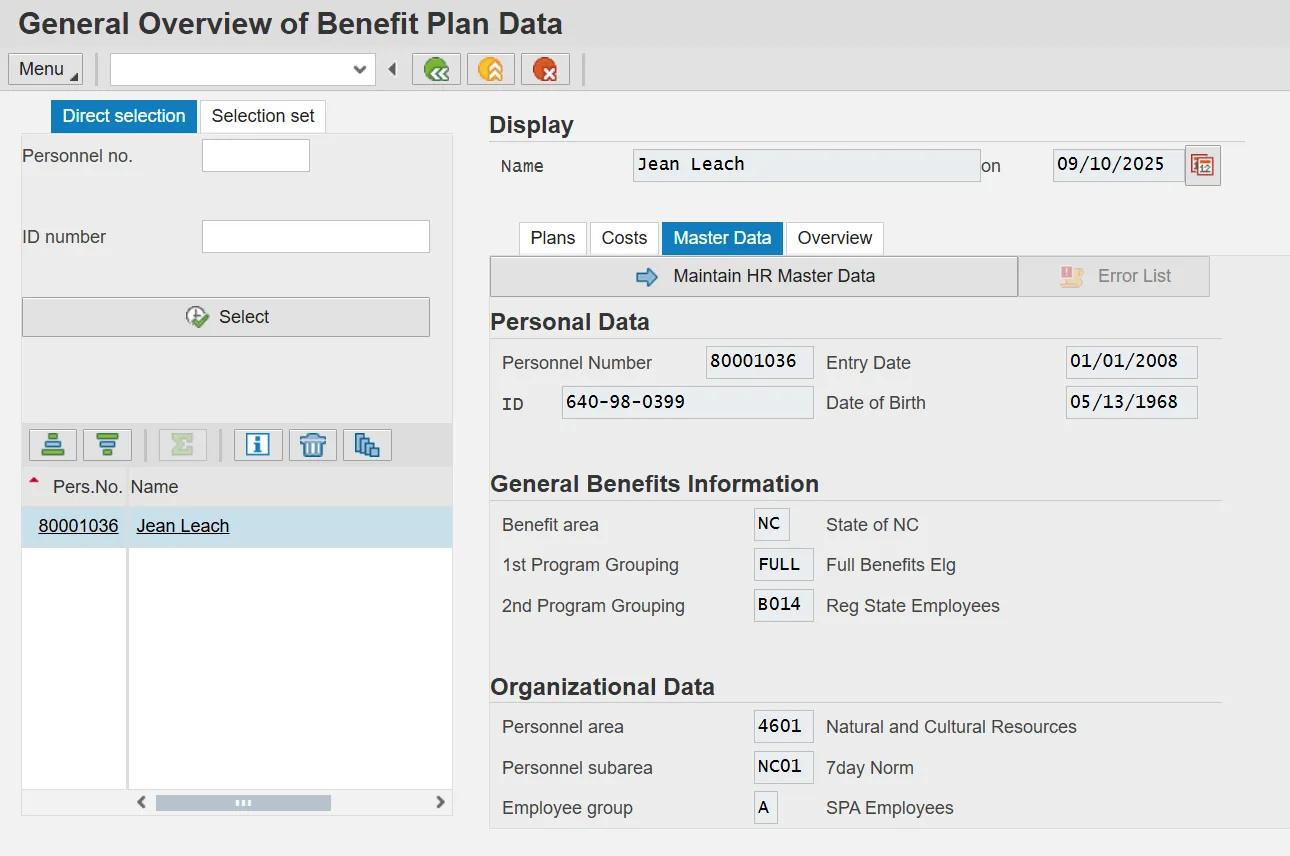
Step 9. Click the Master Data tab.
The Master Data tab provides a general overview of the data contained on several infotypes, such as SSN, Benefit Groupings, Payroll Cycles or Dependents in one place for easy reference.
Step 10. Click the Plans tab again.
Step 11. If the view is not expanded, click the Expand All button.
Step 12. Click Option under any plan. (For purposes of this exercise, select the Option under the NC Flex Cancer Insurance).
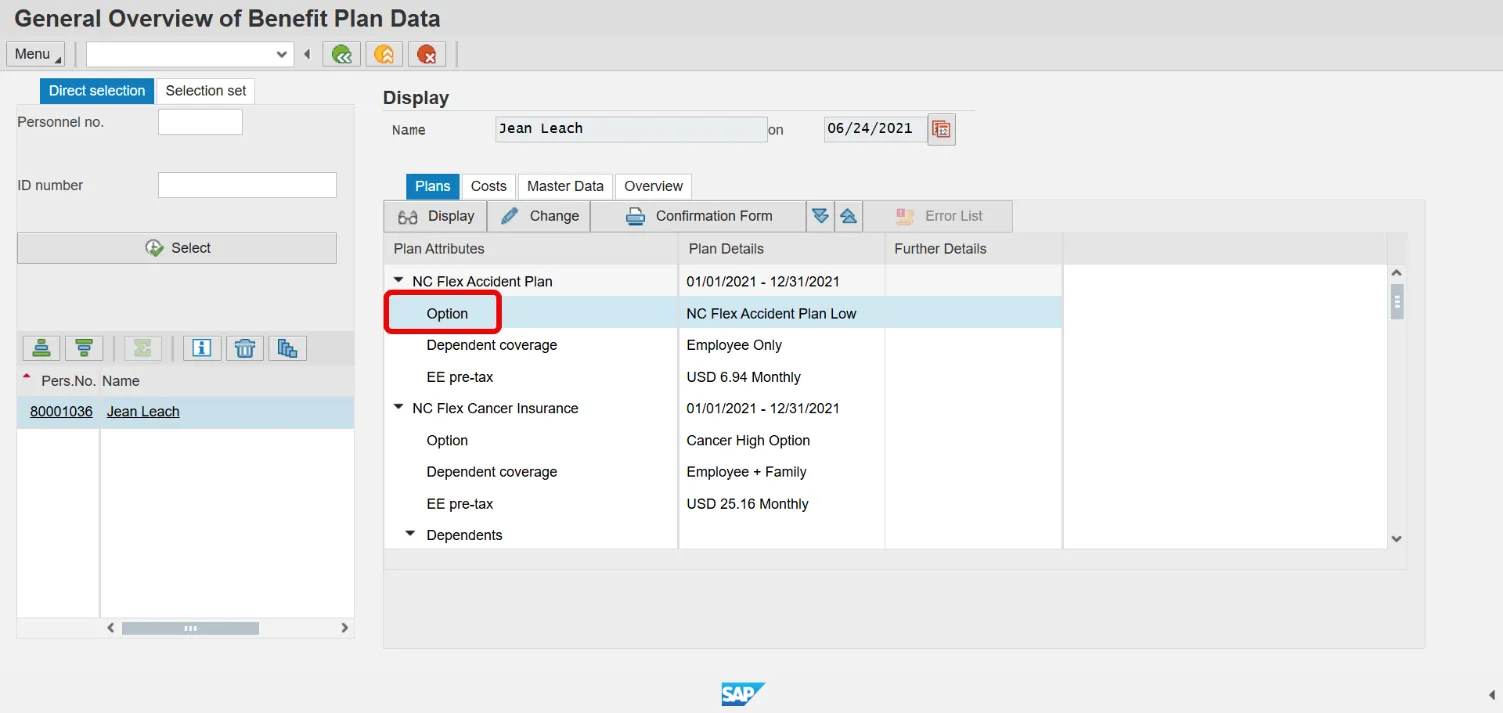
Step 13. Click the Display button.
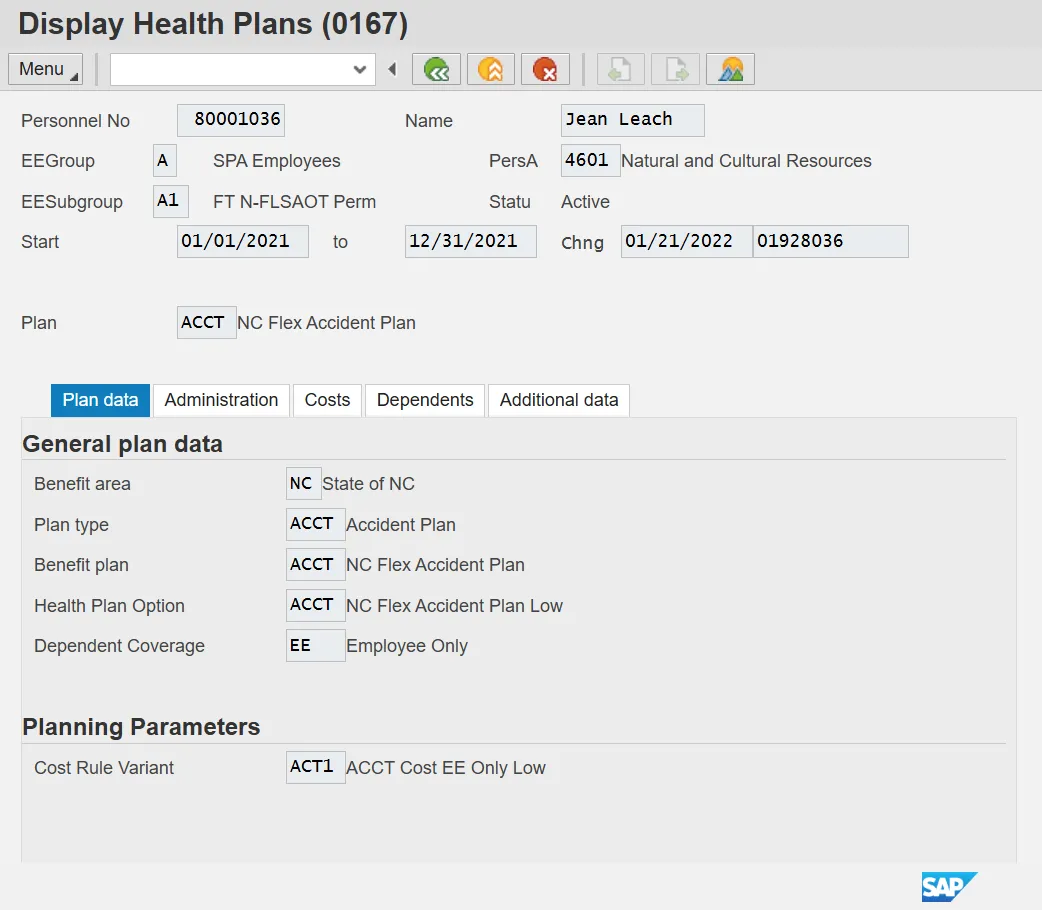
Note: To display additional details behind a line item, highlight the line and click Display.
Important: Do not use the Change button to make any changes to an employee's benefits. This may cause inaccurate data to be passed to the benefit vendors. Change the record using the PA30 transaction.
Step 14. Click the Back (F3) button.
Step 15. Click the Exit (F3) button.
The system task is complete.