Purpose
The purpose of this job aid is to see a list of Temporary employees with a Stability/Coverage Period that includes a specific key date in the Integrated HR-Payroll System.
In support of Affordable Care Act rules, Temporary employees may or may not be designated as Eligible to enroll in the in the High Deductible Health Plan at the time of hire or after a 12-month look-back measurement period. Each of these designation points is associated with a Stability/Coverage Period of 12 months in which the employee is either Eligible or Not Eligible.
Agencies can run the ZBNR052 – ACA Reports Coverage option to see if their Temporary employees are Eligible or not on a specific Key Date.
Initial Screen
There are 3 steps to complete this process.
Tip: Click the Program documentation button to see helpful tips and additional details about the options on the initial screen.
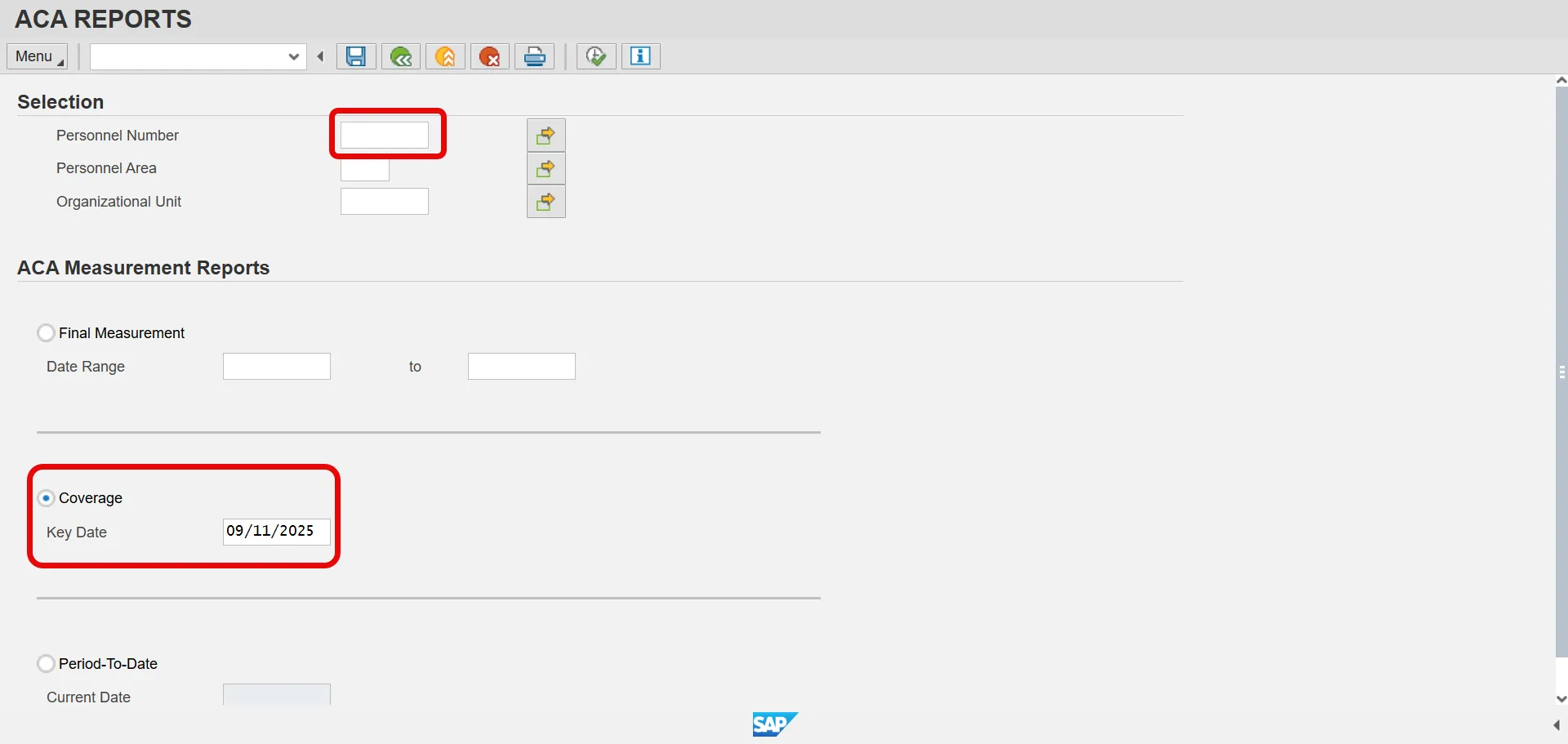
Step 1. Enter employee’s Personnel Number or leave empty to return all employees you have security to see.
The Final Measurement option is selected by default. Instead, click the radio button for the Coverage option. The current date will populate in the Key Date field automatically.
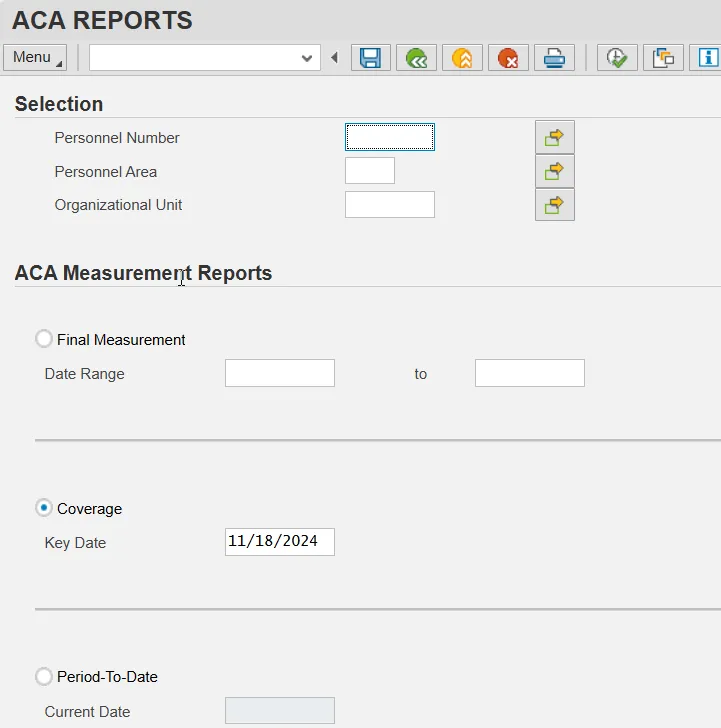
Step 2. Click the Execute button.
Step 3. View the Coverage report results. The default report layout sorts the results to show EEs who will be measured sooner at the top of the list.
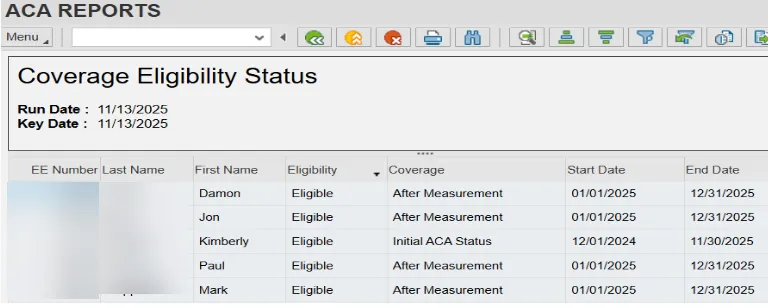
Tip: To directly filter for only Eligible EEs, right-click on a cell with the word Eligible in it and choose the Set Filter… option.
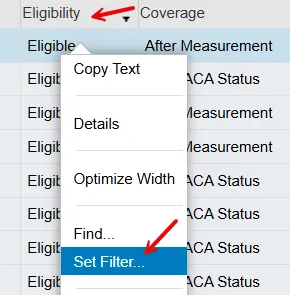
Tip: By default, the Coverage option report filters the results to only Eligible employees. To also see employees who are Not Eligible, click the Delete Filter button.
Add an asterisk after the text, then click the Green Check button.
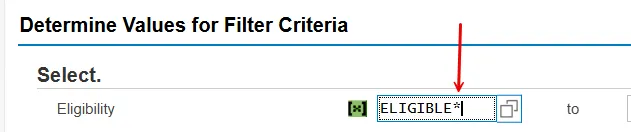
Tip: You can use the sort and filter buttons to rearrange the results. You can export the data for use in other programs, such as Excel and Word.
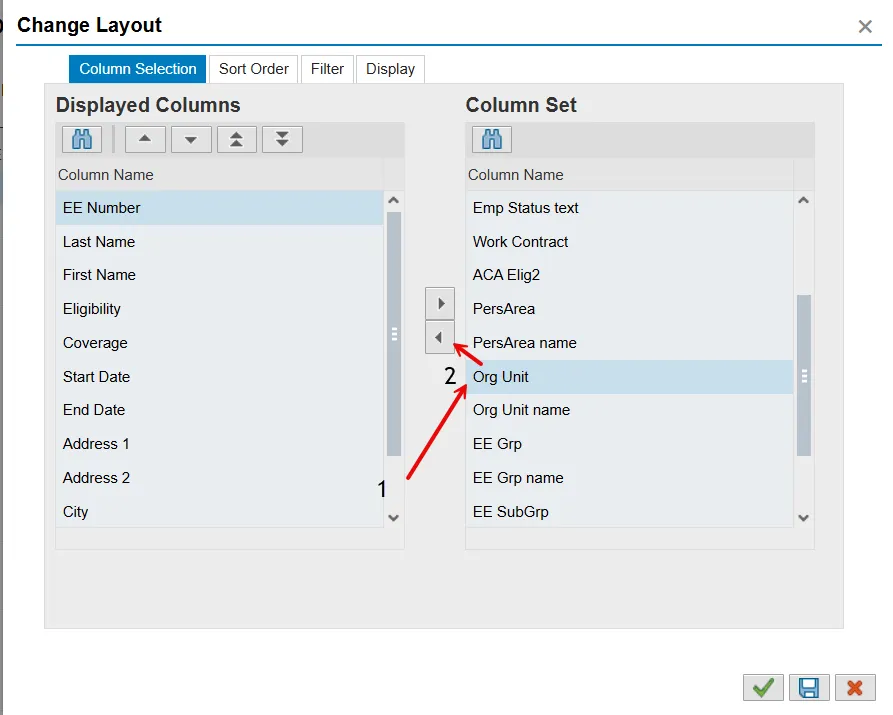
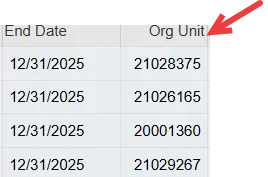
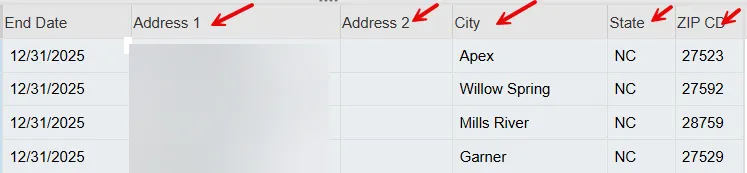
Tip: Additional fields can be added to the report results, such as Org Unit, Personnel Area, the EE’s address, etc. Click the Change Layout button, select a field from the Column Set, and click the Show Selected Fields button. Then click the Green Check button.