Purpose
The purpose of this Quick Reference Guide (QRG) is to show the steps of how to assign an NCFS report in Favorites in the North Carolina Financial System (NCFS).
There are 7 steps to complete this process.
Assigning an NCFS Report to Favorites
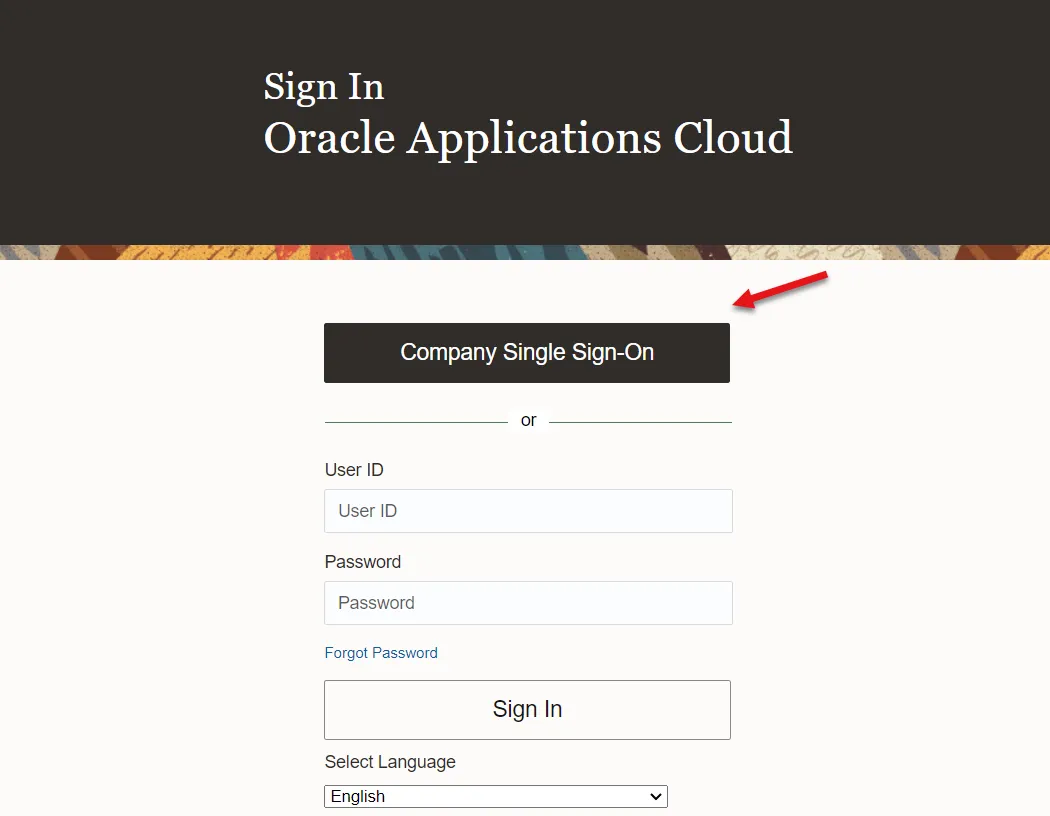
Step 1. Log into NCFS using Company Single Sign-On. Use NCID and password.
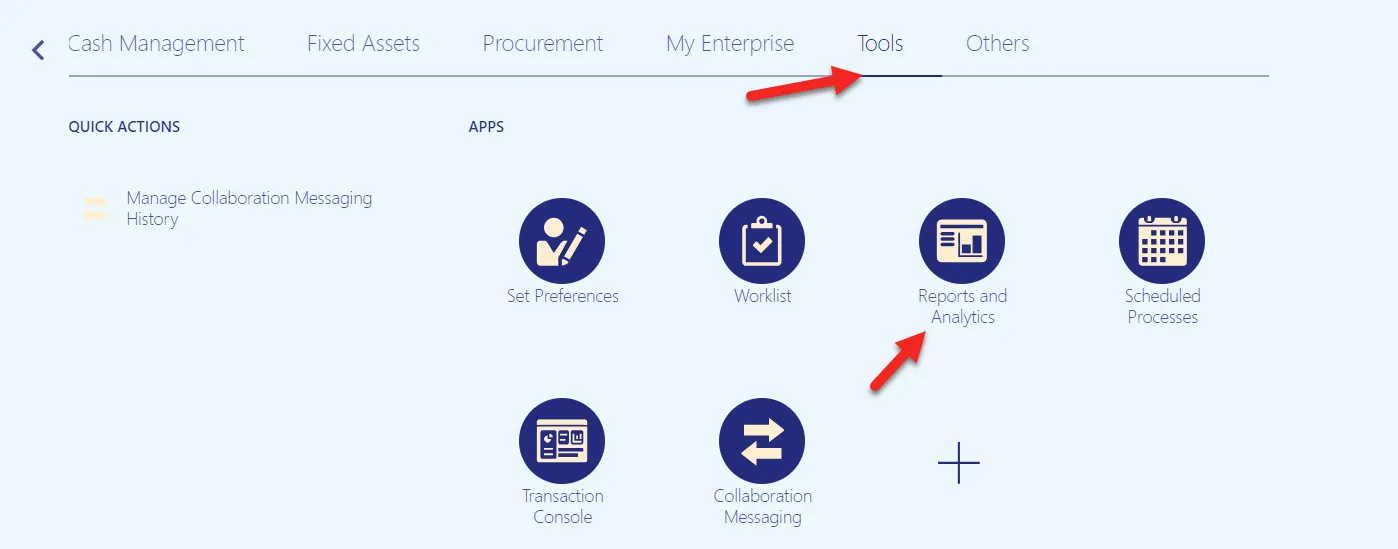
Step 2. Select Tools < Reports and Analytics.
Step 3. Select Browse Catalog.

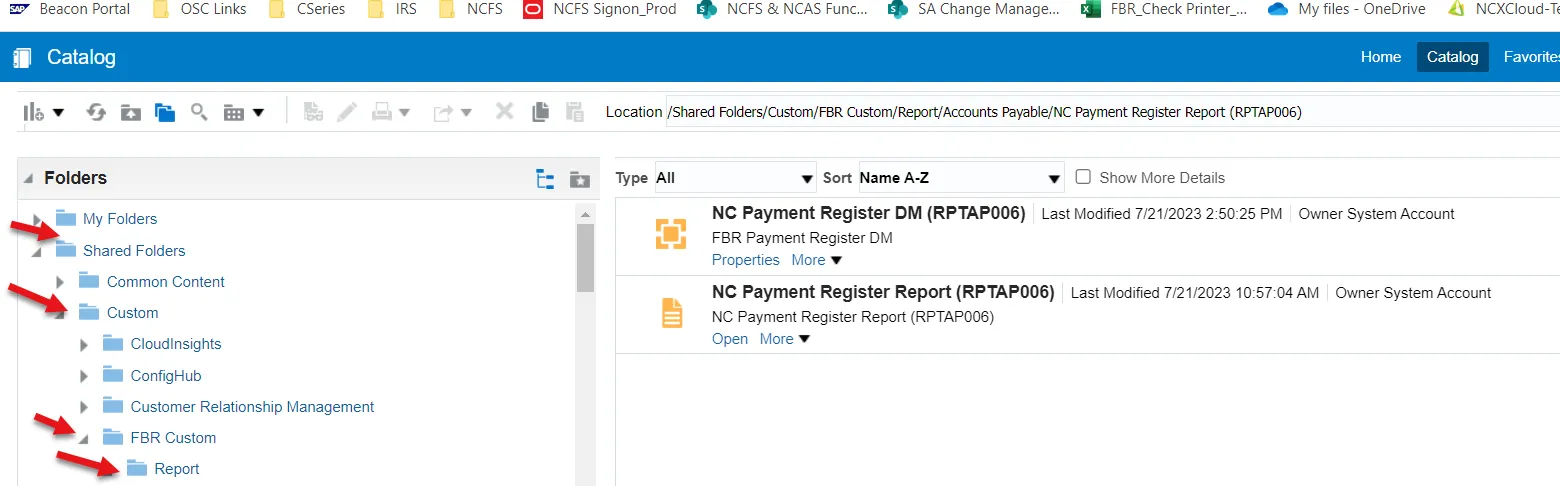
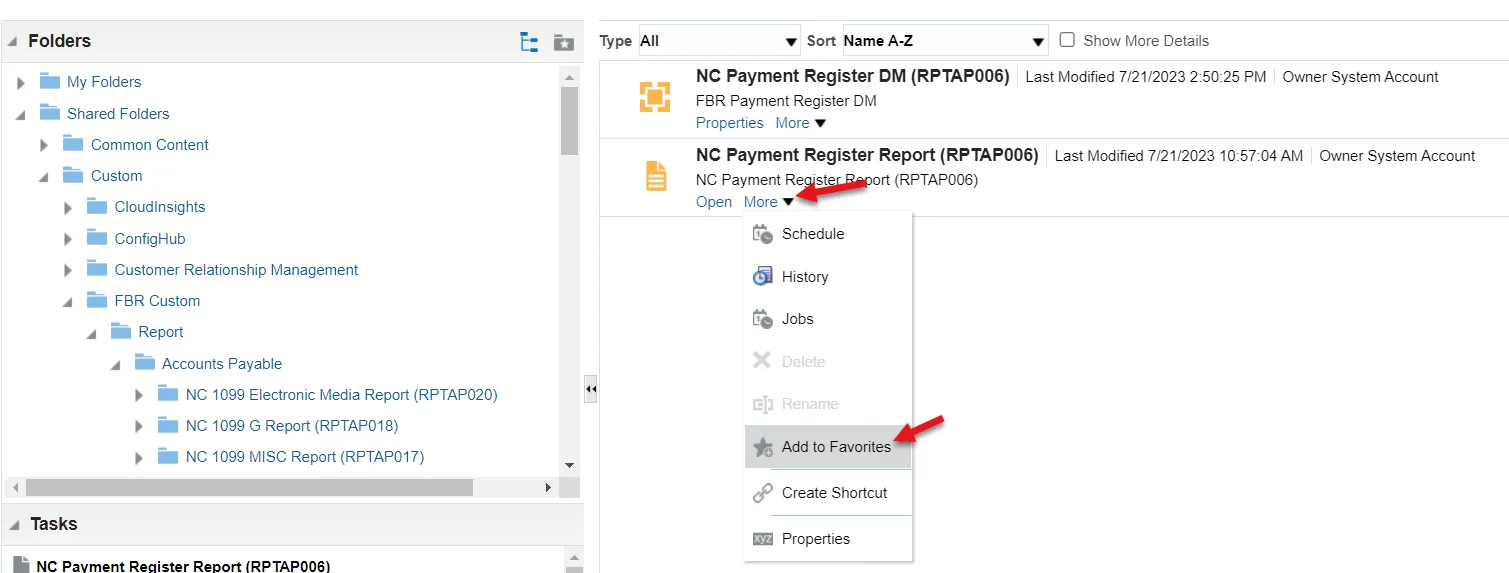
Step 4. Navigate to the report under the following path: Shared Folders < Custom < FBR Custom < Report.
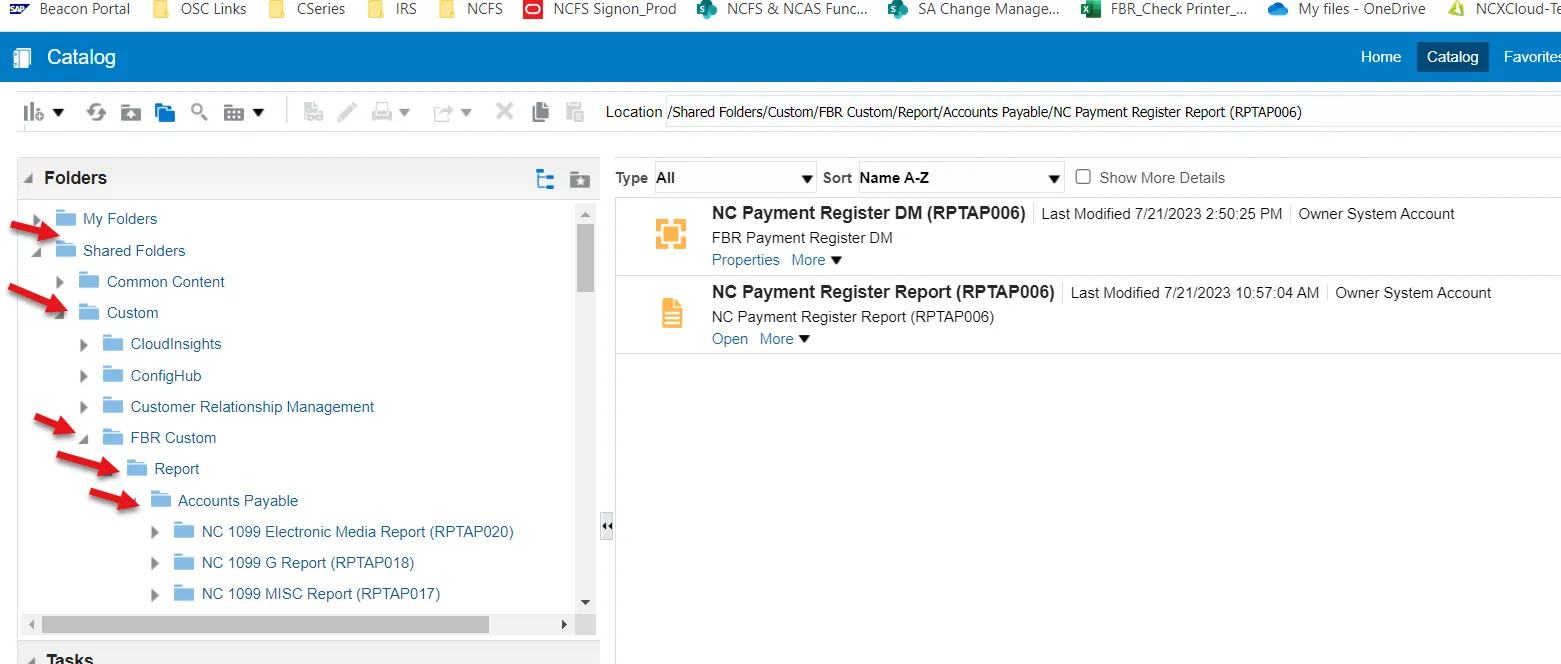
Step 5. Pick the process area and report to be assigned as a favorite.
Example below shows Account Payable<NC Payment Register Report.
Step 6. Under the report to be assigned as a favorite, click the More hyperlink and select Add to Favorites.
Step 7. Click the Favorites menu on the top toolbar to see assigned reports to the Favorites menu.
